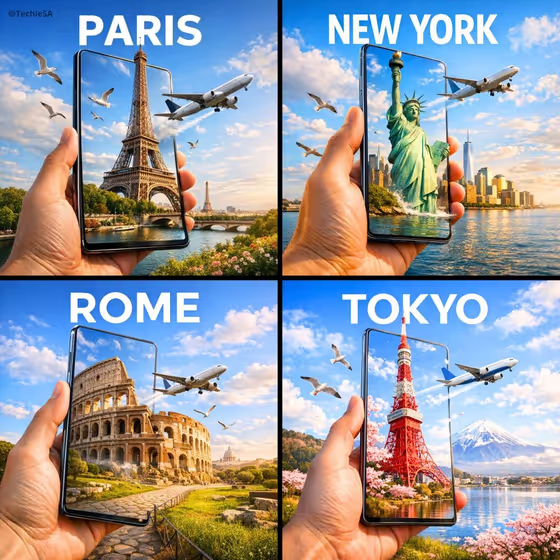
Destination Portal Ad makes a travel-style image of a hand holding a phone, with a landmark rising out of the screen and continuing into the scenery around it. The city name is lettered in bold text above the scene, and the sky carries birds and an airplane in bright daylight, as in the cover grid of Paris, New York, Rome and Tokyo.
It suits travel promos, destination posts, agency mockups or a quick visual for a trip you are planning. You pick the landmark, type the city name and choose the surroundings, and the template handles the held-phone composition and portal effect.
What works best as input
- In the Destination Landmark Product field, name the landmark clearly, for example the Eiffel Tower or Tokyo Tower. A specific, recognizable name gives the template something concrete to build the portal around.
- This field also accepts a destination reference photo. If you add one, choose a clear, well-lit shot where the landmark is the main subject and not hidden behind crowds or objects.
- You can also describe a broader scene instead of a single monument, such as Santorini cliffside villages or the Dubai skyline.
- For City Name, type just the city as you want it lettered above the portal, like Paris. Keep it short so the headline text stays bold and readable.
How to use it
- Open the Destination Portal Ad template in Phosphene.
- Fill in Destination Landmark Product by describing the landmark or adding a reference photo, then type the city name in City Name.
- Choose a Destination Surroundings option, such as City skyline, Sunlit coastline, Rolling meadows or Mountain valley.
- Generate the image, then check that the landmark, the lettering and the landscape beyond the screen look the way you intended.
Tips for a better result
- Match the surroundings to the landmark. A skyline suits towers and big-city icons, while a coastline or meadows fits places where the landmark sits near water or open land.
- Try the same landmark with different Destination Surroundings choices to get several variations of one destination.
- Use the same layout across multiple cities to build a matching set, like the four-panel look in the cover.
- If you add a reference photo, pick one with clean lighting so the landmark stays recognizable inside the portal.
Common mistakes
- Typing a vague landmark such as a famous building or a nice place. Naming the exact landmark gives a more accurate result.
- Writing a long phrase in City Name. The text is meant to be a short headline, so a single city name works best.
- Choosing surroundings that clash with the landmark, which can make the portal feel less believable.
FAQ
Do I have to upload a photo?
No. The landmark field accepts a text description, and a destination reference photo is optional. The City Name and surroundings are chosen without photos.
What does the City Name field do?
It sets the text lettered above the portal, such as Paris or Tokyo. Enter just the city so the headline stays clean.
What are the surroundings options?
You can choose City skyline, Sunlit coastline, Rolling meadows or Mountain valley. This is the landscape that continues beyond the phone screen.
What format is the result?
It creates an image in a 16:9 aspect ratio.