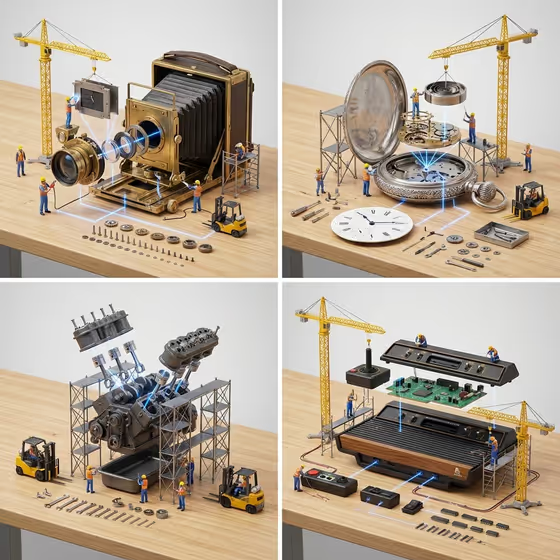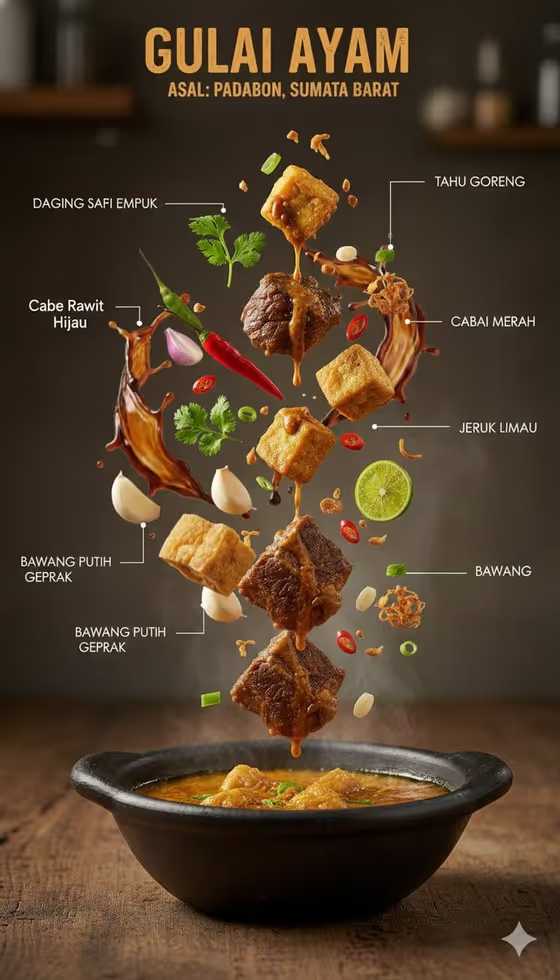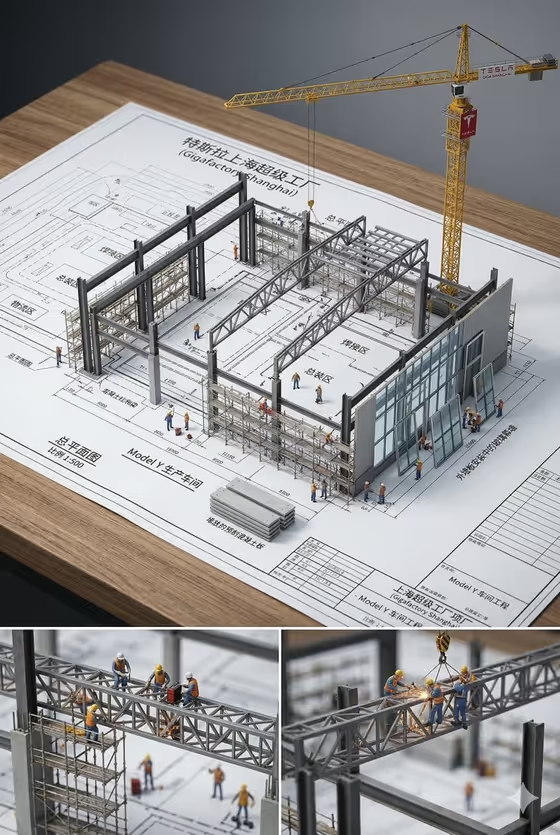
Diorama Blueprint Infographic turns a technical subject into a miniature scene built on top of a blueprint sheet. The cover shows the idea clearly: a factory-style structure with steel frames, a crane, scaffolding and tiny workers, all standing on drawn plan lines with labels, with closer detail crops underneath.
It suits anyone who wants to explain how something is built or organized in a visual way, such as a product, an architectural system, a machine or a cultural topic. You only fill in two fields, and the template handles the miniature scale, studio lighting and raised base.
The output is a 2:3 image, so it works well as a tall poster-style graphic.
What works best as input
- This template has no photo upload. Both fields are text or a choice, so everything depends on how clearly you name your subject.
- In Diagram subject name, be specific. 'a technical product', 'an architectural system', 'a vehicle or machine' and 'a cultural guide topic' are the starting points, and a more concrete version of one of these usually reads better than a vague one.
- Pick a subject that has visible parts, such as frames, components or layers. The cover works because a building under construction has many distinct pieces to show.
- Choose a subject you could draw as a plan or cutaway. Abstract ideas with no physical form give the blueprint and miniature look less to work with.
How to use it
- Open the Diorama Blueprint Infographic template in Phosphene.
- Type your subject into the Diagram subject name field, describing the main thing you want explained.
- Choose an option in Information focus: components and labels, measurements and materials, workflow and relationships, or cutaway and functional arrows.
- Generate the image, then check that the subject is recognizable, the blueprint lines are clear and the base looks raised. Adjust your wording and run it again if needed.
Tips for a better result
- Match the Information focus to your goal. 'Components and labels' suits naming parts, 'measurements and materials' suits specs, 'workflow and relationships' suits process, and 'cutaway and functional arrows' suits showing how something works inside.
- Try the same subject with each Information focus option to compare how the diagram changes.
- Name the subject with a few concrete details (type, setting, scale) so the miniature scene has something definite to build.
- Keep the subject to one main thing. The template keeps the main identity readable, so a single clear hero gives the cleanest result.
Common mistakes
- Entering a very broad or abstract subject, which leaves the diagram without a clear central object.
- Expecting to upload a reference photo. This template only accepts text and a choice, so describe the subject in words instead.
- Packing several unrelated subjects into the one field, which competes with the single hero the template is built around.
FAQ
Can I upload a photo of my subject?
No. Both fields are text or a choice, so you describe the subject in the Diagram subject name field.
What does Information focus change?
It sets what the diagram emphasizes: labeled components, measurements and materials, workflow and relationships, or a cutaway with functional arrows.
What shape is the output?
The image is 2:3, a tall portrait format.
Will the text on the blueprint be readable?
The template aims for blueprint-style lines and labels, but small text in generated images can vary, so review the result and regenerate if a label looks off.