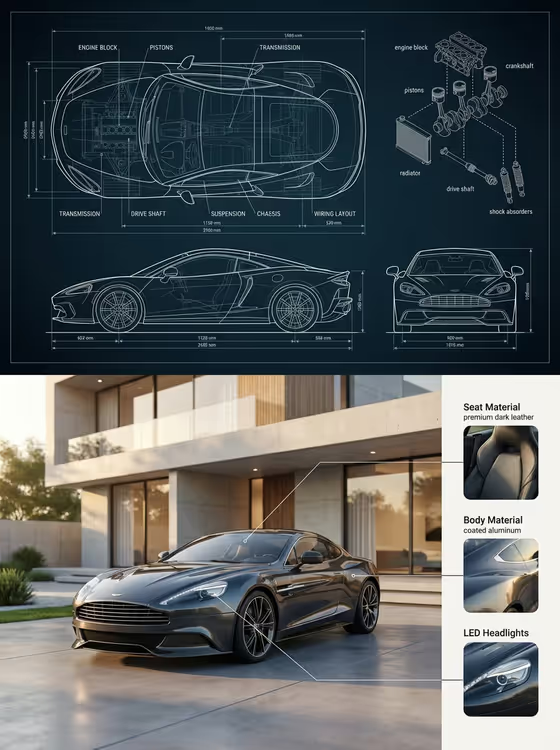
This template builds a single tall image in two halves. The top half is a dark blue engineering blueprint of an object, with a top view, side view, front view and an exploded set of parts. The bottom half is a photoreal render of that same object, with a side panel of close-up material callouts.
It suits designers, product teams, car enthusiasts and anyone who wants an editorial-style product breakdown for a presentation, mood board or social post. The cover example shows a grey coupe set in front of a modern concrete house, but you steer the subject with the Object field.
What works best as input
- In the Object field, name the subject as specifically as you can. A clear, single object (the cover shows one car) gives the blueprint and the render a better chance of agreeing with each other.
- The Object field accepts a photo as a visual reference, so use one if you want the result to follow a particular shape. Pick a clean, well-lit picture of one object with nothing else crowding the frame.
- If you describe instead of uploading, include the details that define the design, such as body style, finish and any distinctive features, so the blueprint has real geometry to draw.
- Use a photo or description of an object that has visible parts and materials. The layout is built around labeled components and material close-ups, so something with a clear structure works best.
- Do not put a photo in Information Focus. That slot is text only, so describe what you want the labels and callouts to emphasize in words.
How to use it
- Open the Editorial Information Design template in the Infographics category.
- Fill in Object with a description of your subject, or add a reference photo there if you have one.
- Fill in Information Focus with the angle you want, for example components and functional details, or one of the variation styles shown in its examples.
- Generate the image, then compare the top blueprint against the bottom render and check that the labels and callouts are readable.
Tips for a better result
- Try the example values in Information Focus (a refined classic variation, a bold contemporary variation, a playful expressive variation) to see how the same object changes in tone.
- Be specific about materials in your Object description, such as leather, coated aluminum or glass. The material panel on the right picks up on those cues.
- Keep your wording short and concrete rather than stacking many adjectives. A clear subject makes the blueprint and render easier to keep consistent.
- Run the template again with small changes to the Object text to compare versions and keep the one where the top and bottom match best.
Common mistakes
- Describing several different objects in one Object field. The template expects one hero subject shown in both halves.
- Leaving Information Focus vague or generic. Without a clear focus, the labels and callouts have less to anchor to.
- Using a cluttered or low-quality reference photo, which gives the blueprint unclear shapes to trace.
FAQ
Do I have to upload a photo?
No. The Object field is text, and it also accepts a photo as an exact visual reference. You can simply describe the object instead.
Does it only work for cars?
The cover and the built-in layout are car-themed, with parts like engine block, transmission and suspension. The Object examples also include products such as a fragrance bottle or a smart device, so you can try other subjects, though results may differ from the car layout.
What shape is the output?
It is a single image in a 3:4 vertical format, split into a blueprint on top and a real-world render below.
Can I use a photo in the Information Focus field?
No. Information Focus is text only. Use it to describe what the labels and callouts should highlight.