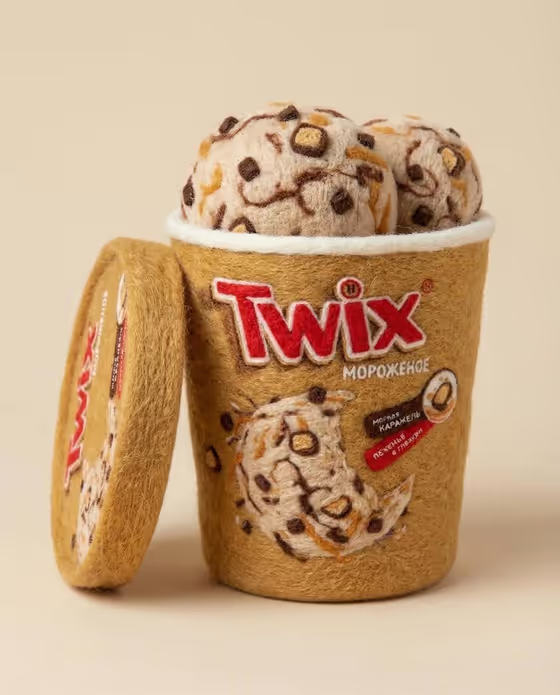
Felt Product Miniature turns an everyday product into a needle-felted wool sculpture. The result is a macro-style studio image in a 3:4 frame, where fluffy fibers, soft edges and stitched details stand in for the original materials. The cover shows the idea well: a packaged item with lettering and artwork rebuilt in wool, with a lid resting beside it.
It suits anyone who wants a cozy, handmade look for a product shot, such as makers, small shops, gift ideas or social posts. You pick the product and a pastel backdrop, and the template handles the felted treatment and soft diffused lighting.
What works best as input
- In the Product field you can either describe the item in words or add its photograph. A short, clear name like "a running shoe" or "a perfume bottle" works as a starting point.
- If you add a photo, choose one with the product clearly visible and unobstructed, so its recognizable shape carries over into the wool version.
- Pick products with a distinct silhouette. Containers, cameras, shoes and bottles give the felting something solid to follow.
- Products with bold labels, logos or printed artwork can come out as stitched or felted surface details, as the cover example shows with its lettering and pattern.
- Keep to one product per generation so the sculpture stays the clear focus of the frame.
How to use it
- Open the Felt Product Miniature template in Phosphene.
- In the Product field, type a description of your item or add its photograph.
- In Pastel Backdrop, choose a color such as Powder blue, Soft peach, Pale lavender or Mint green.
- Generate the image, then review the felted texture, shape and background, and adjust your inputs if you want a different result.
Tips for a better result
- Match the backdrop to the product. A warm, tan item like the one on the cover sits comfortably on a soft peach or cream tone, while a cool-toned object may suit Powder blue or Mint green.
- Try the same product with each of the four backdrop options to compare moods before choosing a favorite.
- If a text description gives a generic result, add specifics such as the shape, main colors or a notable detail so the sculpture feels more like your actual product.
- Use a clean, well-lit photo in the Product field when exact proportions and surface details matter.
Common mistakes
- Describing the product too vaguely, such as just "a bottle", which leaves the felted shape and details to guesswork.
- Adding a photo where the product is cropped, cluttered or hidden behind other objects, which makes the form harder to rebuild accurately.
- Expecting every tiny printed detail to carry over exactly. The wool treatment simplifies surfaces into fibers and stitching.
FAQ
Do I have to upload a photo?
No. The Product field accepts either a text description or a photograph, so you can start with just a few words.
What backdrop colors can I choose?
The Pastel Backdrop field offers options such as Powder blue, Soft peach, Pale lavender and Mint green.
What shape will the image be?
The template outputs a single image in a 3:4 aspect ratio.
Will the felted version look like my real product?
The template aims to preserve the product's recognizable form while rendering it in wool, so a clear description or photo helps. Details are expressed as fibers and stitching rather than exact reproduction.