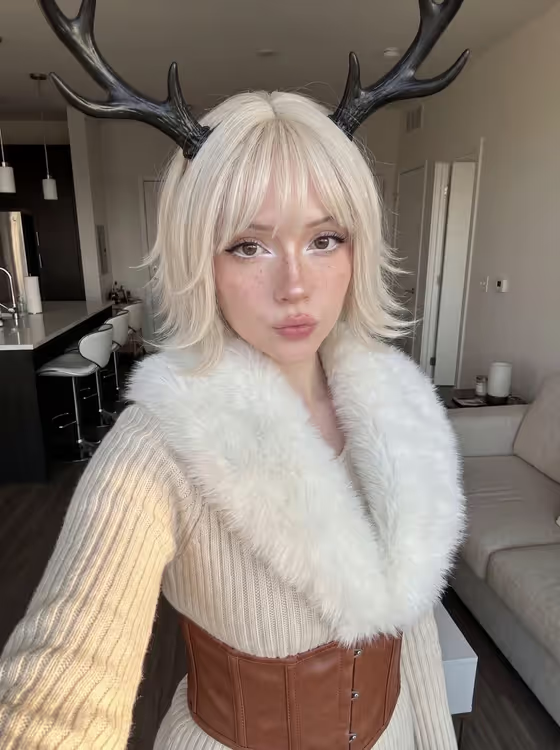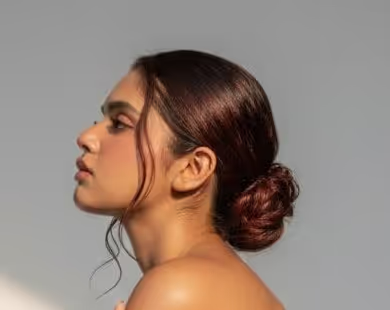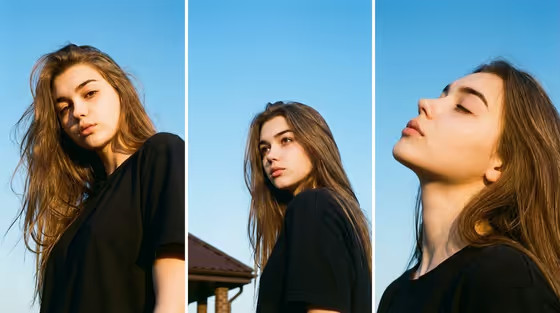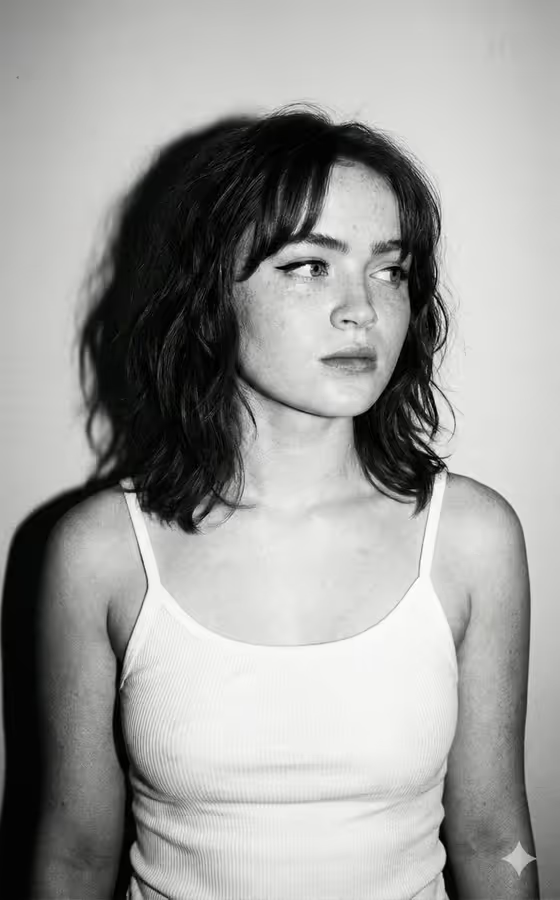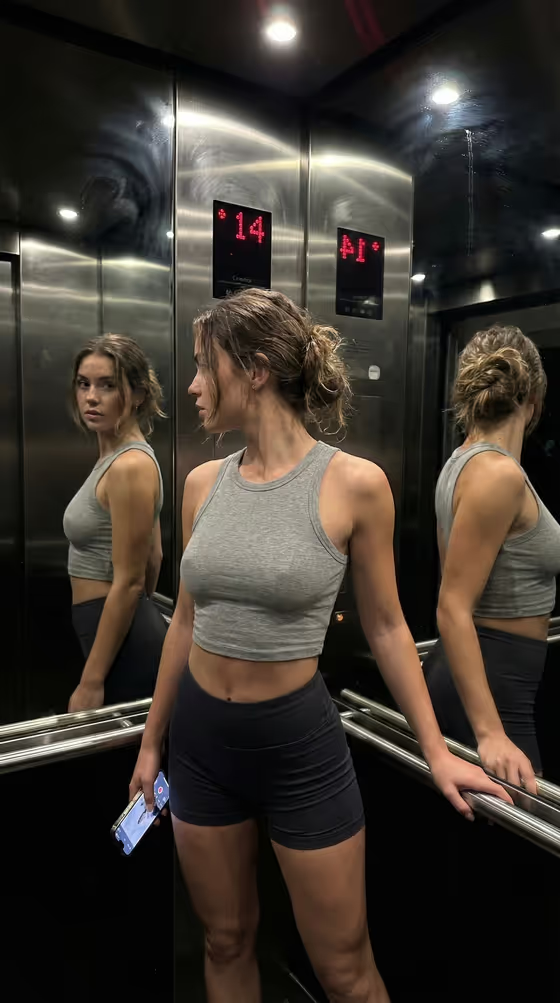
This template makes a vertical 9:16 mirror selfie set inside a late-night elevator. The look is deliberately raw and phone-shot: brushed steel panels, mirrored walls on several sides, a glowing red floor number, and slightly imperfect exposure, like a real front-camera snapshot.
It is for anyone who wants a casual, documentary-style portrait of an adult subject in a specific outfit. You control two things, the Subject and the Outfit, and the template handles the elevator setting, lighting and camera feel.
What works best as input
- Both the Subject and Outfit fields accept a text description or a photo reference, and the template is set up for two or more uploads. Add one clear reference for each if you want an exact visual match.
- For the Subject, use a sharp, well-lit photo of an adult where the face and hairstyle are easy to see. Avoid heavy filters, sunglasses or hats that hide features.
- For the Outfit, a clean photo of the garment on its own or worn works best. Make sure the cut, color and fabric are visible and nothing else in the frame competes with it.
- If you type instead, be concrete. The examples in the fields, such as a relaxed linen ensemble or a technical outdoor outfit, show the right level of detail: a garment type plus a style or material.
- Pick references that suit a close, mid-body mirror shot. The scene frames roughly from the upper legs to the head, so the outfit should read well from that distance.
How to use it
- Open the Elevator Mirror Reflection Selfie template in Phosphene.
- Fill in the Subject field with a short description (for example, a confident adult) or attach a photo reference of the person you want to see.
- Fill in the Outfit field with a description or a photo of the clothing, such as a bold retro look or a tailored statement outfit.
- Generate the image, then check the result for a believable reflection, a readable elevator setting and an outfit that matches your reference. Adjust the fields and run it again if needed.
Tips for a better result
- Name fabrics and fit in the Outfit field (linen, spandex, ribbed knit, structured wool). Texture words help the realistic phone-photo look.
- Try the Subject examples as a starting point and swap one detail at a time, such as hair or general vibe, so you can see what changed between runs.
- Keep your Subject and Outfit references stylistically consistent. A casual outfit photo paired with a very formal subject description can pull the result in two directions.
- Run the template several times with the same inputs. Mirror reflections can vary a lot, and some versions will read cleaner than others.
Common mistakes
- Using low-resolution, blurry or heavily filtered reference photos, which gives the template little real detail to work from.
- Writing vague one-word inputs like nice outfit. The template needs a clear garment and style to place on the subject.
- Uploading group photos or busy images as a reference, so it is unclear which person or garment you actually want.
FAQ
Do I have to upload photos?
Not necessarily. Subject and Outfit are required fields that accept either a text description or a photo reference, though the template is set up for two or more uploads if you want exact visual matches.
What size is the image?
The output is a vertical 9:16 image, like a phone screen photo.
Can I change the elevator setting?
The scene is part of the template's fixed direction, so the elevator, mirrors, lighting and selfie style stay the same. You change the look through the Subject and Outfit fields.
Whose photo should I use as the Subject?
Use photos of yourself or of someone who has agreed to it, and only adults. Do not use the likeness of public figures or anyone who has not given permission.