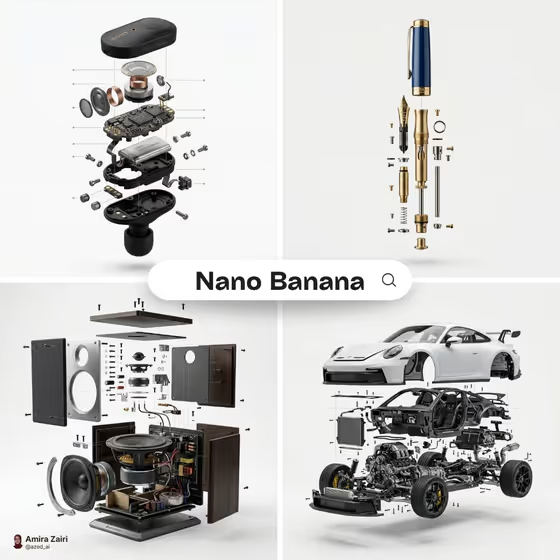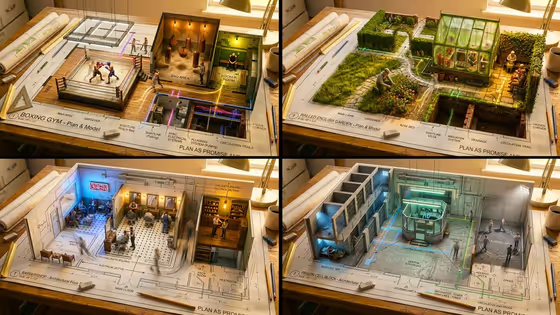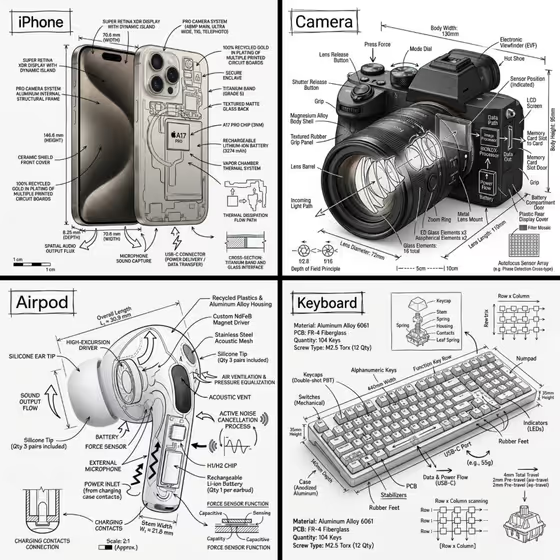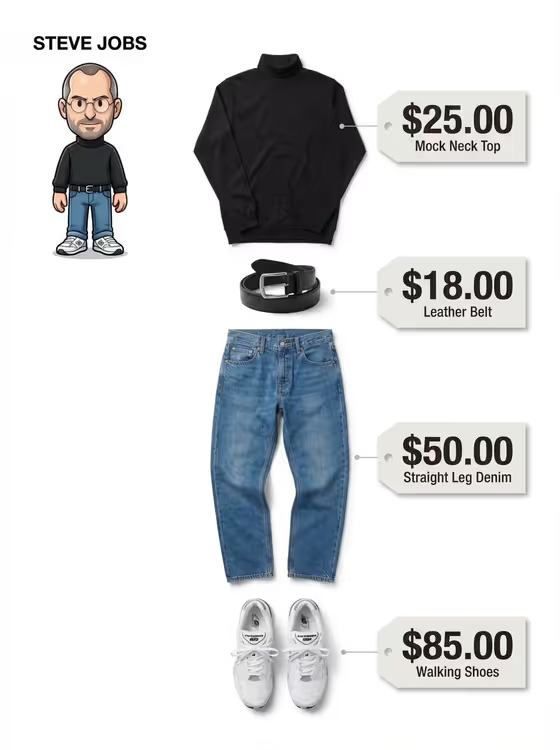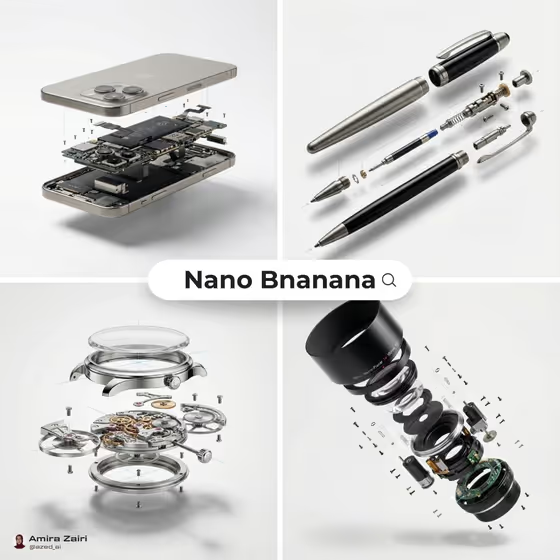
This template turns a single product into an exploded-view diagram, with the outer shell, inner core, screws and smaller components floating apart in a readable assembly order. The result is a square 1:1 image on a clean white background with a soft grounding shadow, similar in spirit to the four example objects on the cover (a phone, a pen, a watch and a camera lens).
It suits product designers, shop owners, hardware brands and anyone who wants an engineering-catalog style visual of a gadget or tool without building a technical illustration by hand. You describe the product, pick a shell finish and choose how much internal detail to show.
What works best as input
- In the Product field, you can describe the item in words or add a reference photo, since this slot accepts both. A single clear reference helps the diagram stay faithful to the real shape.
- If you use a photo, pick one with the whole product visible, even lighting and a plain background so the outline and proportions are easy to read.
- If you type instead, be specific about the object, for example 'a premium wireless earbud' or 'a mechanical wristwatch', rather than something vague like 'a gadget'.
- Choose a Shell finish that matches the real product, such as Satin black, Brushed silver, Warm white ceramic or Deep cobalt metal, so the exterior looks right against the exposed parts.
- Set Component detail based on your goal: Essential parts for a simple diagram, Dense engineering detail for a busy technical look, or Minimal sculptural layers for a cleaner, more artistic result.
How to use it
- Open the Exploded Earbud Diagram template in Phosphene.
- Fill in the Product field by describing your item or adding a reference photo of it.
- Select a Shell finish and a Component detail level from the options provided.
- Generate the image, then review the square result and adjust your choices if the parts or finish are not what you wanted.
Tips for a better result
- Try the same product with different Component detail settings. Balanced assembly and Dense engineering detail produce noticeably different amounts of internal parts, so compare both.
- Swap the Shell finish to create a set of variants, for instance Brushed silver and Warm white ceramic, for the same product in a consistent catalog style.
- Name the product category clearly (watch, camera, shaver, earbud) so the internal parts that appear make sense for that kind of object.
- If a reference photo gives odd proportions, try a text description of the product instead, or the reverse.
Common mistakes
- Describing the product too loosely, which leaves the tool guessing what internal parts should appear.
- Picking Dense engineering detail for a very small or simple product, which can make the diagram feel crowded instead of readable.
- Using a cluttered or dark reference photo, which makes the product's true outline harder to follow in the exploded layout.
FAQ
Do I have to upload a photo?
No. The Product field accepts a text description, and it can also take a reference photo. The finish and detail fields are choices you select, not photo fields.
Does it only work for earbuds?
No. Despite the template name, the Product field is open, and examples include a mechanical wristwatch, a compact camera and a cordless electric shaver.
What size and background will the image have?
The output is a 1:1 square image on a white background with a gentle shadow, with parts kept separated and unobstructed.
How do I control how many internal parts show up?
Use the Component detail field. Options include Essential parts, Balanced assembly, Dense engineering detail and Minimal sculptural layers.