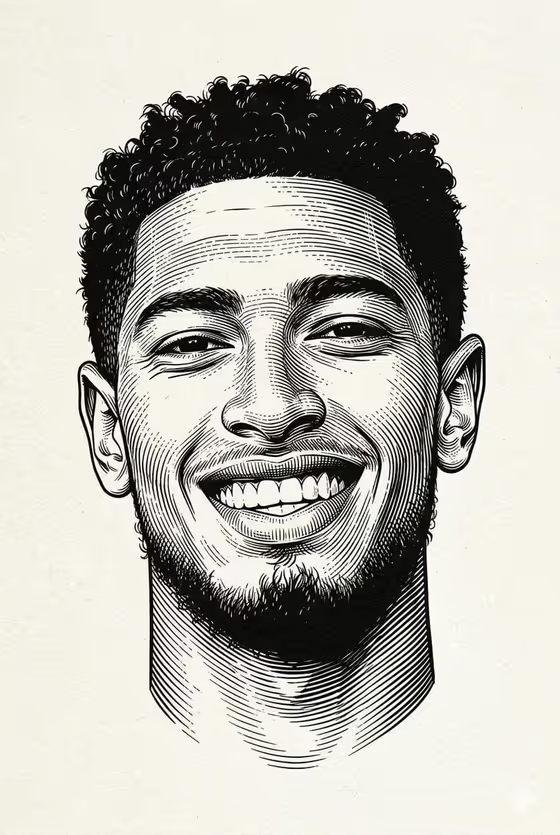
Engraved Portrait turns a chosen subject into a black-and-white woodcut-style engraving. The cover shows the look: a centered head-and-neck portrait drawn in fine cross-hatching, with bold black ink in the hair and under the chin, on a textured off-white paper background.
It suits anyone who wants a vintage editorial illustration of a person, a character, or another subject for avatars, posters, or print-style artwork. The output is a single 3:4 image in a strict monochrome palette.
What works best as input
- The template asks for 2 or more photos, so upload several clear shots of the same subject. Different angles help the engraving capture the face and defining features accurately.
- Choose well-lit photos where the face is fully visible and in focus. Strong, even lighting gives the cross-hatching clear shapes to follow for shadows and contours.
- Use a subject you have the right to portray, such as yourself, a friend who agrees, or your own character. Avoid likenesses of public figures.
- If you describe the subject in the text field instead, be concrete about hair, expression, and distinctive features, for example 'an original character' or 'my exact character reference'.
- Skip heavy filters, sunglasses, or hats that hide the face, since the engraving relies on visible facial detail.
How to use it
- Open the Engraved Portrait template in Phosphene and add your photos (at least two) in the portrait subject field, or describe the subject in the text box.
- In the Character staging field, pick how you want the subject framed. The default, a black and white engraved portrait illustration, matches the cover style.
- Generate the image and wait for the 3:4 result to appear.
- Review the portrait for likeness, expression, and linework. If something is off, adjust your photos or description and generate again.
Tips for a better result
- Pick photos with a natural expression, like the open smile on the cover, since the engraving keeps the mood of the face.
- Add a short description alongside your photos to point out features you want preserved, such as hair texture or facial hair.
- Try the other Character staging options, like collectible character portrait or full-body character scene, to see how the framing changes while the engraved ink style stays.
- Run it with a few different photo sets of the same subject and compare, since small differences in angle and lighting change the shading.
Common mistakes
- Uploading only one photo or blurry, dark images, which gives the engraving less to work from and can weaken the likeness.
- Writing a vague description such as 'a person' with no photos, which leaves the template guessing at the subject.
- Expecting color or a busy background. The template is fixed to monochrome ink on plain textured paper with a centered portrait.
FAQ
How many photos do I need?
The template asks for 2 or more photos of your subject, so add at least two clear images.
Can I use text instead of a photo?
The subject field accepts either a description or an uploaded reference. The template is set up to work from 2 or more photos, so photos are the better choice when you want a specific likeness.
Will the result be in color?
No. The style is fixed to black ink on off-white textured paper, like the cover image.
What shape is the output?
A single image in a 3:4 portrait aspect ratio, centered on the subject's head with clean empty space around it.