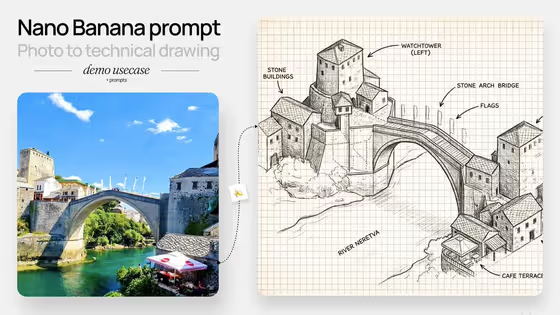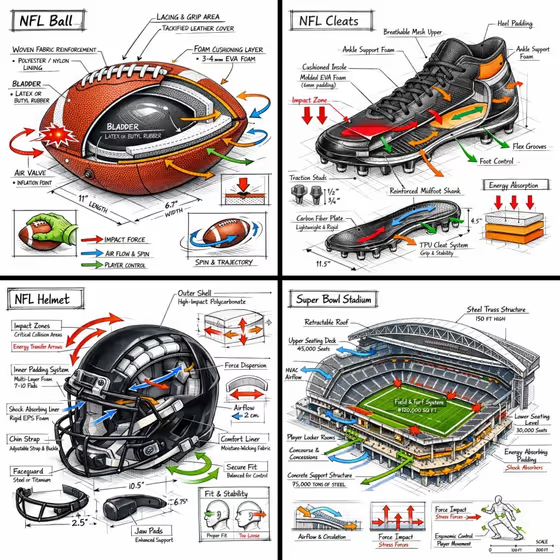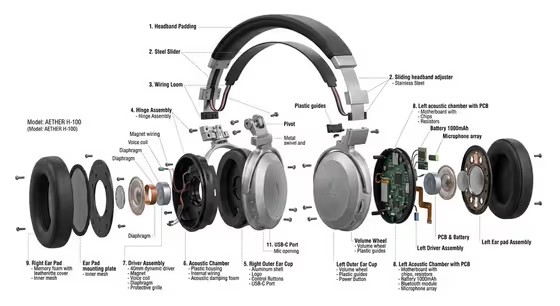
This template turns a product into an exploded-view technical diagram, with the object split into its individual parts and spread along assembly axes on a clean white studio background. The cover example shows a pair of over-ear headphones pulled apart into ear pads, drivers, acoustic chambers, hinges and headband pieces, all arranged so you can read how the product goes together.
It suits product designers, makers, hobbyists and anyone who wants a clear construction diagram for a camera, scooter, watch or similar object. You choose the product, how far the parts separate, and a material accent palette, and the template handles the layout and studio look.
What works best as input
- In the Product object or vehicle field you can either type a description or upload a reference photo of the object. A clear, specific description such as "a compact mirrorless camera" gives the template a recognizable silhouette to work from.
- If you upload a photo, pick one where the whole product is visible, well lit and not cropped, so the overall shape and proportions are easy to read.
- A plain background and a single product in the frame work better than a cluttered scene with several objects competing for attention.
- You can also type "the object in my reference" in the text field to point the template at your uploaded image.
- Name the specific kind of product (mechanical watch, electric city scooter) rather than something vague like "a device", since that decides which internal parts get shown.
How to use it
- Open the Exploded Camera Diagram template in Phosphene.
- Fill in Product object or vehicle by typing a short description or adding a reference photo of the object.
- Set Exploded separation level and Material accents using the options provided, such as "clear assembly sequence" and "black alloy with red accents".
- Generate the image, then review the 3:4 result and adjust your choices if you want tighter or wider spacing or a different color palette.
Tips for a better result
- Try different Exploded separation level options on the same product. Compact layered separation keeps the silhouette tight, while full technical explosion or museum-style component spread gives each part more room.
- Pick a Material accents choice that contrasts with your product's real finish so neighboring parts stay visually distinct, for example silver metal with cobalt accents on a dark object.
- Products with many mechanical layers, like watches, cameras and headphones, tend to show off the exploded layout best.
- Re-run with the same product but a new accent palette to build a small set of matching diagrams.
Common mistakes
- Describing the product too vaguely. "A gadget" leaves the template guessing at the internal parts, so name the actual type of object.
- Uploading a cropped, dark or busy photo, which makes the product's outline harder to recognize and can muddy the part layout.
- Expecting text labels or numbered callouts. This template is set up for a clean diagram without labels or decorative clutter.
FAQ
Can I use a photo instead of typing a description?
Yes. The Product object or vehicle field accepts either a text description or an uploaded reference of the object.
What shape will the image be?
The output is a still image in a 3:4 aspect ratio.
Will the diagram include labels or captions?
No. The template aims for a clear construction layout with spacing and soft studio shadows, without labels or extra clutter.
Does it only work for cameras?
No. Despite the name, the field examples include a scooter and a mechanical watch, and you can describe other objects that have separable parts.