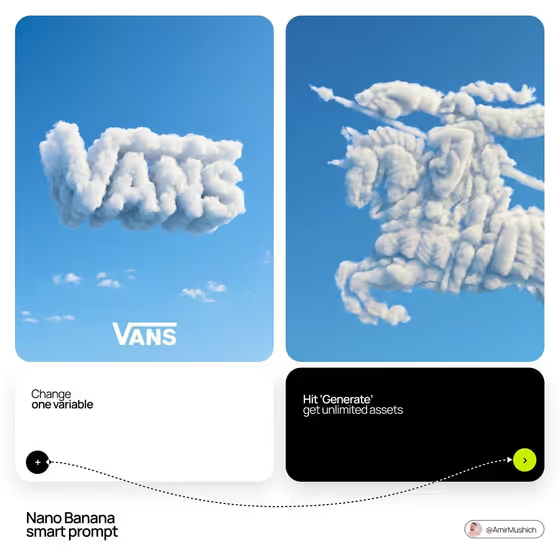
Logo in the Clouds turns a brand mark into one large, soft cumulus cloud floating in an open blue sky. Your brand name sits small at the bottom in clean white lettering, with a small flat version of the mark beside it, like the Vans and horse-rider examples on the cover.
It suits designers, founders, small brands and social teams who want a quiet, surreal visual for a launch post, a moodboard or a hero image. The result is a 3:4 image, which fits tall formats.
What works best as input
- For the Brand logo field, you can type a description or add the logo as a photo reference. A clear, flat image of the exact mark works best if you need the silhouette to stay recognizable.
- If you describe the mark instead, be concrete about its shape, for example "a geometric mountain mark" or "a winged monogram". Vague words like "cool symbol" give the cloud nothing to follow.
- Choose a logo with a strong, readable outline. Bold letterforms and compact emblems tend to translate well into cloud shapes, while hairline details are harder to sculpt from vapor.
- The Sky character field also accepts a photo. Use a picture of a sky you like, or pick one of the described moods such as "deep cinematic cobalt" or "pale airy morning blue".
- For Brand name, type only the text. This field does not take a photo, so enter the name exactly as you want it to appear, such as ALTURA or NORTH.
How to use it
- Open the Logo in the Clouds template in Phosphene.
- Fill in Brand logo by describing the mark or adding its logo reference, then set Sky character to the atmosphere you want.
- Type your Brand name in the third field, using the spelling and capitalization you want shown at the bottom.
- Generate the image, then check that the cloud silhouette matches your mark and the wordmark reads correctly.
Tips for a better result
- Change one variable at a time, as the cover suggests. Keep the logo and name the same and only switch the Sky character to see how the light and mood shift.
- Try a short brand name in capitals. The wordmark is small and restrained, so short names stay crisp and easy to read.
- Use a simple, flat logo reference when exact geometry matters. The template aims to preserve the mark's silhouette, so a clean source gives it a clearer shape to follow.
- Run the same logo through the different sky examples, such as warm late-afternoon azure versus clear saturated summer blue, to build a small set of matching assets.
Common mistakes
- Describing the logo too loosely. If the shape is unclear, the cloud may not look like your brand, so name the key forms or add a reference.
- Using an overly detailed or text-heavy logo. Fine lines and tiny lettering can get lost in the cloud folds, so a simpler version of the mark usually reads better.
- Entering a long brand name or odd spelling in Brand name. The wordmark is meant to be small and clean at the bottom, so check the text carefully before generating.
FAQ
Do I have to upload a logo file?
No. The Brand logo field accepts either a text description or a logo reference photo. Uploading the exact logo gives the cloud a clearer silhouette to follow.
Where does my brand name appear?
It is placed at the bottom of the image as a small white sans-serif wordmark, with a small flat version of the mark beside it. Nothing else is added to the sky.
Will the cloud be inside a badge or frame?
No. The template forms the cloud directly in the shape of the logo, with no enclosing badge, and keeps the sky open and uncluttered apart from a few distant wisps.
What aspect ratio does this produce?
The output is a still image in a 3:4 ratio, which is a tall portrait format.