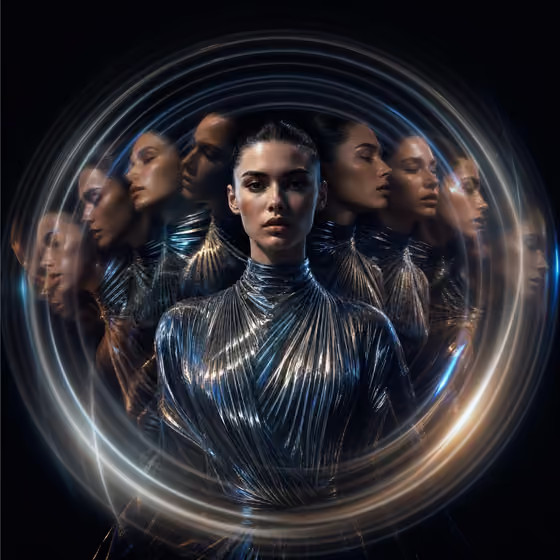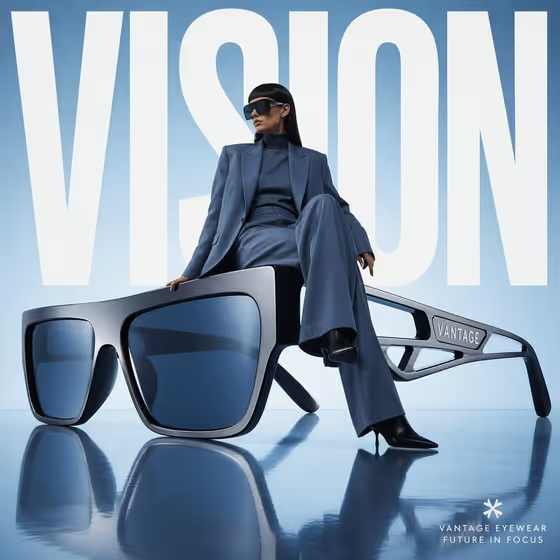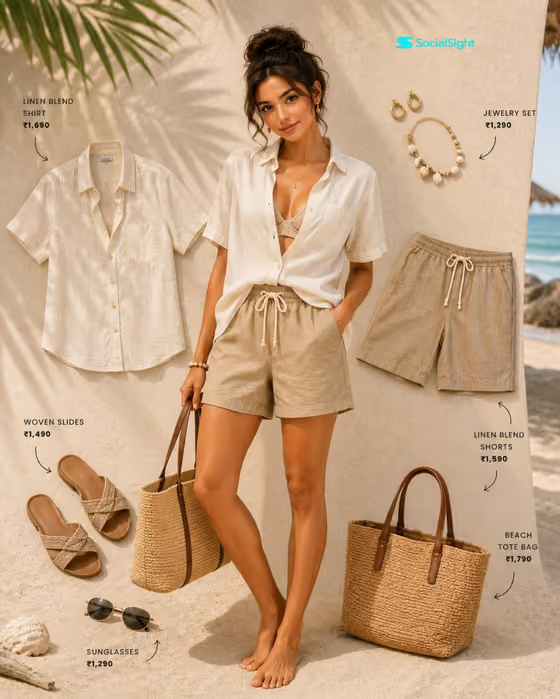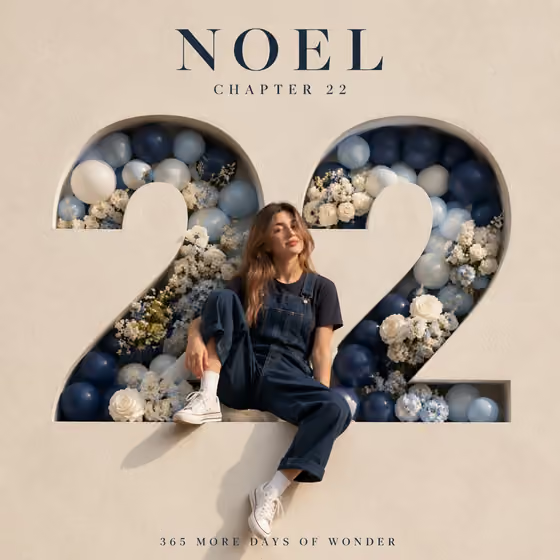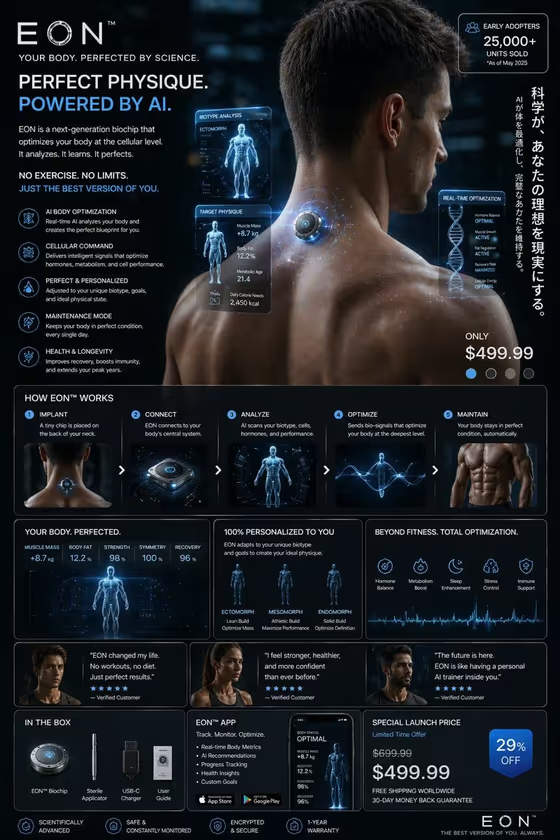
Future Benefit Ad turns a product idea into a single futuristic advertisement in a clean, Japanese-futurist style. The result is a 3:4 image that pairs a hyper-real product with a human moment, a headline, feature icons, a price block, and a short how-it-works section, much like the layout shown on the cover.
It suits founders, marketers, and designers who want to visualize a product concept as a polished ad. You describe the product, give it a name, and pick the scene that shows the benefit in use.
What works best as input
- In the Future Product field, describe the product plainly, for example 'a wearable translation device' or 'a personal health scanner'. Say what it is and what it does.
- This field also accepts a photo, so if you have an exact product reference you can add it to help keep the design faithful. Use a clear image where the whole product is visible.
- Keep the Product Name short and memorable, like MIRAI ONE. It becomes the headline name in the ad, so check the spelling before you generate.
- Choose the Benefit Scene that best matches what your product does. The scene sets the human moment the ad is built around, such as helping travelers communicate or explaining health data calmly.
How to use it
- Open the Future Benefit Ad template in Phosphene.
- Fill in Future Product with a short description, or add a reference photo if you want to anchor the design to a specific product.
- Type your Product Name, then pick a Benefit Scene from the available options.
- Generate the image, then review the headline, icons, price block, and scene. Adjust your inputs and run it again if something is off.
Tips for a better result
- Be specific in the product description. 'A compact home air purifier' gives the ad more to work with than 'a gadget'.
- Match the scene to the product. An air purifier pairs naturally with cleaning air in a family home, while a health scanner suits explaining health data calmly.
- Try the same product with a different Benefit Scene to see how the human moment changes the whole ad.
- If you add a reference photo, use one with a plain background so the product shape is easy to read.
Common mistakes
- Writing a vague product description, which leaves the ad generic and makes the icons and how-it-works section less relevant.
- Choosing a Benefit Scene that does not fit the product, so the human moment feels unrelated to what the product does.
- Using a long or complicated Product Name, which can make the headline harder to read and easier to misspell in the image.
FAQ
Do I have to upload a photo?
No. Future Product is a text field, so you can simply describe the product. It also accepts a photo if you want to use an exact reference.
What size is the result?
The ad is created as a 3:4 image, a portrait layout like the cover example.
Can I write my own Benefit Scene?
Benefit Scene is a choice field, so you pick from the provided options, such as helping travelers communicate or guiding a commuter safely.
Where does the price in the ad come from?
The template builds a layout that includes a price block, but the price field is not something you enter. Treat the pricing as part of the design and check the image before using it anywhere.