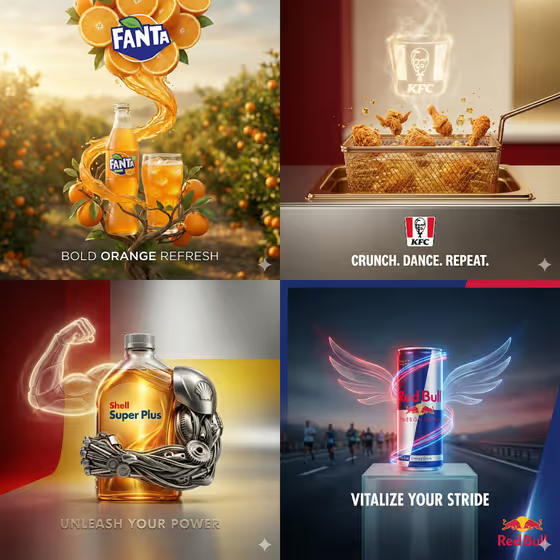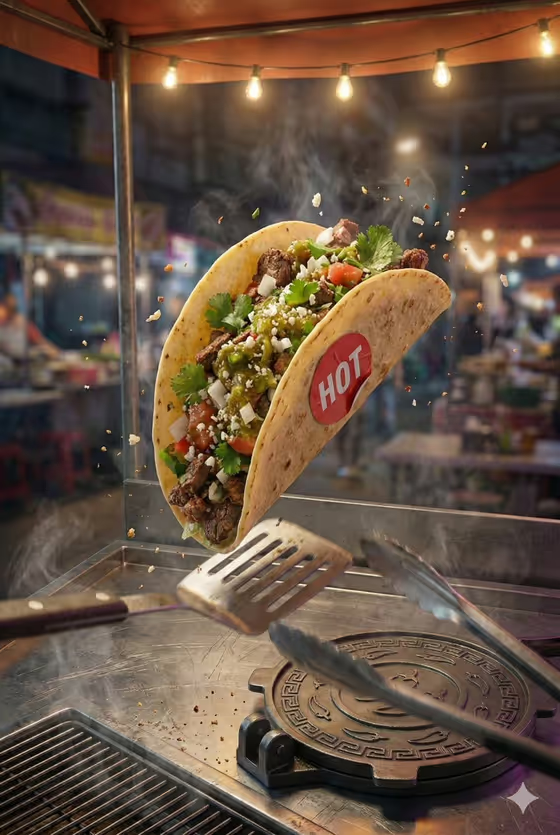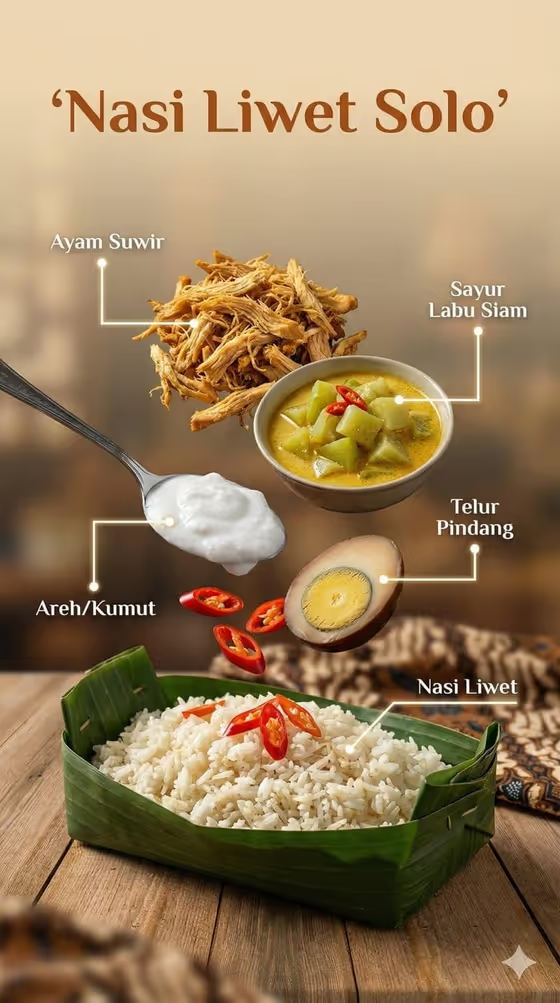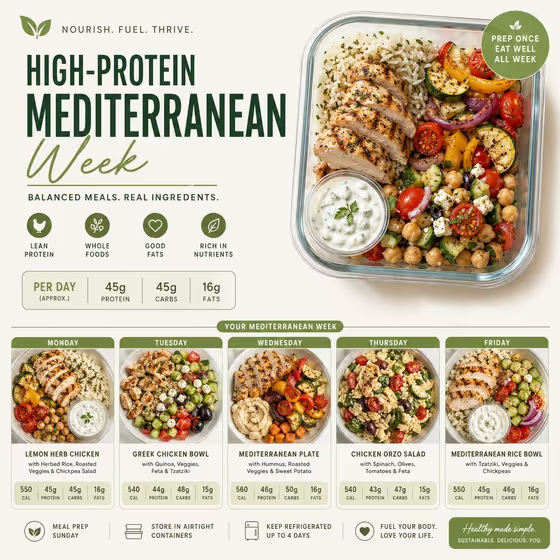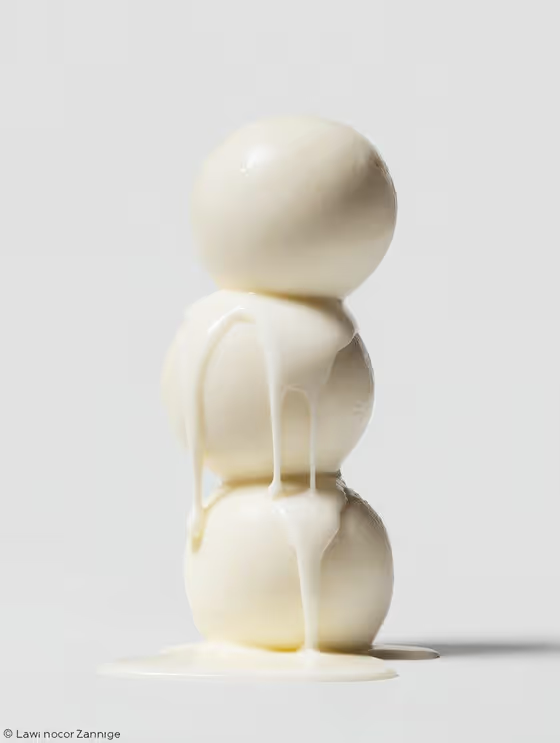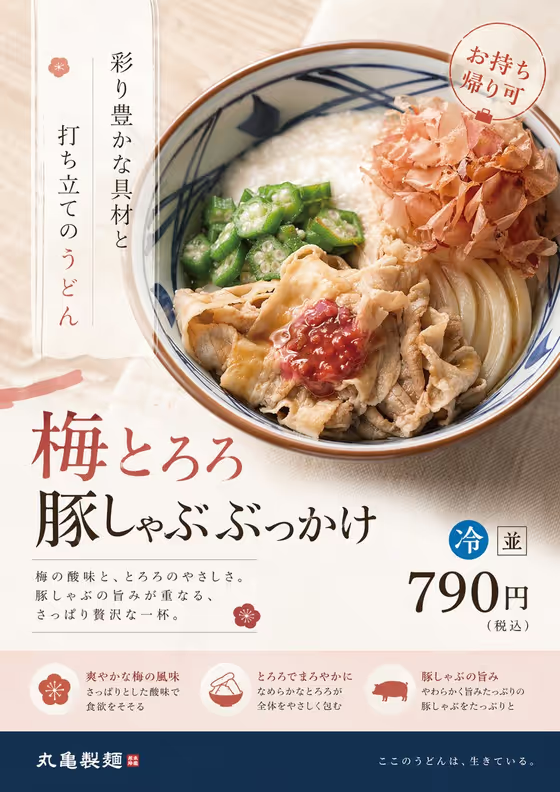
Modern Product Redesign takes an existing product or ad and rebuilds it as a contemporary campaign image in a 3:4 portrait format. The result is guided by an art-director mindset: current hierarchy, typography, product staging and overall polish, with accurate product materials and natural contact shadows.
It suits anyone with a product shot, a packaging photo or an older ad that feels dated, such as a small food business, a shop owner or a designer looking for a fresh take. The cover example shows the idea: a restaurant bowl dish with a headline, price badge and feature callouts, organized into a clear top-to-bottom layout.
What works best as input
- Use the single field, Product or existing ad, to either upload a photo of your product or existing ad, or describe it in words. The placeholder 'the product from my reference' is a good starting point when you upload an image.
- Choose a reference where the product is clearly visible and in focus. A sharp view of the dish, object or package gives the redesign accurate materials to work from.
- If you upload an existing ad, pick one where the product itself is easy to read, since the template rebuilds hierarchy and staging around it.
- If you describe instead of upload, be concrete about what the item is and what it is made of, for example 'a sculptural design object' or 'a premium consumer product', rather than a vague word like 'thing'.
How to use it
- Open the Modern Product Redesign template in Phosphene.
- In the Product or existing ad field, upload your product photo or existing ad, or type a short description of the product.
- Generate the image and wait for the 3:4 result to appear.
- Review the layout, product accuracy and styling, then adjust your input and generate again if you want a different take.
Tips for a better result
- Start from the cleanest, best-lit reference you have. Controlled highlights and natural shadows in the result work better when the source shows the product's real surfaces.
- Try the same product with different inputs, such as an uploaded photo once and a written description another time, and compare which gives the more faithful result.
- Be specific in your description when not uploading. Naming the product type and its premium or everyday character helps steer the campaign tone.
- Run a few generations and keep the one where the product, not the surrounding layout, looks most like your real item.
Common mistakes
- Uploading a cluttered or blurry reference. If the product is hard to make out, the redesign has less to stay faithful to.
- Writing a vague description such as 'my product' with no photo. The field needs either a clear reference or a specific description.
- Expecting every word and detail of the original ad to be preserved. The template rebuilds the ad with new hierarchy and typography, so check any text or details that matter before using the result.
FAQ
Do I have to upload a photo?
No. The Product or existing ad field accepts a photo, but you can also type a description of the product instead.
What shape is the output?
The result is a single image in a 3:4 portrait ratio.
Can I redesign an old advertisement, not just a plain product photo?
Yes. The template is built to remake an existing product or campaign with current hierarchy, typography and staging.
What should I check in the result?
Look at whether the product's materials and details match your real item, and review any text in the layout for accuracy before you use the image.