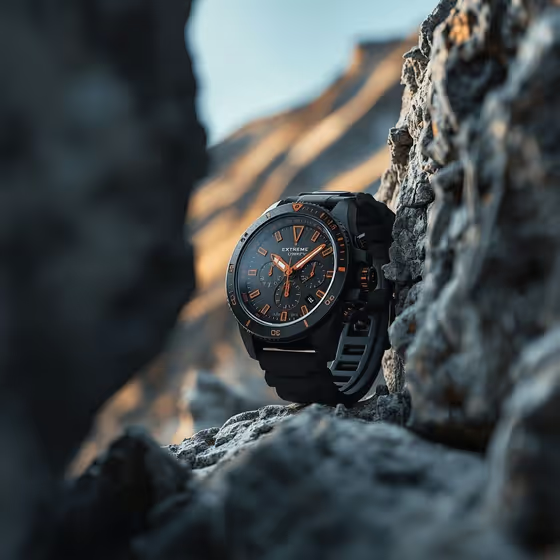
Rugged Watch Canyon turns a watch (or any similar product) into a macro hero shot, wedged between two textured rock formations. The cover shows the idea: a black chronograph with orange accents sits in a narrow rocky gap, with a blurred mountain slope lit by warm light behind it.
It suits product sellers, watch enthusiasts and designers who want an adventure-style image of a rugged piece without staging a real outdoor shoot. The output is a 3:4 image centered on the dial.
What works best as input
- In the first field, rugged chronograph watch product or object, you can type a description or upload a photo of the exact item. A photo is the better choice when you need your own design reproduced.
- If you describe it in words, be specific about the look: case color, bezel, strap material and accent color on the hands and indices. The cover works because the black case and orange details read clearly.
- Use a clear, well-lit reference with the dial facing the camera and the strap visible. The scene is built around the dial, so a reference that hides it gives the template less to work with.
- Pick a watch with a distinct, bold design. Strong contrast between the dial and its markings holds up well against the dark rock.
How to use it
- Open the Rugged Watch Canyon template in Phosphene.
- In the watch or object field, type a description of your watch or upload a photo of it.
- Choose an option in Product presentation. The default frames your watch tightly between two textured rock formations, and you can try the other listed styles for a different framing.
- Generate the image, then review the dial, the rock framing and the lighting, and adjust your inputs if something is off.
Tips for a better result
- Mention the colors you want to see glow. The scene lights orange indices and hands against cool shadows, so a watch with a warm accent color suits it well.
- Describe the strap material (rubber, metal, fabric), since the scene highlights strap texture and the brushed metal bezel.
- Try the other Product presentation options to compare the canyon look with a cleaner studio hero or a more dynamic style.
- If you want a premium unbranded alternative, say so in the first field instead of naming a brand.
Common mistakes
- Writing a vague description such as just 'a watch'. Without case, color and strap details, the result may not match what you picture.
- Uploading a cluttered or dark photo where the dial is hard to read, which makes the focus point of the scene less defined.
- Expecting the background to stay sharp. The mountains are meant to be soft and out of focus so the dial stays the center of attention.
FAQ
Can I upload a photo of my own watch?
Yes. The first field accepts either a text description or an uploaded reference, so you can use a photo of your exact watch.
Does it only work for watches?
The field is labeled as a watch, product or object, so other small rugged products can be described there. The scene is composed around a dial-style subject, so a watch fits best.
What shape is the output image?
It is a 3:4 portrait image, matching the vertical composition shown on the cover.
What does the Product presentation field change?
It sets how the product is framed. The default is a tight frame between two rock formations, and other choices include a clean studio hero and an annotated product breakdown.