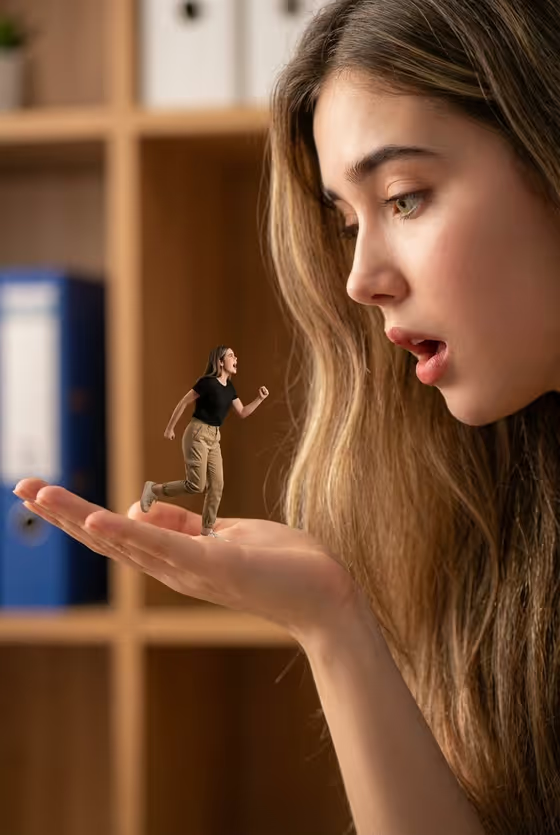
Giant Palm Perspective turns a single portrait into a forced-perspective scene. A huge face and open hand fill the frame, and a tiny version of your subject stands on the palm, caught mid-stride as if reacting to what the giant is saying.
It suits anyone who likes playful, surreal portraits: social posts, profile images, or a funny gift picture. The look is a warm, blurred indoor background with wooden shelves and a binder, with a shallow depth of field that makes the scale difference read clearly.
What works best as input
- Use the Portrait subject field to upload a photo of an adult subject. A clear, well-lit face gives the template the most to work with when it builds both the giant and the miniature figure.
- Pick a photo where the face is unobstructed, with no sunglasses, heavy shadows or hands covering the features.
- If you would rather describe than upload, the field also takes text. The placeholder 'an adult subject matching my reference' shows the style of wording that fits.
- Choose a photo whose expression is easy to read, since the Pose or expression field builds on the gaze and mood you give it.
- Only upload photos of people who are happy to be shown this way, and keep the subject an adult.
How to use it
- Open the Giant Palm Perspective template in Phosphene.
- In Portrait subject, upload your photo or describe the subject in text.
- In Pose or expression, choose one of the examples or write your own, such as 'calm direct gaze' or 'intense focused gaze'.
- Generate the image, then check the result for believable scale, contact between the tiny figure and the palm, and consistent shadows.
Tips for a better result
- Try different Pose or expression choices. 'Quiet introspection' gives a very different mood from 'intense focused gaze'.
- Keep the default 'the source gaze and expression' if you want the result to stay close to how you look in your photo.
- Use a photo with good, even lighting so skin and hair detail carries through into the warm, cinematic look.
- Generate a few times and compare. Small differences in hand placement and the miniature's pose can make one version feel more natural.
Common mistakes
- Uploading a blurry, tiny or heavily filtered photo, which leaves the template with too little facial detail to work from.
- Writing a long, complicated scene description in the subject field. The template already sets the room, lighting and composition, so focus on who the subject is.
- Expecting the output to match a different aspect ratio or background. The scene is built as a 16:9 image with a warm, blurred indoor setting.
FAQ
Do I have to upload a photo?
The Portrait subject field accepts a photo, and the template is built around an uploaded face as reference. You can also describe the subject in text if you prefer.
What does the Pose or expression field control?
It sets the gaze and mood of the subject. You can pick an example like 'calm direct gaze' or type your own description.
What kind of image does it produce?
A single 16:9 image with a giant face and open palm and a tiny figure standing on the hand, in a warm blurred indoor setting.
Why does the scale look believable?
The template is set up to keep realistic contact, perspective, shadows and depth cues between the giant hand and the miniature figure.