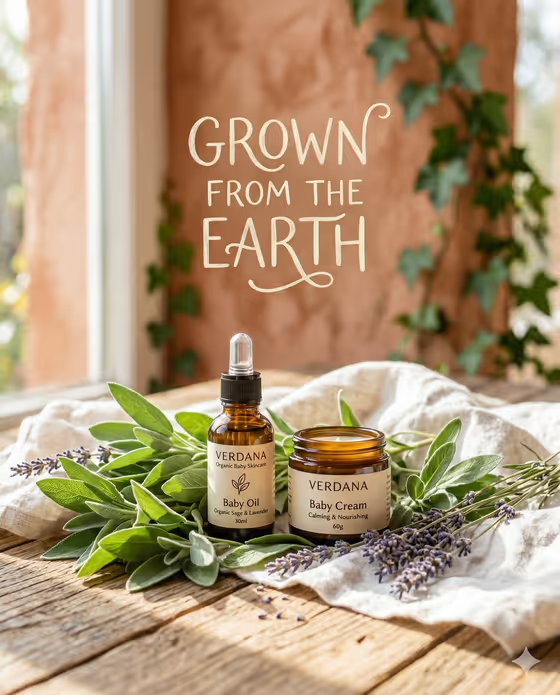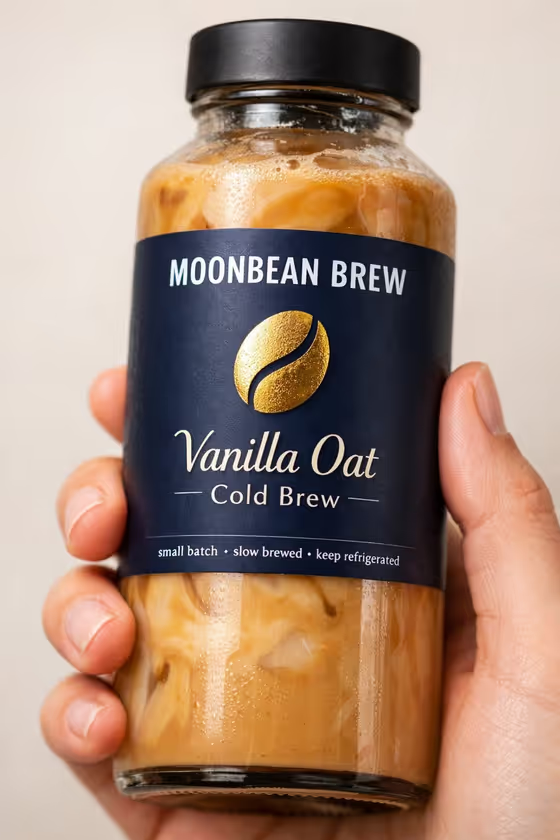
Held Product Close-Up creates a tight, hand-held shot of a bottle or similar product against a plain studio backdrop. In the cover example, a glass bottle with a dark navy label and a gold bean icon is held in one hand, with the brand name and variant crisp and readable.
It suits small beverage, skincare and wellness brands that want a clean product image for a shop page, a social post or a pitch deck without arranging a physical shoot. The output is a 3:4 image with the label as the focus.
What works best as input
- For the Product field, either describe the item (for example, a premium glass beverage bottle) or add a photo of it, since this is the only field that accepts a photo.
- If you upload a photo, choose one where the product is fully visible, evenly lit and not cropped, so its shape, cap and material come through clearly.
- Describe the container type and material in plain words, such as matte aluminum tube, translucent bottle or compact jar, so the hand grip and highlights fit the shape.
- Mention what is inside only if it is visible through the container, since the template keeps content texture in the image, as with the oat cold brew in the cover example.
How to use it
- Open the Held Product Close-Up template in Phosphene.
- Fill in Product by describing it or adding a reference photo, then type the Brand and variant exactly as you want it printed on the label.
- Pick a Label style and a Studio background from the options provided.
- Generate the image, then zoom in on the label text and the hand to check that the brand name, variant and icon read correctly.
Tips for a better result
- Keep Brand and variant short, like the example format of a brand name followed by a variant, so the uppercase branding and small microcopy stay legible.
- Match the Label style to your product's mood: a deep or dark label reads premium against a light, warm background like the cover shot's neutral tone.
- Try the same product with different Studio background tones to build a consistent set of images for one brand.
- Use specific product wording, including material and finish, to steer how light catches the edges.
Common mistakes
- Typing a long tagline into Brand and variant. The label is designed for clean branding with restrained microcopy, so extra text can crowd it.
- Describing the product too vaguely, such as just 'bottle', which gives the template little to work with on shape and material.
- Using a cropped, blurry or heavily shadowed reference photo, which makes it harder to keep the product's details accurate.
FAQ
Do I need to upload a photo?
No. Only the Product field accepts a photo, and you can describe the product in text instead.
Will my face or clothing appear in the image?
No. The template keeps the frame tight on a single hand holding the product, with face and clothing outside the frame.
Can I choose my own label colors?
You choose from the Label style options, such as matte cream with gold foil or deep charcoal with silver embossing, and from the Studio background options.
What shape is the output?
The result is a still image in a 3:4 portrait ratio.