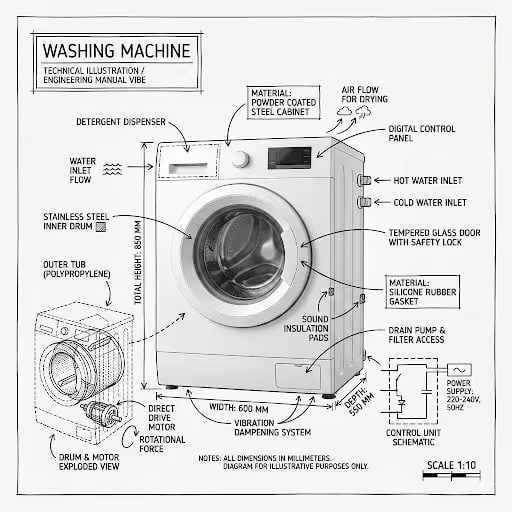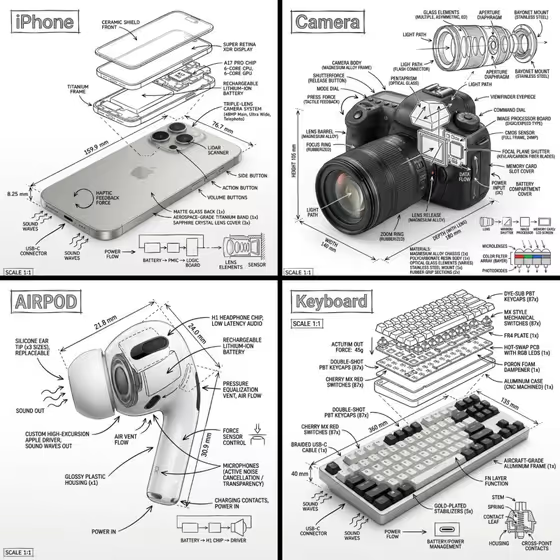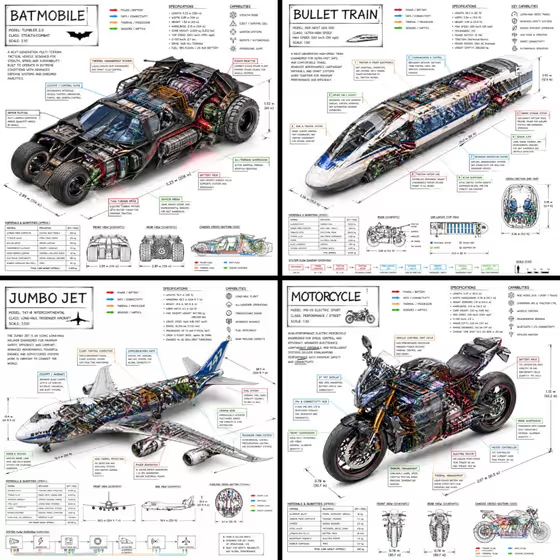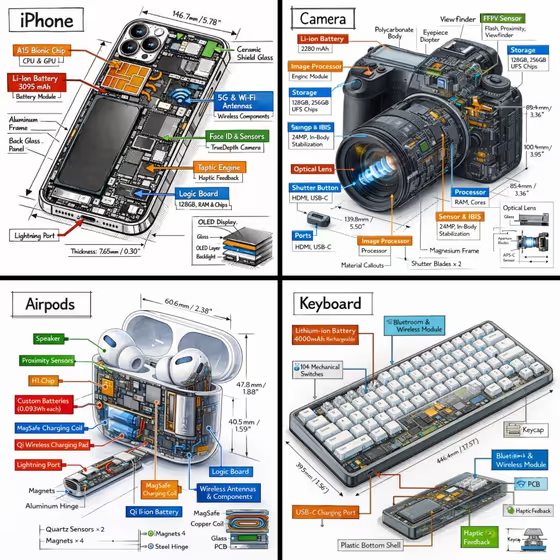
This template turns a single object into an isometric technical schematic: a tilted 3D render on a white background, surrounded by black ink annotations, cutaway sections and color-coded callout boxes. The cover shows the idea well, with a phone, a camera, earbuds and a keyboard each laid out like a product teardown with labeled internals, measurements and material notes.
It suits product designers, makers, students and anyone who wants an educational, museum-exhibit style diagram of a device or product. You choose the object and the kind of information to emphasize, and the template handles the layout, arrows and labeling style.
What works best as input
- For the Object field, you can describe the item in text or add a reference photo. A clear, well-lit photo of the whole object helps the render match its real shape.
- Choose a photo with the object fully in frame and little clutter behind it, so the isometric render can focus on the product itself.
- If you type a description instead, be specific about the product type and notable parts, for example a compact smart device with a lens, a battery and a charging port.
- Objects with visible internal parts, like electronics, tend to suit the cutaway and component callouts best, as seen in the phone, camera, earbuds and keyboard on the cover.
How to use it
- Open the Isometric Color-Coded Schematic template in Phosphene.
- In the Object field, describe your item or add a reference photo of it.
- In the Information Focus field, state what the diagram should highlight, such as components and functional details.
- Generate the image, then review the result for legible labels, a clear hero object and the color-coded arrows.
Tips for a better result
- Use the Information Focus field to steer the content. The placeholder, Components and functional details, is a solid starting point, and you can narrow it to something more specific about your object.
- Name the type of object clearly so the callouts fit it. The template color-codes power in red, data and connectivity in blue, thermal and processor in orange, and sensors and haptics in green.
- Try the same object with different focus wording to compare variations, such as a refined classic look versus a bolder contemporary one.
- If a result feels crowded, simplify your object description so the hero render stays dominant and the labels stay organized.
Common mistakes
- Using a vague Object entry like just a gadget. Without detail, the render and component labels become generic.
- Uploading a photo where the object is cropped, blurry or hidden among other items, which makes the isometric render less faithful.
- Expecting every label and measurement to be exact. Treat the annotations as illustrative diagram text and check any critical specs yourself.
FAQ
Do I have to upload a photo?
No. The Object field accepts a text description, and it can also take a reference photo if you want the render to follow a specific item.
What does the Information Focus field do?
It tells the template what the diagram should emphasize. The default idea is components and functional details, but you can describe a different focus or style variation.
What do the arrow colors mean?
The template uses red for power or battery, blue for data or connectivity, orange for thermal or processor, and green for sensors or haptics.
What kind of image will I get?
A 3:4 image of your object in an isometric 3D view on a white background, with black technical linework, callout boxes, cutaway sections and measurement markers.