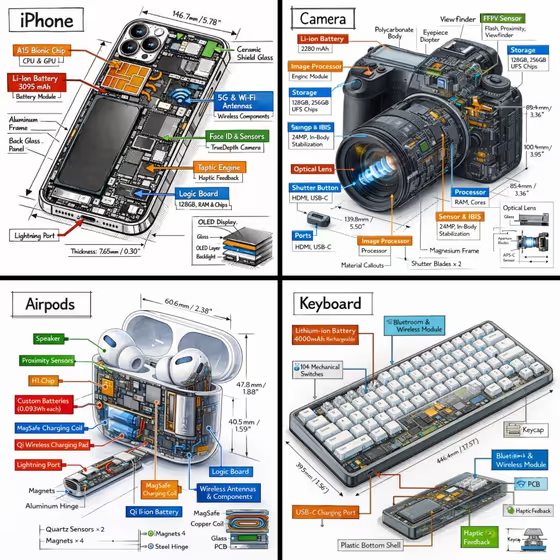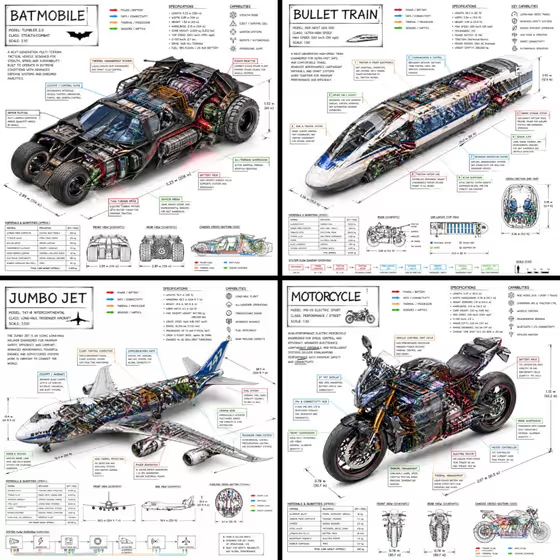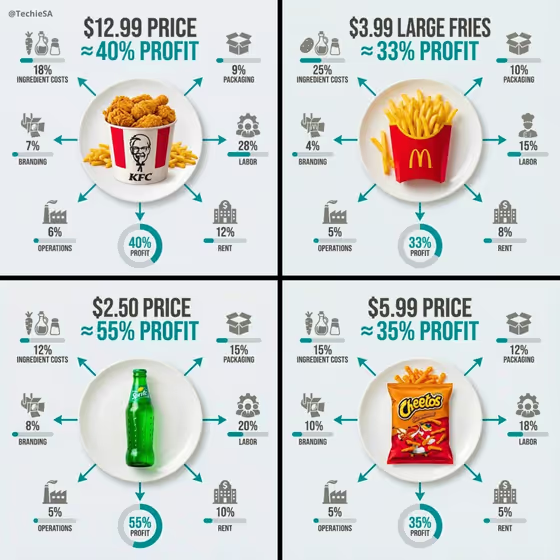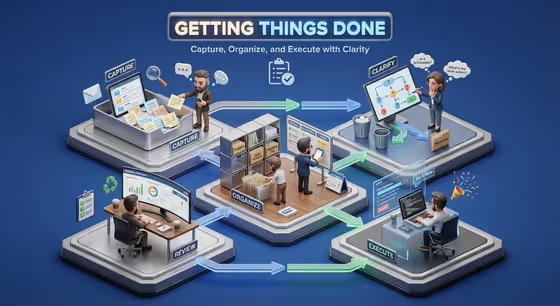
This template turns a productivity system into an isometric miniature scene. You name the system, list its stages, and pick a background color, and it builds a raised base split into linked work zones with desks, boards, devices, connecting paths and arrows, and tiny faceless professionals moving between them.
It suits anyone who needs a visual for a workflow: a team lead explaining a process, someone writing about a method like GTD or PARA, or a person who wants a poster-style summary of how their own routine works. The output is a 3:4 image with a bold title and a short benefit subtitle, like the Getting Things Done cover with its Capture, Clarify, Organize, Execute and Review zones.
What works best as input
- This template takes text only, so there is nothing to upload. Spend your effort on the three fields: Productivity system object name, Workflow zones, and Background color.
- For Productivity system object name, use a recognizable method or a clear label, such as GTD, PARA, Weekly Sprint, or a custom workflow. A short, specific name gives the title lockup something clear to display.
- For Workflow zones, list the stages in the order work actually moves, separated by commas. The examples show the pattern: plan, execute, track, review, or inbox, projects, resources, archive.
- Keep the zone list to a handful of distinct stages. Each stage becomes its own area on the base, so clearly different words (like capture and review) read better than near-synonyms.
- For Background color, name a simple color such as warm white, soft blue, deep charcoal, or muted green. The template adds automatic contrast, so the title should stay readable on your choice.
How to use it
- Open the Productivity Workflow Miniature template in Phosphene.
- Fill in Productivity system object name with the method you want to show, for example GTD or Weekly Sprint.
- Enter your stages in Workflow zones (for example capture, clarify, organize, reflect) and set a Background color.
- Generate the image, then check that each zone is distinct, the paths connect in the right order, and the title matches your system name. Adjust the fields and run it again if needed.
Tips for a better result
- Match the zone words to real activities. Stages like inbox and archive suggest filing cabinets and storage, while plan and execute suggest boards and desks.
- Try the same system with different backgrounds. A deep charcoal base gives a darker, more dramatic look than warm white, and muted green feels calmer.
- Use a custom workflow name for your own process, such as a team routine, to get a diagram you can share with colleagues.
- Run one system with two different zone lists (for example plan, execute, track, review versus goals, tasks, calendar, retrospective) to compare which layout tells the story better.
Common mistakes
- Listing too many stages. Packing in a long list can crowd the base and make the zones hard to tell apart.
- Using a vague system name like workflow or system. The title lockup is built from this field, so a vague name gives a generic result.
- Choosing a background color that is very close to the base tones of the scene, which can flatten the raised miniature instead of making it stand out.
FAQ
Do I need to upload a photo?
No. This template has no photo slot. You only type three fields: the system name, the workflow zones, and the background color.
Will the tiny people have faces?
The template direction calls for tiny faceless professionals, so the figures are meant to be simple stand-ins rather than portraits.
Can I use my own process instead of a known method?
Yes. The system name field accepts a custom workflow, and you can describe your own stages in the Workflow zones field.
What shape is the output?
It is an image in a 3:4 aspect ratio, with a bold title and a short benefit subtitle included in the scene.