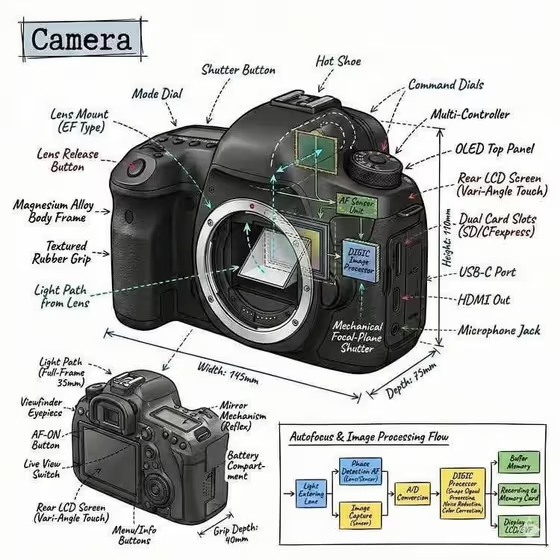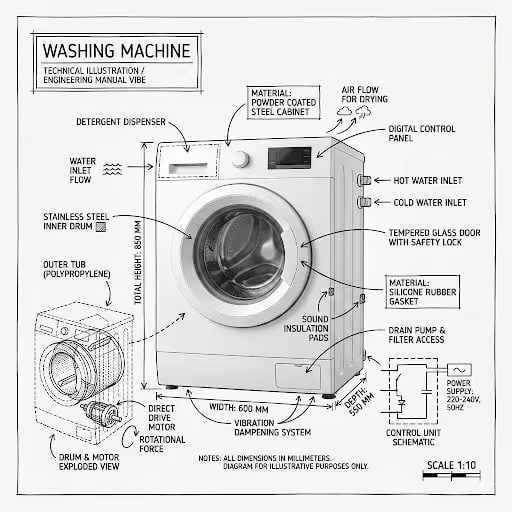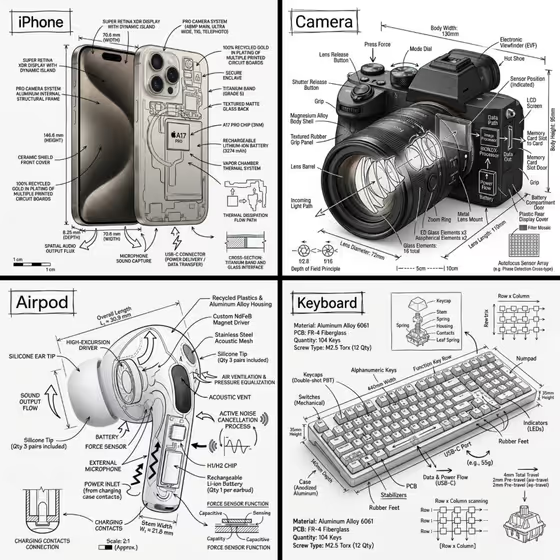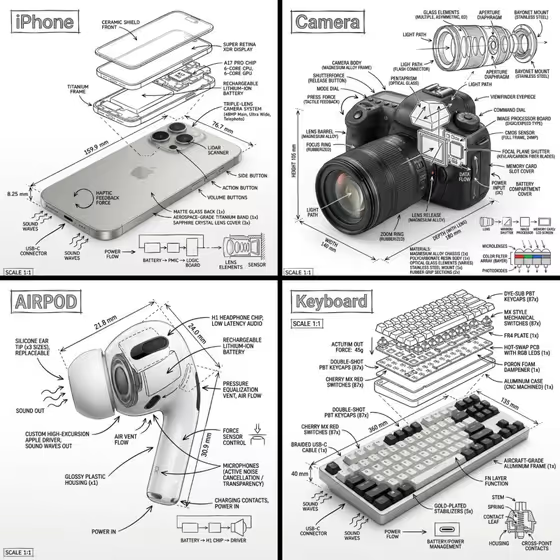
Cutaway Component Infographic turns an object into a blueprint-style diagram. It pairs a photoreal render of the product with hand-drawn technical annotations: component labels, exploded-view outlines, measurement callouts, material notes, and arrows for things like airflow, sound, or power.
It suits product designers, makers, hobbyists, and anyone who wants an engineering-manual look for a gadget, bottle, or packaged good. The cover examples show the style on a phone, a camera, an earbud, and a keyboard, all on a white background with black linework.
What works best as input
- In the Object field, either describe the item in words or add a photo reference. A clear photo of the real product gives the render something exact to follow.
- Pick a photo where the whole object is visible, evenly lit, and not cropped. A plain background makes it easier for the annotations to sit cleanly on top.
- If you type instead, be specific about what the thing is, such as 'a compact smart device' or 'a sculptural fragrance bottle', rather than a vague word like 'gadget'.
- Objects with visible parts, layers, or moving mechanisms (keys, lenses, switches, drivers) give the diagram more to label and explode.
- Stick to one object per run so the hero visual stays dominant and the callouts stay readable.
How to use it
- Open the Cutaway Component Infographic template in Phosphene.
- In the Object field, describe your product or add a photo reference of it.
- In the Information Focus field, say what the annotations should emphasize. The default is 'Components and functional details', and you can try other directions like a refined classic or bold contemporary variation.
- Generate the image, then review the 3:4 result for label legibility and how clearly the object shows beneath the linework.
Tips for a better result
- Use Information Focus to steer the diagram. Asking for components and functional details tends toward parts, arrows, and schematics, while a different focus changes the feel of the variation.
- Generate a few versions of the same object with different Information Focus text and compare which annotation style you like best.
- Choose objects with distinct internal structure. The template draws cutaways and exploded views, so items with layered parts show off the effect well.
- If the first result looks too busy, narrow your Object description to a single product rather than a set or scene.
Common mistakes
- Describing the object too loosely, which leaves the render and the labels generic. Name the actual product type and any features you want called out.
- Using a cluttered or heavily cropped reference photo, which can muddy the hero visual under the annotations.
- Writing a long, multi-part request in Information Focus. Keep it to one clear direction so the layout stays organized.
FAQ
Can I upload a photo of my own product?
Yes. The Object field accepts either a text description or a photo reference, so you can add an exact visual of the item you want diagrammed.
What will the output look like?
A realistic render of the object on a pure white background with black, hand-drawn style annotations, including labels, measurements, material callouts, and arrows for flow or force.
Does the title appear on the image?
Yes. The object's name is placed inside a hand-drawn annotation box in one corner, as seen in the iPhone, Camera, Airpod, and Keyboard examples.
What should I put in Information Focus?
Describe what the annotations should emphasize. The suggested starting point is 'Components and functional details', and the examples also include classic, contemporary, and playful variations.