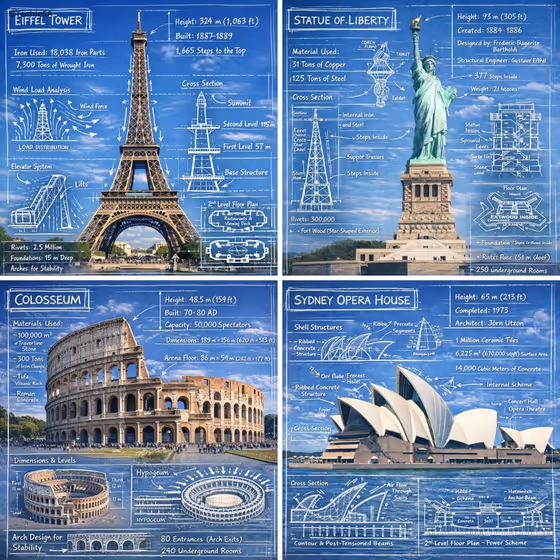
Landmark Blueprint Overlay turns a landmark photo into an educational infographic. White chalk-style line drawings sit on top of the real scene: measurements, cross-sections, floor plans, load-flow arrows and structural callouts, with a hand-drawn title box in the corner.
It suits travel and architecture fans, teachers, and anyone making posters, study material or social posts about famous buildings and structures. The output is a 3:4 image where the real environment stays visible behind the annotations, as in the Eiffel Tower, Colosseum and Sydney Opera House examples on the cover.
What works best as input
- Use a clear, well-lit photo of the landmark where the whole structure is visible. The cover examples all show the landmark as a dominant subject against open sky.
- Pick a shot with some empty space around the subject (sky, water, ground) so the sketches and labels have room and the hero visual is not crowded.
- Avoid heavy filters, strong shadows or objects blocking the landmark, since the annotations are drawn over the photo.
- In the Title field, type the exact words you want rendered in the corner box. Short titles are easier to keep readable.
- In the Landmark field, name the landmark you want annotated, either with your photo or by typing it (the placeholder shows the style of wording). Be specific, for example the full name of the building.
How to use it
- Open the Landmark Blueprint Overlay template in Phosphene.
- Fill in Title with the exact text you want shown, then add your landmark photo or description in the Landmark field.
- Type what the annotations should focus on in Information Focus, such as components and functional details.
- Generate the image, then check that the title is spelled correctly and the labels and diagrams are legible. Adjust your fields and run it again if needed.
Tips for a better result
- Make Information Focus specific. A phrase about structure, materials or internal layout steers which diagrams and callouts appear.
- Try the same landmark with different Information Focus wording to get several informative variations from one photo.
- Keep the Title short and in plain words, since the template renders it exactly as typed.
- Choose a photo taken from an angle that shows the landmark's full shape, because the cross-sections and sketches are built around the visible form.
Common mistakes
- Typing a vague Landmark description. Without a clear name or subject, the sketches and measurements will be less relevant.
- Using a cropped or cluttered photo where the landmark is cut off, which leaves the annotations with little to attach to.
- Writing a long Title with unusual spelling, which makes the corner box harder to read and easier to get wrong.
FAQ
What does the Title field do?
It sets the exact text rendered in the hand-drawn box in the corner of the image, so type it exactly as you want it to appear.
Can I use any landmark?
You describe or show the landmark you want in the Landmark field. Well-known structures with clear, recognizable shapes tend to suit the blueprint style best.
What is Information Focus for?
It tells the template which kind of technical information to emphasize in the sketches, for example components and functional details.
Will the original photo still be visible?
Yes. The style keeps the real environment visible behind the white line drawings, so the annotations sit on top of the photograph.