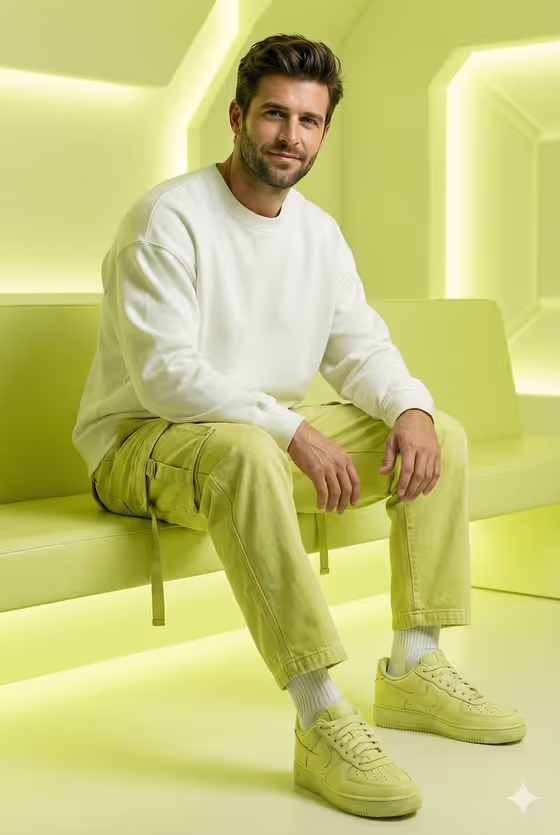
Lime Sneaker Portrait turns your reference photo into a bright, futuristic studio portrait. The subject sits on a lemon-green bench in an oversized white sweatshirt, lemon-green combat jeans, white ribbed socks and matching green sneakers, with soft glowing light panels behind.
It suits anyone who wants a fashion-editorial look with a strong single-color palette: profile pictures, lookbook-style shots, social posts or a creative portrait of yourself or a friend (with their permission). The output is a single 3:4 image.
What works best as input
- Upload one clear photo of the person's face, since the template uses your upload as the reference for the face.
- Pick a photo with even lighting and the face fully visible, without sunglasses, heavy shadows or a hand covering the features.
- A front-facing or slightly angled shot works well because the finished portrait shows the subject looking toward the camera with a slight smile.
- In the subject field you can also describe the person in words (the placeholder suggests something like 'the young man in my reference'), so keep the description consistent with the photo you upload.
- Only use photos of people who are fine with being featured, such as yourself or someone who has agreed.
How to use it
- Open the Lime Sneaker Portrait template in Phosphene.
- In the subject field, upload your reference photo and, if you like, add a short description of the person that matches it.
- Choose an option in the Pose and scene field, such as an intimate close portrait, a full-body editorial frame or an environmental candid frame, to set how the image is framed.
- Generate the image, then check the face, outfit colors and bench pose, and run it again if you want a different take.
Tips for a better result
- For the full outfit and sneakers to show, try the full-body editorial frame, since the look relies on the matching green shoes and white socks.
- Use a sharp, well-lit reference photo so the face carries over more faithfully into the stylized scene.
- Try the same photo with different framing options to get a close portrait and a wider shot from one upload.
- If the first result drifts from your likeness, adjust the subject description to match your photo more closely and generate again.
Common mistakes
- Uploading a blurry, tiny or heavily filtered photo, which gives the template little to work from for the face.
- Writing a subject description that contradicts the uploaded photo, which can pull the result in two directions.
- Expecting to change the outfit or color scheme, since the white sweatshirt, lemon-green clothing and green studio are the fixed look of this template.
FAQ
Do I have to upload a photo?
The subject field accepts a photo or a text description, but the template is built around using your uploaded picture as the face reference, so a photo gives the most faithful result.
Can I change the outfit or background color?
No. The oversized white sweatshirt, lemon-green combat jeans, green sneakers and futuristic lemon-green studio are fixed parts of this template.
What shape is the final image?
It is a single image in a 3:4 portrait ratio.
What does the Pose and scene option change?
It sets how the finished image is framed, for example a close portrait, a full-body editorial frame or a candid environmental frame, while the overall lime look stays the same.