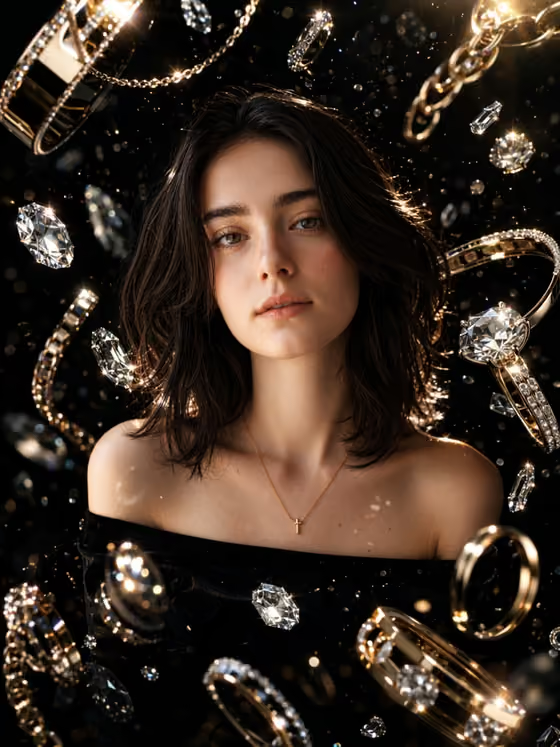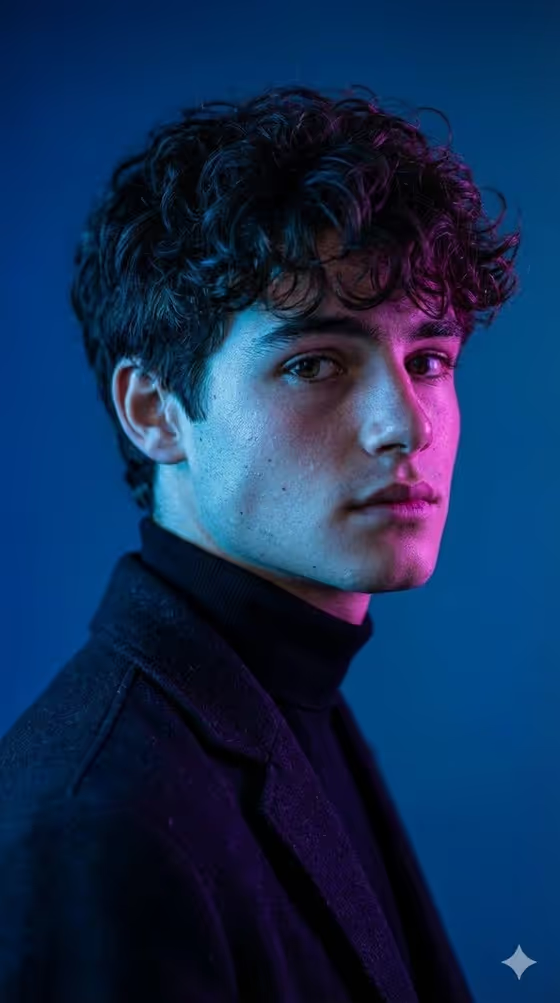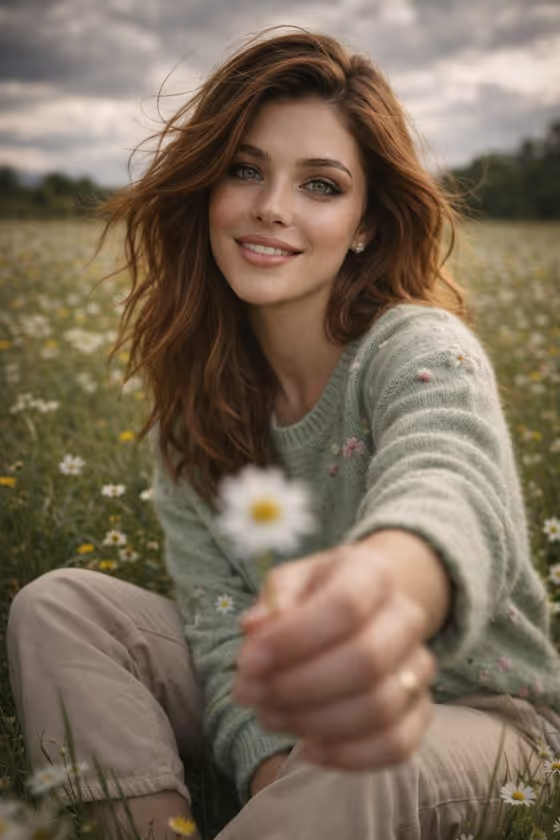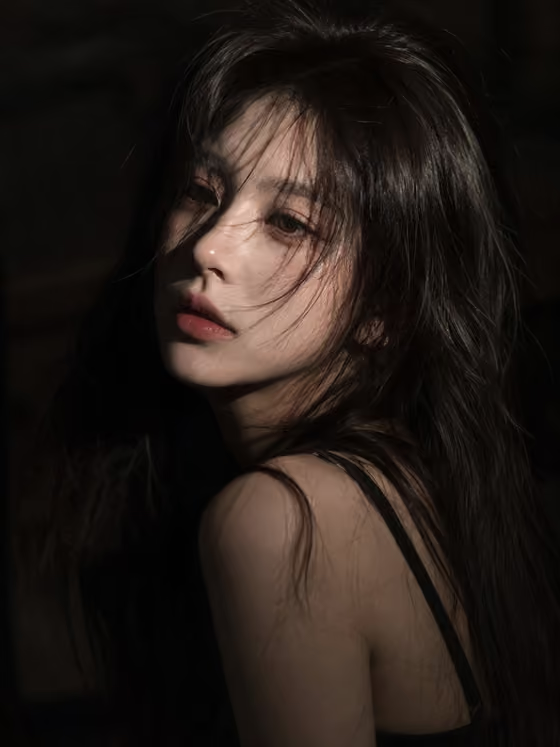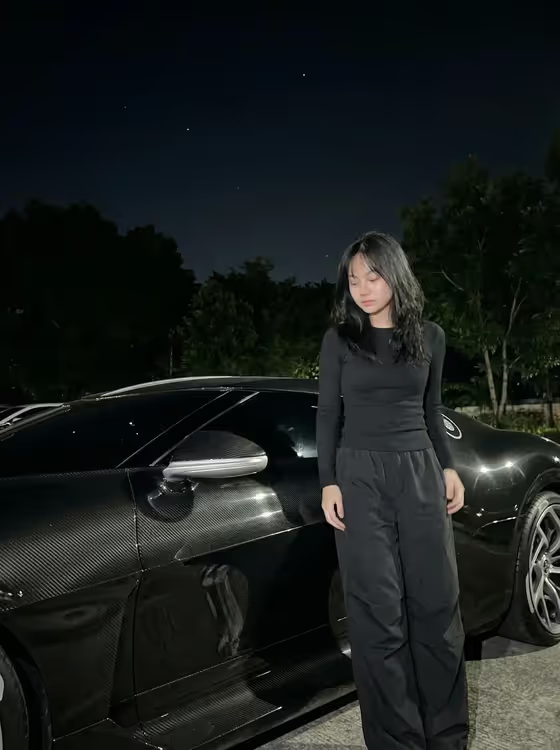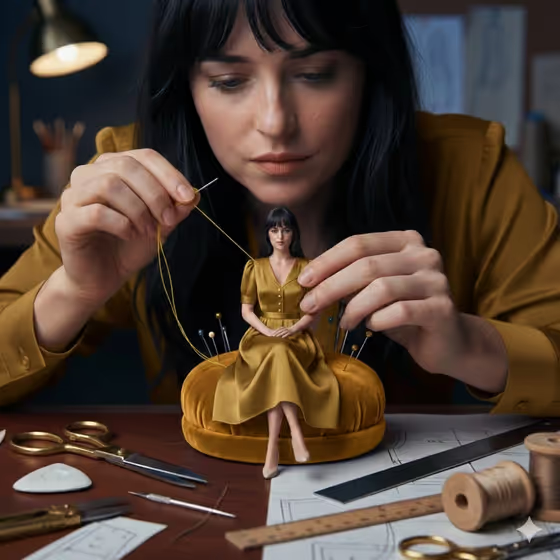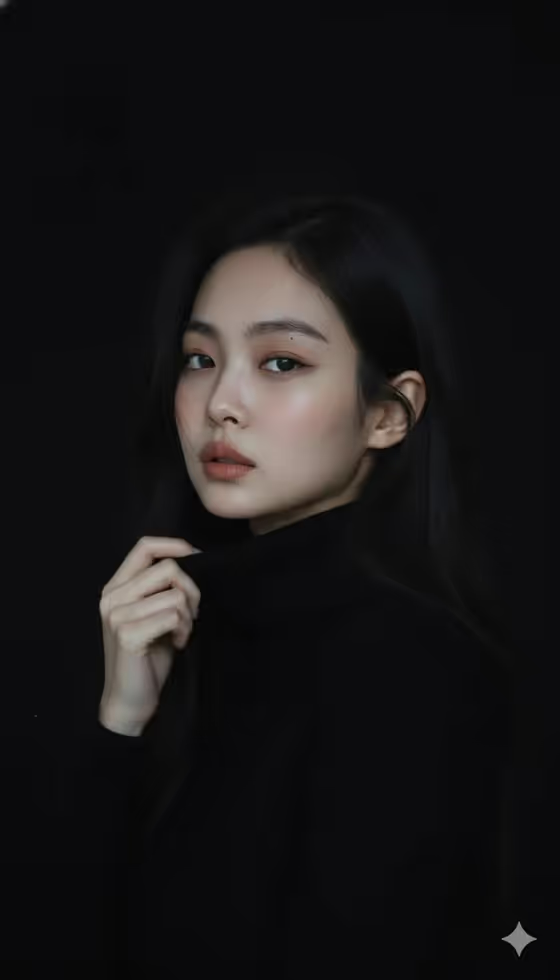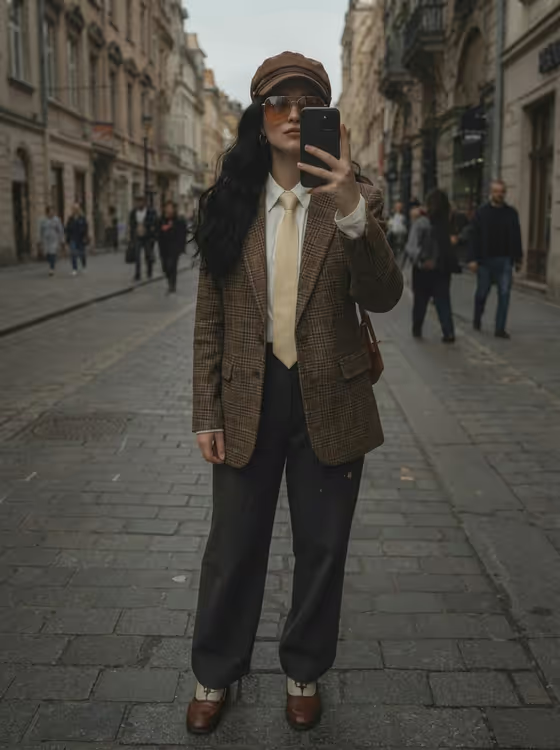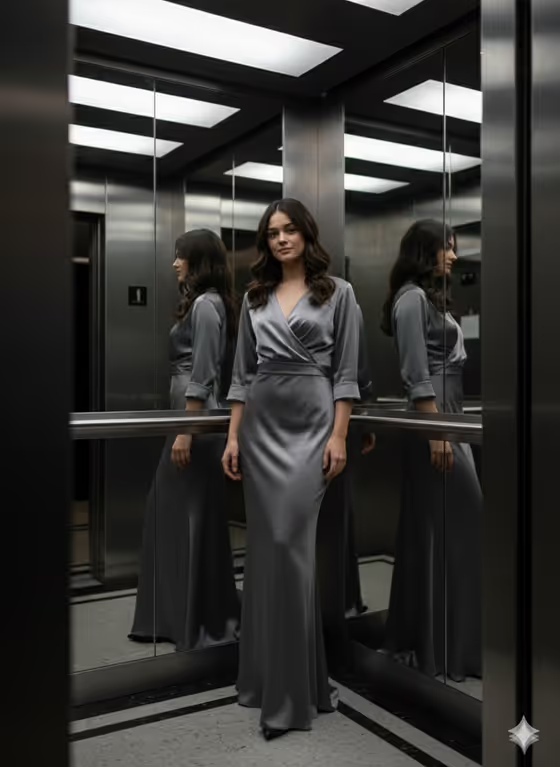
This template stages a fashion portrait inside a brushed-metal elevator. A figure stands facing the camera in a satin gown while mirrored walls repeat them in side reflections, all lit by soft ceiling panels. The result is a 3:4 image with a tactile, 3D-style look.
It suits anyone who wants a polished editorial portrait without a location shoot: people building a styled profile image, creators making fashion-style visuals, or anyone curious how a subject and outfit read in a glossy, reflective setting. You only fill in two fields, Subject and Outfit.
What works best as input
- Both the Subject and Outfit fields accept either a text description or a photo reference. The template is set up for two or more uploads, so plan to give it a reference for each field, or a mix of photo and text.
- For the Subject, use a clear, well-lit photo of one person facing the camera, with the face and upper body easy to see. Avoid group shots, heavy filters, and sunglasses or anything covering the face.
- For the Outfit, a clean photo of the garment on its own (flat lay or on a hanger, or worn in a simple shot) helps the details come through. Make sure the full garment is visible.
- If you type instead, be concrete. Compare the placeholder 'A tailored statement outfit' with a description that names fabric, cut, and color. Describe only yourself or fictional characters, not real public figures.
How to use it
- Open the Luxury Elevator Gown Portrait template in Phosphene.
- Fill in the Subject field with a short description, or add a photo reference of the person you want pictured.
- Fill in the Outfit field the same way, with a description or a photo of the garment.
- Generate the image, then check the result for the face, the outfit details, and the mirror reflections. Adjust your inputs and run it again if something is off.
Tips for a better result
- Use the built-in examples as a starting point. 'A poised creative professional' or 'A charismatic performer' give the Subject field a clear personality to work with.
- Be specific about the garment in the Outfit field. Naming the fabric, color, and silhouette gives the model more to hold onto than a general phrase.
- Try different outfit ideas to see how they sit in the metal-and-mirror setting, such as 'A bold retro look' versus 'A relaxed linen ensemble'. The template's own direction is a muted satin gown, so expect that styling to influence the result.
- If a photo reference gives an odd result, try a clearer or closer photo, or describe the subject in text instead.
Common mistakes
- Uploading only one photo. This template expects two or more inputs, so provide a reference or description for both Subject and Outfit.
- Using a blurry, cropped, or heavily edited photo as the Subject reference, which makes it harder to keep the person recognizable.
- Writing a vague outfit like 'nice clothes'. Without fabric, color, or cut, the result will lean on the template's default satin gown look.
FAQ
Do I have to upload photos?
The template is set up for two or more uploads, but each field also accepts a text description. Use photos where you want an exact visual reference.
What size is the image?
The output is a 3:4 portrait image.
Why does the result keep showing a satin gown?
The template's built-in direction describes a sleek satin gown in a muted graphite tone. Your Outfit input guides the look, but that base styling can still show through.
Can I use a photo of a celebrity?
Please don't. Use photos of yourself, people who have agreed to it, or invented characters, and avoid the likeness of real public figures.