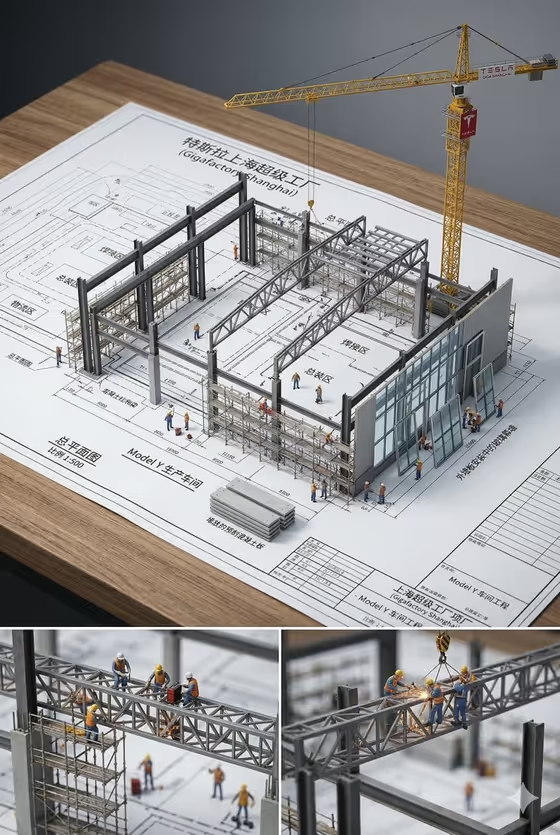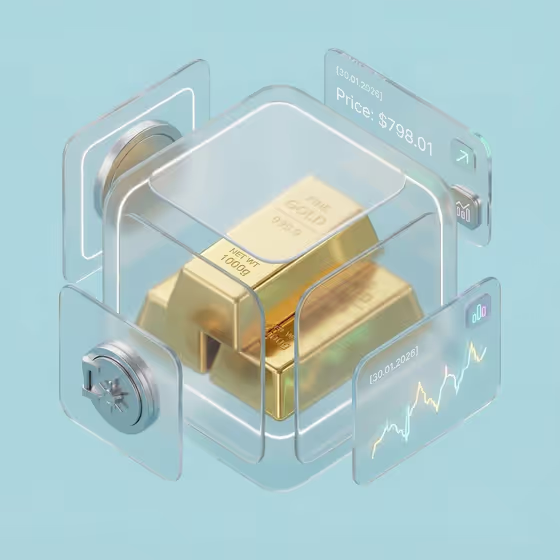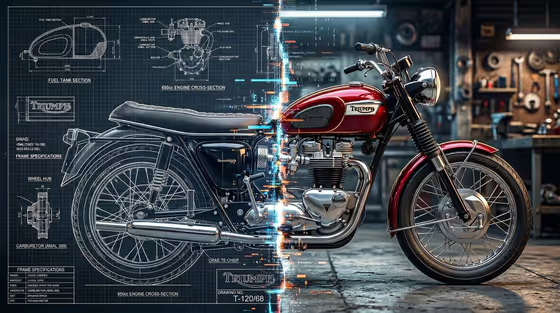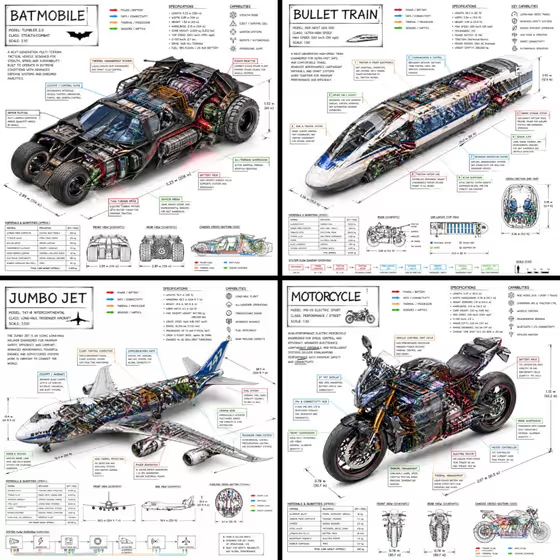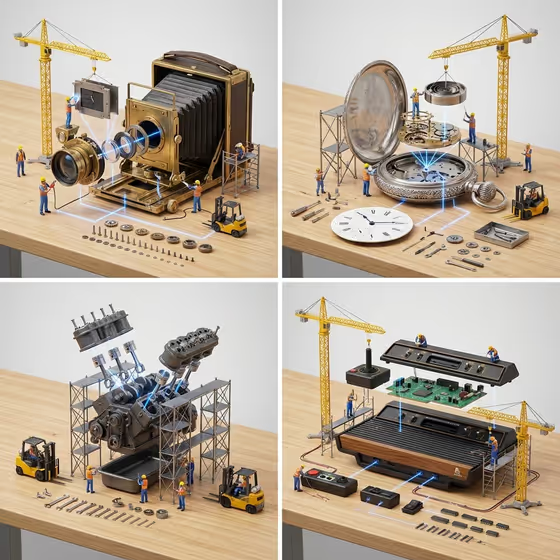
Miniature Exploded Workshop turns a single mechanical object into an exploded knolling diagram set on a tabletop. The device is pulled apart into its shell, inner mechanism and controls, with screws, washers and springs laid out in neat rows, while tiny hard-hat workers, scaffolding, yellow cranes and forklifts handle the assembly.
It suits anyone who likes technical illustration with a playful twist: hobbyists, product and gadget fans, designers making a visual for a post or a poster, or anyone who wants to see a favorite machine as a toy-scale construction site. You get one square image, shot from a 45-degree tabletop angle in bright, even studio light.
What works best as input
- For the Mechanical device field, you can either type a short description (like a vintage film camera or a compact V8 engine) or upload a reference photo of the exact gadget.
- If you upload a photo, choose one where the whole object is visible, sharply focused and well lit, so the parts can be separated in a believable way.
- Pick a device with clearly distinct parts, such as lens and bellows, case and movement, or housing and circuit board. These break apart into readable exploded layers.
- If you type instead, be specific about the type and era (for example a retro game console or an open mechanical watch) rather than just writing machine or gadget.
How to use it
- Open the Miniature Exploded Workshop template in Phosphene and fill in the Mechanical device field with a description or an uploaded reference photo.
- Choose the Workshop surface, then describe the Construction activity (what the tiny crew is doing) and the Assembly guides (how the separated parts are visually connected).
- Generate the image and wait for the square result to appear.
- Review the exploded layout, the crew and the fastener rows. If something is off, adjust one field at a time and generate again.
Tips for a better result
- Try different surfaces for a different mood: a light-grain wooden bench feels warm, while a green technical cutting mat or clean grey assembly board feels more like an engineering sheet.
- Match the construction activity to the device. Installing the lens from blueprints fits a camera, while welding gears and aligning springs suits a watch or engine.
- Vary the assembly guides to change the look of the diagram: thin blue laser lines read as precise and technical, while glowing blueprint arrows feel more instructional.
- Keep the activity to one clear action. A single focused job, like hoisting the chassis with yellow cranes, gives the crew a readable story.
Common mistakes
- Describing the device too vaguely. A generic word gives the template little to take apart, so name the specific object.
- Cramming several actions into the Construction activity field. One clear activity works better than a long list.
- Uploading a cluttered or dark photo of the device, which makes it harder to separate the shell, mechanism and controls cleanly.
FAQ
Do I have to upload a photo?
No. The Mechanical device field accepts either a text description or an uploaded reference photo. The other fields are text or a choice of surface.
What shape is the result?
The template produces a single square (1:1) image from a 45-degree tabletop view.
What does the crew look like?
Expect miniature hard-hat workers with scaffolding, yellow cranes and forklifts at a believable small scale next to the device parts.
Can I change how the parts connect?
Yes. The Assembly guides field controls the visual links between separated parts, for example thin blue laser lines or cyan holographic wires.