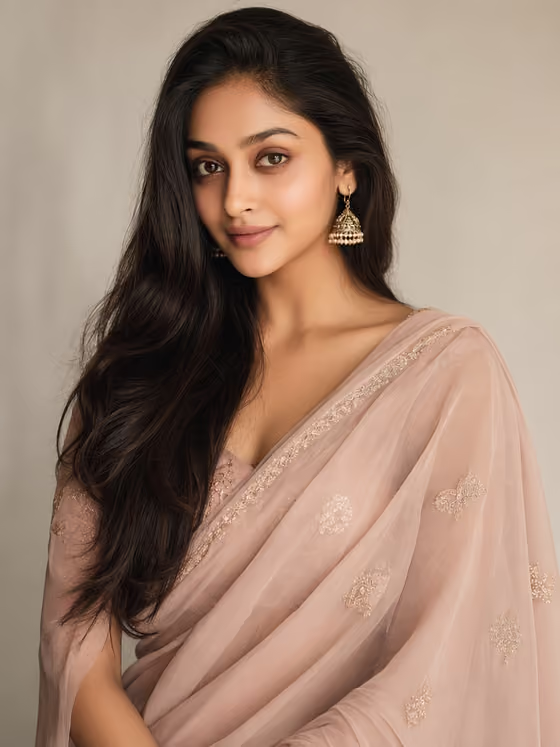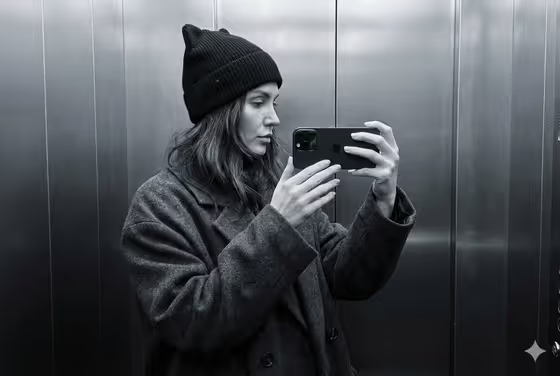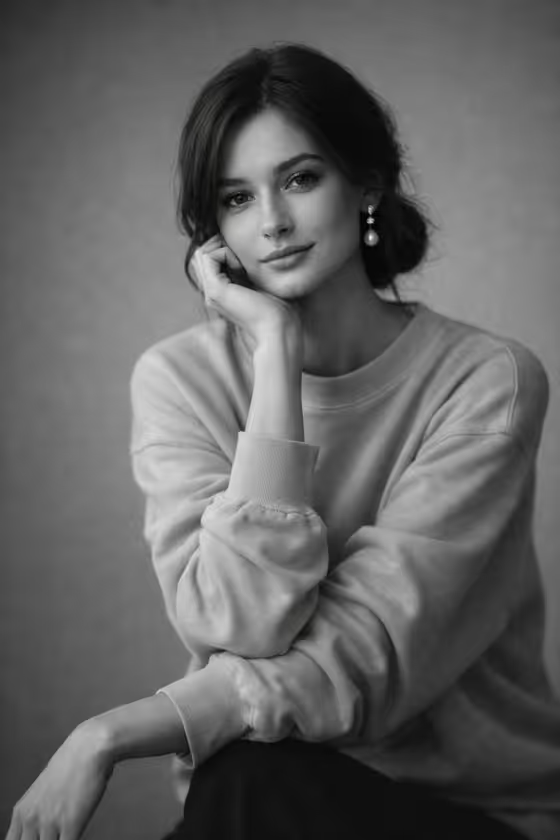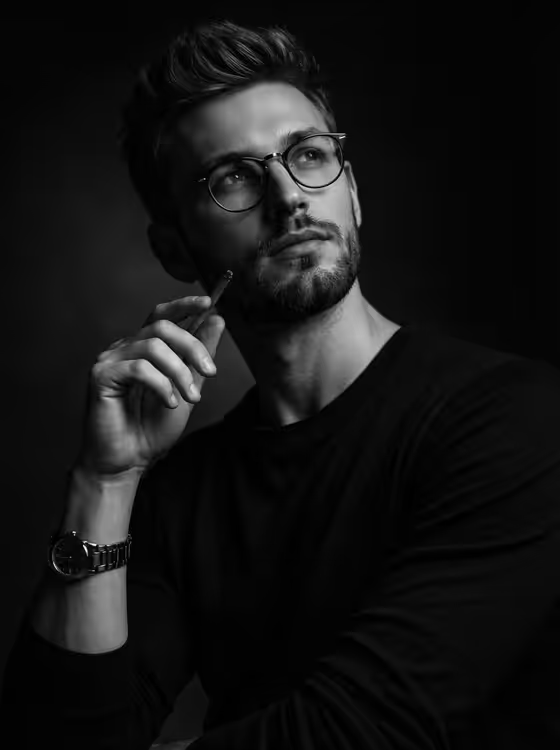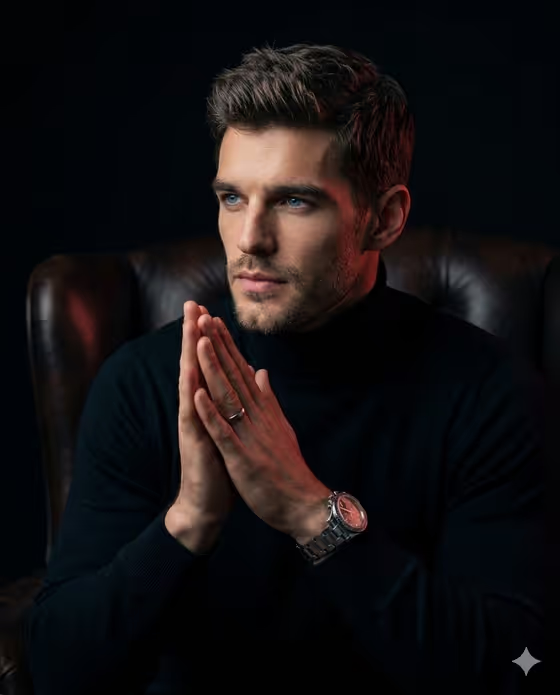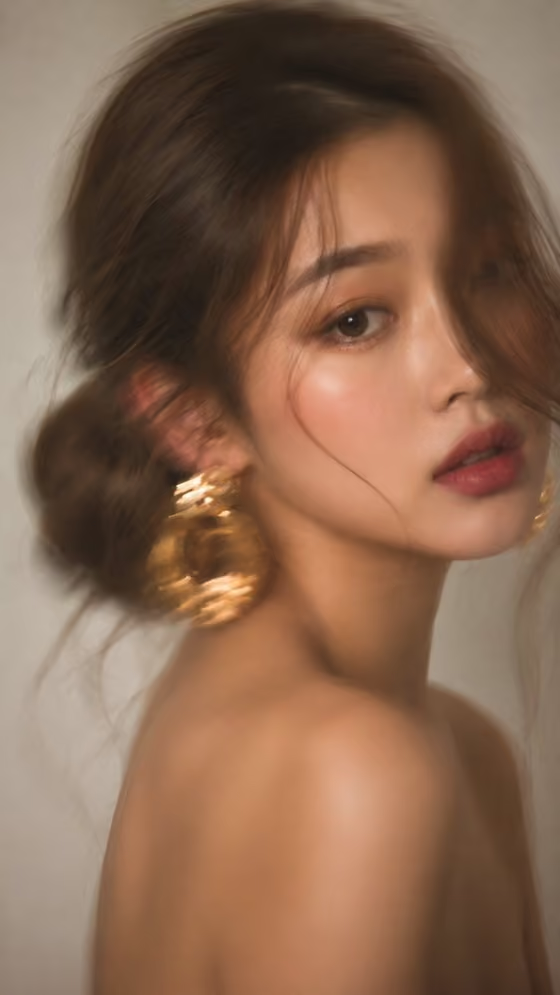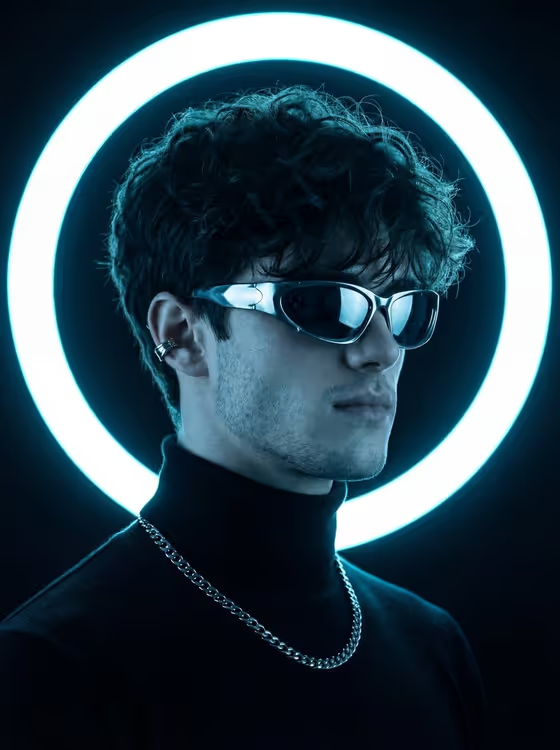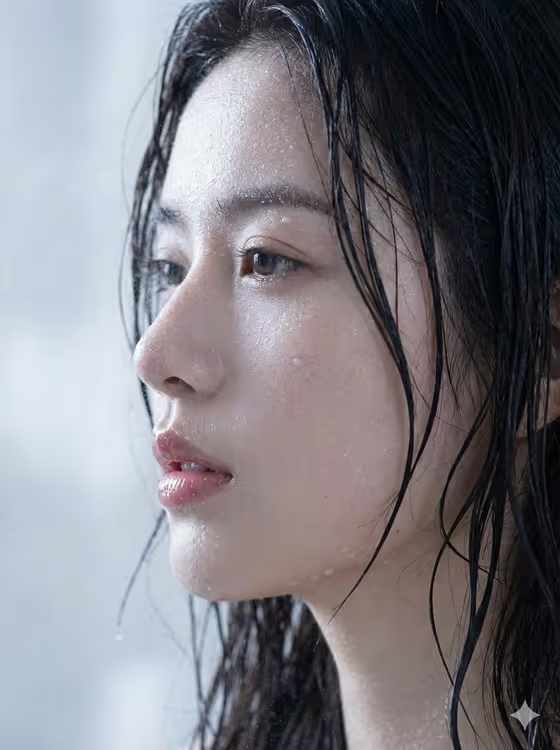
Minimalist Bokeh turns a close profile photo into a quiet, hyper-realistic portrait that focuses on skin texture, soft light and a smooth blurred background. The cover shows the idea well: a side-on face, fine detail on skin and hair, and a pale, out-of-focus backdrop that keeps attention on the subject.
It suits anyone who wants a refined, editorial-style headshot or character portrait without a studio shoot. You provide the portrait subject and pick a creative direction, and the template handles the profile framing, catchlights and background softness in a 3:4 image.
What works best as input
- Use a close, side-on profile photo of one person. The template is built around an extreme profile view, so a photo that already faces sideways gives the most faithful result.
- Pick a clear, sharp image where the face is well lit and the skin detail is visible. Soft, even light works better than harsh shadows across the face.
- Make sure the face is not covered by sunglasses, hands or heavy shadow, so eyes, lips and skin texture can be preserved.
- In the Portrait subject field, keep any description short and natural, such as 'a confident adult' or 'a joyful young woman', and only upload photos of people who are happy to be featured.
- A simple, uncluttered background in your source photo helps the final bokeh feel calm and minimal.
How to use it
- Open the Minimalist Bokeh template in Phosphene.
- In the Portrait subject field, upload your profile photo or describe the subject in words, for example 'an expressive young man'.
- Choose a Creative direction, such as Clean editorial, Cinematic dramatic, Playful colorful or Quiet premium.
- Generate the image, then review the 3:4 result for facial likeness, skin texture and background softness. Adjust your inputs and run it again if needed.
Tips for a better result
- Try each creative direction on the same photo. Clean editorial and Quiet premium suit the calm, minimal look of the cover, while Cinematic dramatic pushes mood.
- If you describe the subject instead of uploading, be specific about age range and expression, such as 'a distinctive creative professional', to guide the portrait.
- Start from a photo with natural, slightly moist or dewy skin and soft light if you want the realistic catchlights and subtle sheen shown in the cover.
- Compare a few results and keep the one where the skin looks natural rather than overly shiny.
Common mistakes
- Uploading a front-facing or distant photo. The template centers on a close profile view, so wide or head-on shots may not match the intended framing.
- Using a blurry or heavily filtered source image, which makes it harder to keep realistic skin texture and identity.
- Writing a long, complicated description in the subject field. Short, plain wording works better than stacking many details.
FAQ
Do I have to upload a photo?
The Portrait subject field accepts a photo or a written description. A photo of the person you want to portray is the best way to keep their likeness.
What kind of photo works best?
A sharp, well-lit, close profile shot of one person with a clean background. Clear visibility of the face helps preserve identity and skin detail.
What is the creative direction for?
It sets the overall style of the portrait. You can choose options like Clean editorial, Cinematic dramatic, Playful colorful or Quiet premium to change the mood.
What size is the result?
The template outputs a single image in a 3:4 portrait ratio.