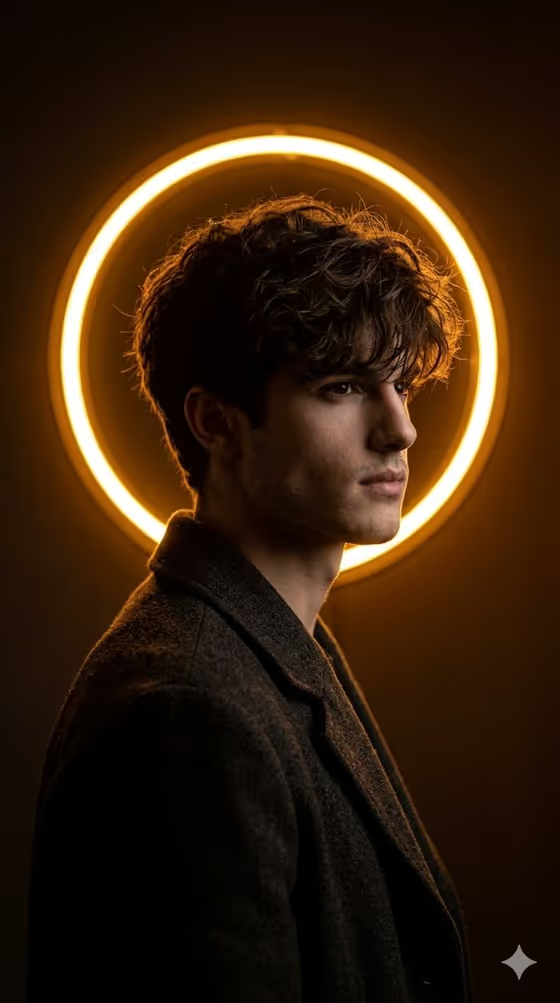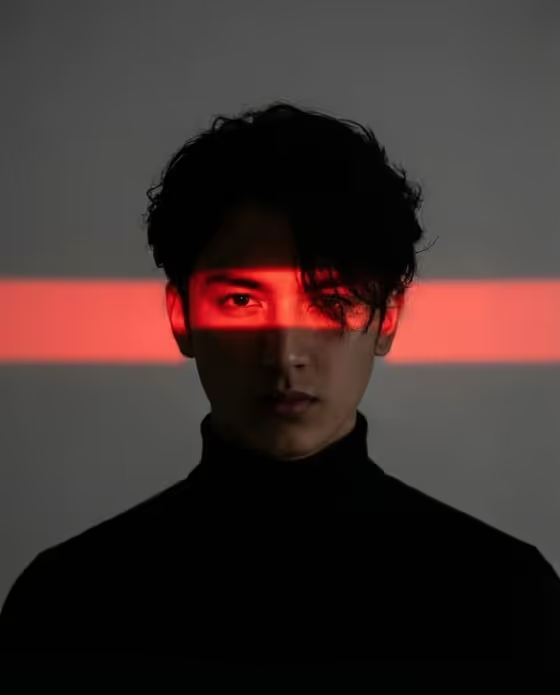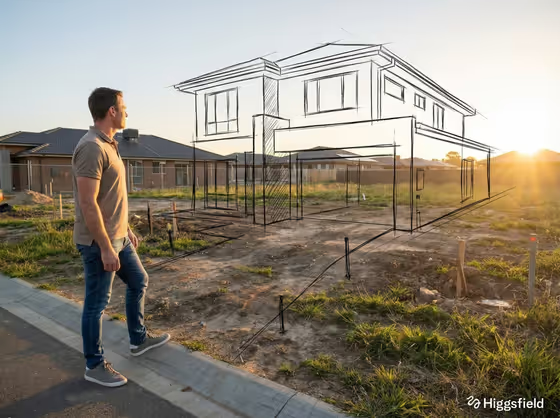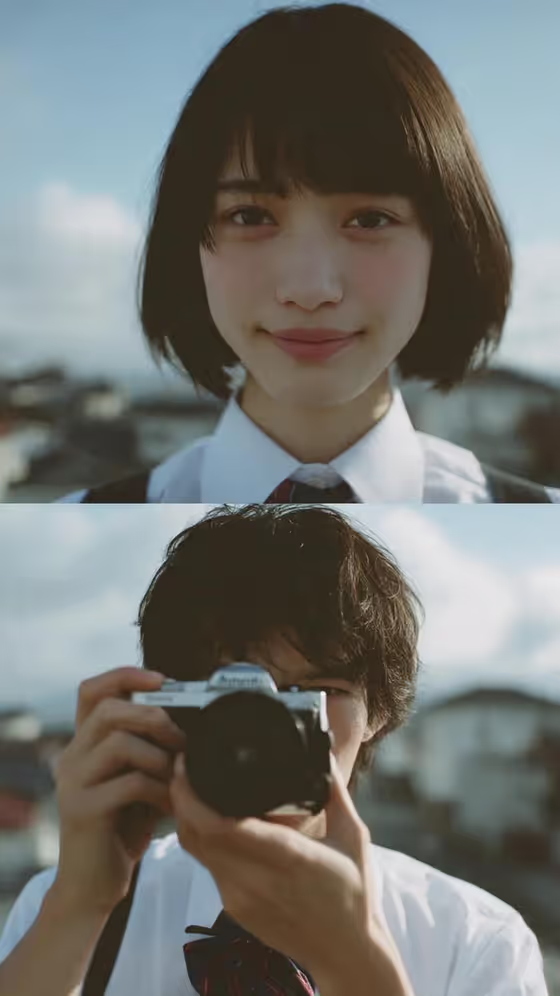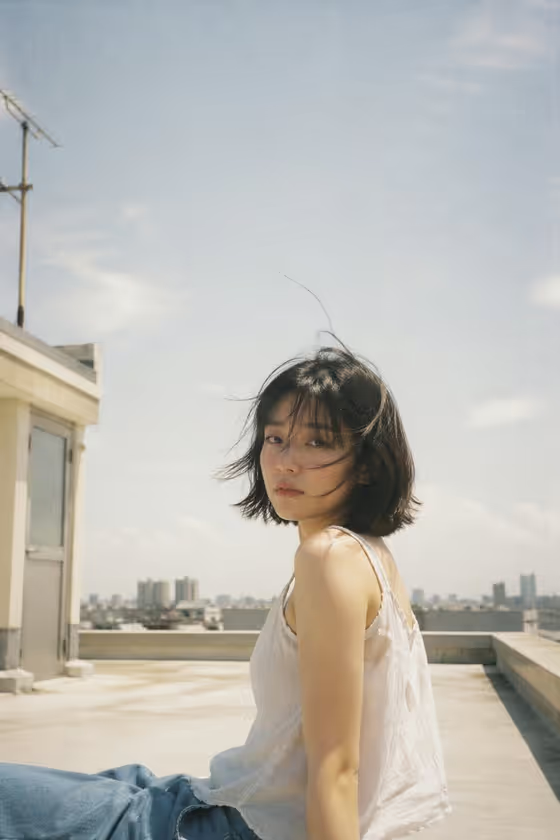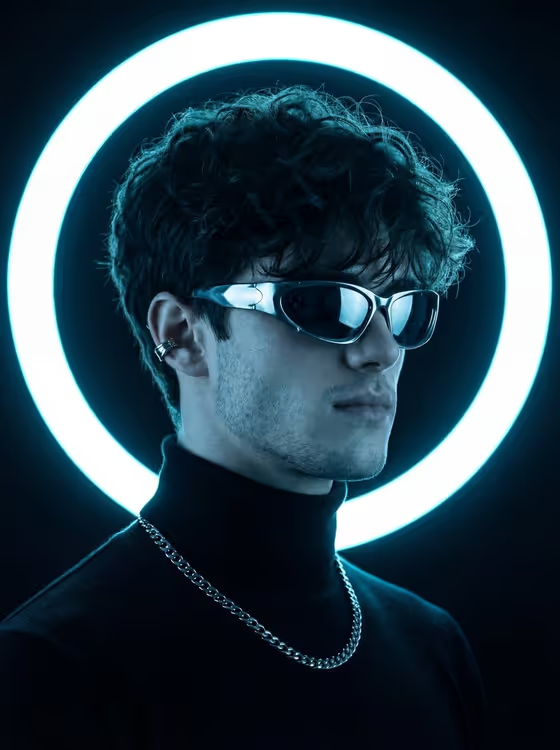
Neon Halo Studio turns a portrait into a dark, minimalist studio shot with a circular neon ring glowing behind the subject. The look is cool and monochrome: icy blue light, a near-black backdrop, and crisp rim highlights tracing the head and shoulders.
It suits anyone who wants a futuristic, editorial-style portrait for a profile picture, a music or creative project cover, or a moody social post. The output is a 3:4 image, so it fits vertical portrait layouts well.
What works best as input
- For the first field, you can upload a photo of the person or describe the subject in text. If you upload, choose a clear photo where the face is easy to see.
- Use a photo with even, uncluttered lighting so the template can relight the subject with its cool blue glow without fighting harsh shadows.
- A head-and-shoulders or upper-body photo works well, since the halo sits directly behind the head and the look centers on the face and shoulders.
- If you type a description instead, keep it short and concrete, such as an editorial portrait subject or a candid everyday subject, rather than a long list of details.
- Only use photos of yourself or people who have agreed to be used, and keep the subject presented respectfully.
How to use it
- Open the Neon Halo Studio template in Phosphene.
- In the first field, upload your photo or type a short description of the subject.
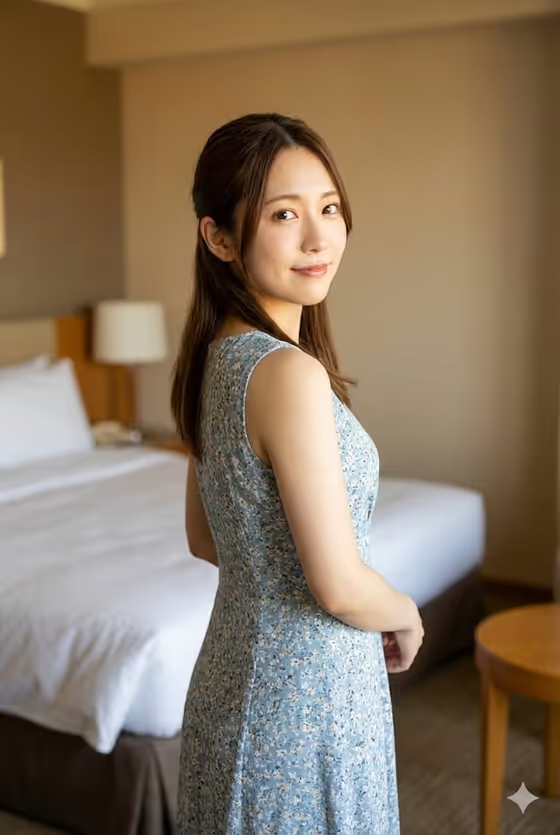
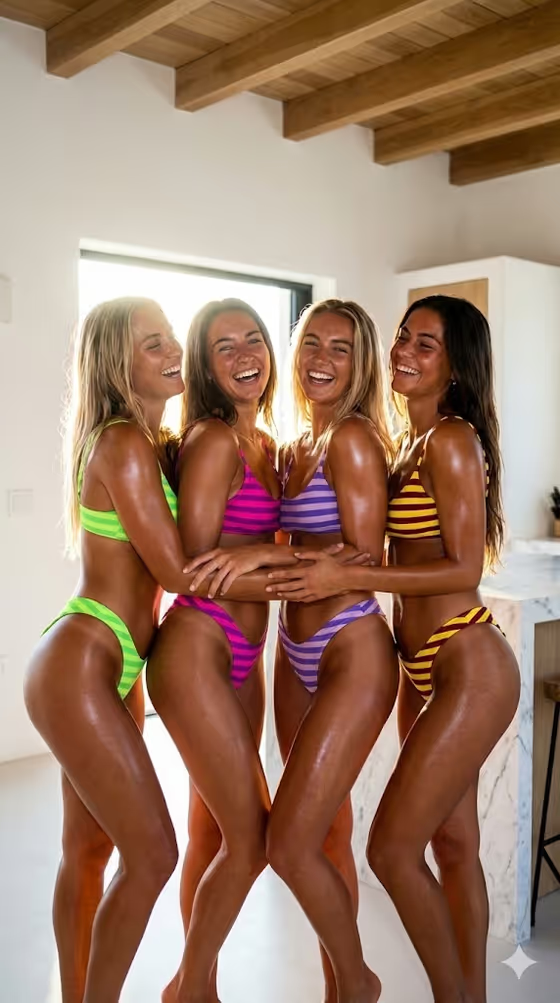
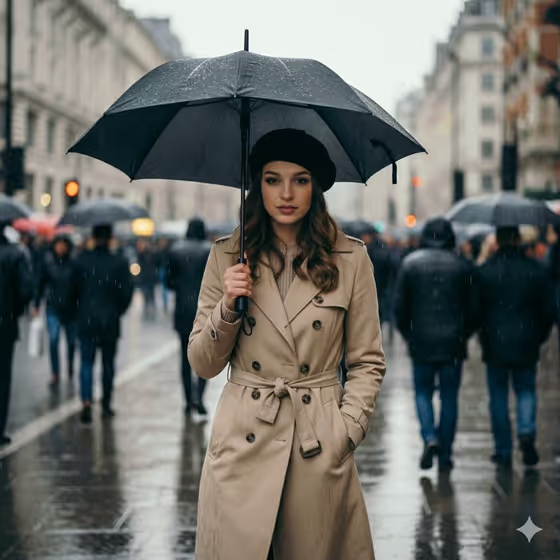
- In Pose and scene, pick how you want the portrait framed, for example an intimate close portrait, a full-body editorial frame, or an environmental candid frame. The default option gives the dark minimalist studio look shown on the cover.
- Generate the image, then review it. Check that the neon ring sits behind the head and that the face and clothing look the way you want before saving it.
Tips for a better result
- Try the intimate close portrait framing when you want the ring to dominate the image and the face to fill most of the frame.
- Switch to the full-body editorial frame to show off clothing and posture, with the halo acting as a backdrop element.
- Run the same subject with different Pose and scene options to compare how much of the person and ring appears.
- The template leans toward dark clothing and a black backdrop, so a subject in darker tones will blend into the look most naturally.
Common mistakes
- Uploading a blurry, tiny, or heavily filtered photo, which gives the template little clear detail to work from.
- Writing a long, detailed description in the subject field that fights the fixed look, such as asking for warm colors or a bright background. The template is built around icy blue light on a deep black studio.
- Expecting the pose to change freely. The scene is framed around a three-quarter profile style, so choose a Pose and scene option rather than trying to override it in the subject field.
FAQ
Do I have to upload a photo?
No. The first field accepts either an uploaded photo or a typed description of the subject, so you can use whichever suits you.
What size and shape is the result?
The template makes a single image in a 3:4 portrait aspect ratio.
Can I change the neon color?
The look is fixed around cool, icy blue light against a very dark background, so the color is not something you set in the fields.
What does the Pose and scene option change?
It changes how the portrait is framed, such as an intimate close portrait, a full-body editorial frame, or an environmental candid frame, while the neon halo studio style stays the same.