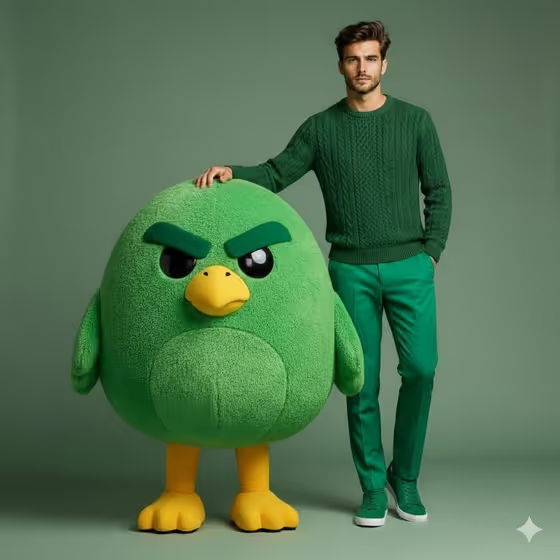
Model and Plush Mascot makes a tall, 3:4 studio portrait of a person standing beside an oversized plush character, with one hand resting on the mascot's head. The outfit, the mascot and the matte background share one color family, like the green sweater, green trousers, green bird and green backdrop in the cover image.
It suits fashion-minded creators, small brands and anyone who wants a playful campaign-style shot built around a mascot. You can describe the model, the mascot and the outfit in words, or add reference photos to guide each one.
What works best as input
- For the Fashion model or person field, either describe the person (the placeholder is "a confident adult man") or add a reference photo. A clear, well-lit photo where the person is easy to see works better than a cropped or blurry one.
- For the Plush mascot field, a simple, bold character reads best as plush. The examples (oversized green cartoon bird, round blue bear, large orange fox) show the idea. If you have a brand mascot, upload a clear reference of it.
- For the Coordinated outfit field, name the garments and the color together, such as "green cable knit and tailored trousers". Mentioning fabric like knit or wool helps the template keep that texture.
- Pick one dominant color across the outfit and mascot. The template matches the studio background to the pair, so a clear shared color gives the cleanest tonal result.
How to use it
- Open the Model and Plush Mascot template in Phosphene.
- Fill in the three required fields: Fashion model or person, Plush mascot and Coordinated outfit. Type a description or add a matching reference photo for each, using the examples as a guide.
- Generate the image and wait for the 3:4 portrait to finish.
- Review the result. Check that both figures are fully visible, the hand rests on the mascot and the colors match, then adjust your fields and generate again if needed.
Tips for a better result
- Keep the outfit and mascot in the same color family so the tonal background feels intentional rather than random.
- Be specific about fabric and cut in the outfit field (cable knit, wool set, wide trousers) to get tactile texture in the clothing.
- Try the example mascots, like a round blue bear or a large orange fox, paired with a matching outfit color for a quick series of variations.
- If your first result misses, change one field at a time so you can see which description made the difference.
Common mistakes
- Choosing an outfit color that clashes with the mascot. The template matches the background to the pair, so mismatched colors weaken the tonal look.
- Writing vague entries like "a nice outfit" or "a cute animal". Short, concrete descriptions give a more precise result.
- Uploading a cropped or low-quality reference for the model or mascot, which gives the template less to work from.
FAQ
Do I have to upload photos?
No. Each field accepts a typed description, and you can also add a reference photo for the model, the mascot or the outfit if you want a closer match.
What shape is the output?
The template makes a single image in a 3:4 portrait ratio.
Can I use my own brand mascot?
Yes. The Plush mascot field lists "my brand mascot" as an example, so you can describe it or upload a reference of it.
Will the background match my colors?
The template is built to use a matte background that matches the mascot and outfit pair. Choosing a shared color for them gives the best match.