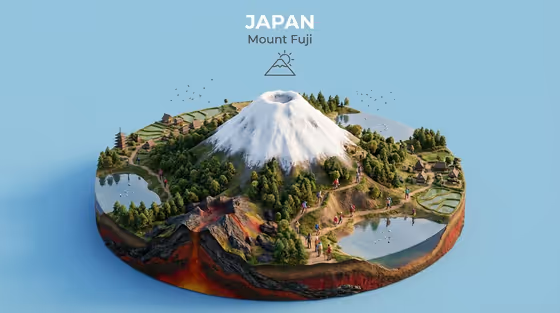
Natural Wonder Miniature turns a famous landmark into a layered isometric diorama, like the Mount Fuji example on the cover. The model sits on a raised base, so you see the terrain cut open to reveal geology below, with forests, water, paths and nearby geography around the main feature.
It suits travel creators, teachers, designers and anyone who wants a collectible-looking scene of a mountain, waterfall, canyon or a made-up place. You choose the wonder, the country or planet, and the background color. The result comes out as a 3:4 image.
What works best as input
- For the Natural wonder product subject field, a short name works best, such as Grand Canyon, Iguazu Falls or Mount Fuji. This field also accepts a reference photo, so you can upload one if you want the scene guided by a specific view.
- If you upload a reference, pick a clear image where the landmark is the obvious main subject and not hidden behind crowds, signs or heavy filters.
- In the Country or planet field, name the place the landmark belongs to, for example Japan. For shared landmarks you can list both, as in Argentina and Brazil. This field takes text only.
- Imaginary places work too. Entering something like an otherworldly landmark with a fictional planet gives the template room to invent the terrain.
How to use it
- Open the Natural Wonder Miniature template in Phosphene.
- Fill in the Natural wonder product subject field by typing the landmark name, or add a reference photo if you have one.
- Enter the Country or planet and the Background color, then check that all three required fields are filled.
- Generate the image, then review the title text, the terrain cross-section and the background color. Adjust a field and run it again if something is off.
Tips for a better result
- Pick a background color that contrasts with the landmark. A snowy peak reads well on soft sky blue or deep navy, while a red canyon looks good on warm off-white or muted sage.
- Try the same landmark with different background colors to build a matching series of posters or slides.
- Be specific about the landmark. Naming a particular waterfall or mountain gives a more recognizable result than a general term like waterfall.
- Experiment with fictional entries in both the subject and planet fields to get a stylized alien diorama in the same layered format.
Common mistakes
- Leaving the country or planet vague or mismatched with the landmark, which can confuse the title and surrounding geography.
- Choosing a background color close to the landmark's main colors, so the model blends into the backdrop.
- Uploading a cluttered or low-quality reference photo and expecting the template to clean it up, when the subject is hard to identify.
FAQ
Do I have to upload a photo?
No. The subject field is text, so you can just type the landmark name. A reference photo is optional.
Can I use more than one country?
Yes. The Country or planet field accepts entries like Argentina and Brazil for landmarks that span borders.
Can I make a landmark that doesn't exist?
Yes. You can describe an otherworldly landmark and enter a fictional planet to get an invented diorama.
What will appear in the image besides the terrain?
The template adds a raised base showing terrain layers, vegetation and surroundings, tiny faceless explorers or wildlife for scale, a country title, a subtitle and a small nature icon on your chosen solid background.