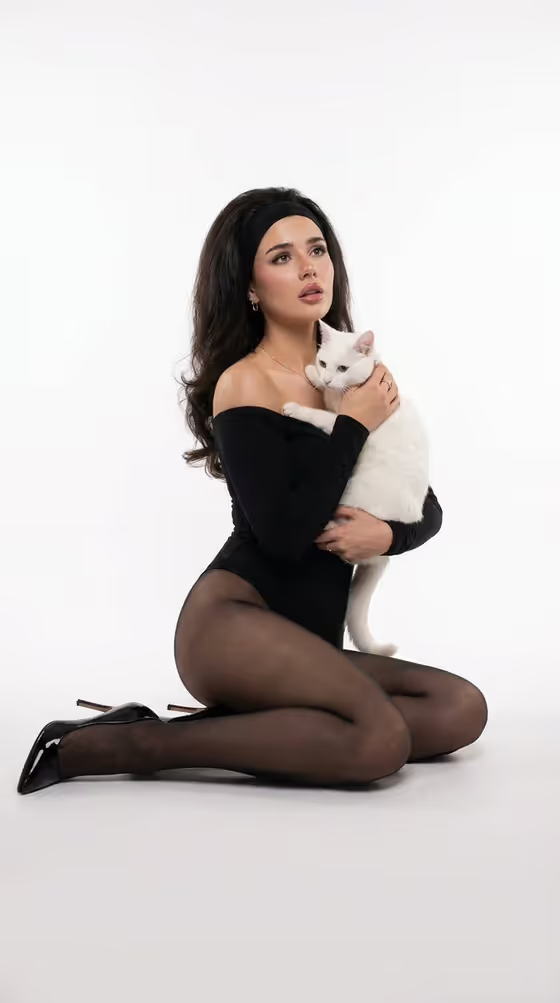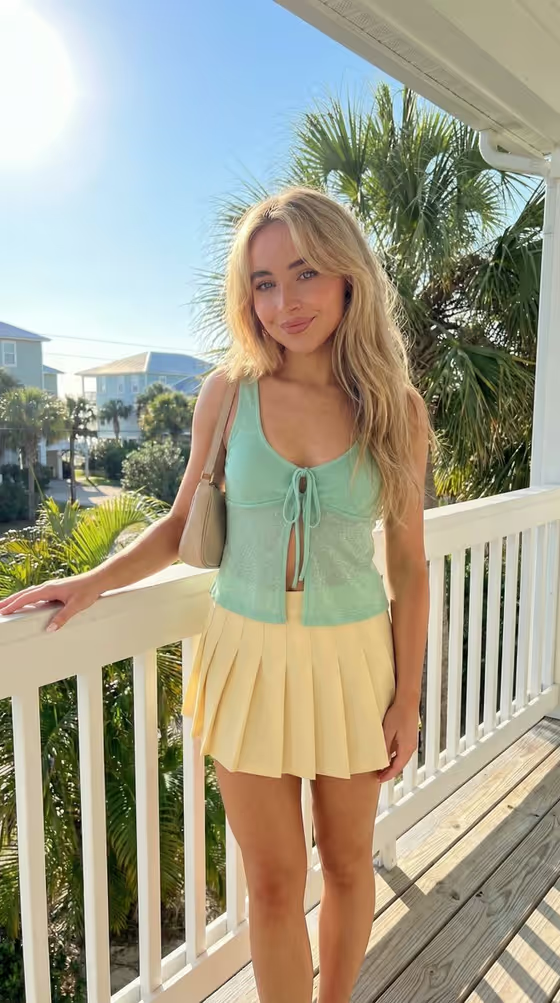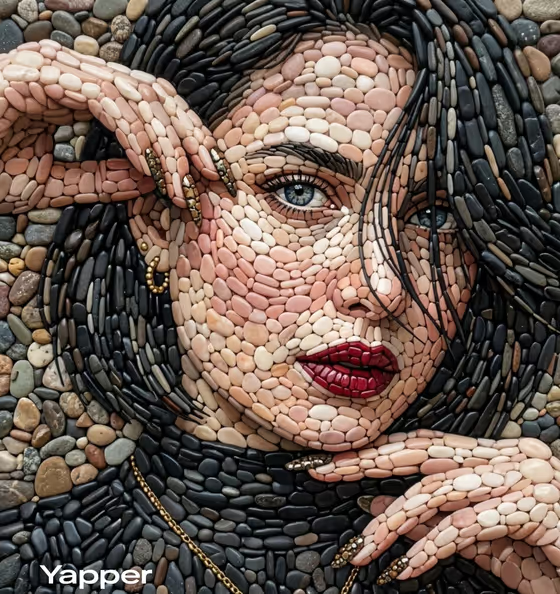
Pebble Mosaic Portrait turns a person, character, or subject into an image built entirely from smooth river stones. Pale pebbles shape the skin, dark ones form the hair, and small stones in warm and cool tones fill the background, so the result reads like a handcrafted mosaic wall. The output is a 3:4 image.
It suits anyone who wants a portrait in a tactile, earthy art style: personalized gifts, profile images, art prints, or a creative way to show an original character. The template accepts photos for its fields and asks for at least two uploads, so you can give it a clear visual reference to work from.
What works best as input
- For the "portrait subject character subject" field, use a sharp, well-lit photo where the face is clearly visible. The mosaic is built from stones, so strong, readable features survive the translation best.
- Choose a photo with a simple background and a clear separation between face, hair, and clothing. Those areas become different stone colors and sizes in the final piece.
- Since the template asks for two or more photos, add a second image of the same subject from a similar angle or with similar lighting so the reference stays consistent.
- Only use photos of yourself, people who have agreed to be portrayed, or your own original characters. If you describe the subject in text instead, name the key traits you want kept, such as hair length, clothing, and jewelry.
- Avoid heavy filters, strong color casts, or tiny faces in a crowded frame, since fine detail is hard to rebuild from stones.
How to use it
- Open the Pebble Mosaic Portrait template in Phosphene.
- In the "portrait subject character subject" field, describe the subject or upload your reference photos, as the template asks for two or more.
- Pick an option for "Character staging" to choose how the finished image is framed, for example a collectible character portrait, a full-body character scene, or an environmental story moment.
- Generate the image, then check the stone textures, the face, and the hair. Adjust your inputs and run it again if something is off.
Tips for a better result
- Try different "Character staging" options with the same subject. A close collectible portrait shows the stonework up close, while a wider scene shows more of the pebble wall around the figure.
- Describe distinctive details in the subject field, such as earrings, a necklace, or hand placement. The cover shows jewelry and hands rendered in stone, so accessories can add a lot of character.
- The template's fixed direction favors natural earthy colors and soft lighting, so subjects with strong contrast between skin, hair, and clothing tend to read clearly in the mosaic.
- Generate a few variations from the same reference photos and compare them, since the stone placement differs each time.
Common mistakes
- Uploading a blurry, dark, or heavily cropped photo. The mosaic needs clear facial structure to rebuild believable features out of stones.
- Leaving the subject field vague. A bare word like "person" gives the template little to hold onto, so add concrete details about hair, clothing, and expression.
- Expecting a flat graphic look. This template aims for a detailed, photorealistic stone mosaic, so busy or abstract inputs may not translate the way you picture them.
FAQ
Do I have to upload photos?
The template is set up for two or more uploaded photos, and its fields also accept a written description of the subject. Using clear reference photos gives the most faithful likeness.
What size is the result?
The output is a single image in a 3:4 portrait ratio.
What does Character staging change?
It controls how the finished image is framed, such as a collectible character portrait, a full-body character scene, or an environmental story moment. The pebble mosaic style itself stays fixed.
Can I use it for characters instead of real people?
Yes. The subject field accepts original characters, objects, names, or phrases as well as people. Only use likenesses you have the right to use.