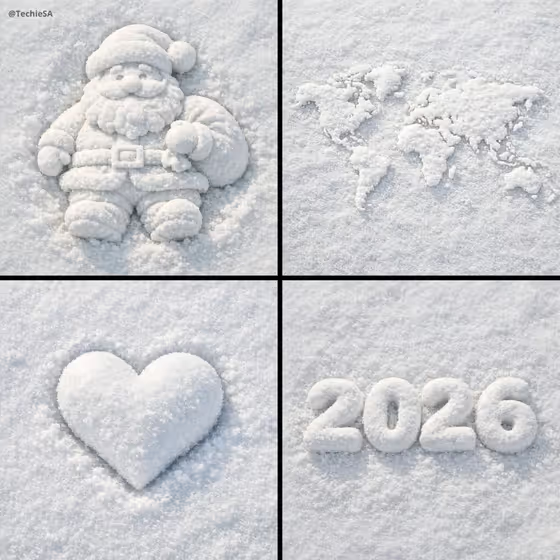
Snow Sculpture Object turns an everyday object into a sculpture made entirely of packed white snow, resting on a snowy surface and photographed from directly above. The cover image shows the idea well: a Santa figure, a world map, a heart and a set of numbers, all formed from the same soft, grainy snow.
It suits anyone who wants a wintry, tactile take on a simple subject, such as a product, a gift idea, a seasonal greeting or a small icon. You name the object (or add a reference) and pick how deeply it sits in the snow, and the template handles the lighting and texture.
What works best as input
- In the Object field, name one clear subject, like the placeholder example "a pair of headphones" or "a vintage camera". A single recognizable object gives the cleanest snow sculpture.
- The Object slot accepts a reference photo as well as a description. If you add one, pick a photo where the object is fully visible and its outline is easy to read.
- Choose objects with a bold, readable silhouette. In the cover image, the heart, the continents and the chunky numbers all hold their shape well in snow.
- Skip busy scenes with several items. Snow smooths out fine detail, so a simple object with a few distinct features works better than something intricate.
- Keep your description short and concrete, for example "a running shoe" or "a perfume bottle", rather than a long sentence of extra styling.
How to use it
- Open the Snow Sculpture Object template in Phosphene.
- In the Object field, type what you want sculpted from snow or add a reference photo of it.
- Set Snow depth by choosing one of the options: Barely settled, Lightly sunken, Half-buried or Deeply nestled.
- Generate the image, then review the top-down result and adjust your object description or snow depth if you want a different look.
Tips for a better result
- Try the same object at different snow depths. Barely settled keeps the whole form visible on the surface, while Half-buried or Deeply nestled makes it look more embedded in the snow.
- Pick objects with clear shapes and a few simple details, like the Santa with his hat, belt and sack in the cover image. Those details show up as soft ridges in the snow.
- Letters, numbers and symbols can work too, as the cover shows with a heart, a world map and a year in rounded snow forms.
- If the first result loses an important feature, make the object description a little more specific and generate again.
Common mistakes
- Describing several objects at once. The template builds one sculpture, so listing a whole scene tends to dilute the result.
- Using a reference photo where the object is cropped, blurry or hidden behind other things, which makes the shape hard to rebuild in snow.
- Expecting crisp, tiny details. The sculpture is made of packed snow with a soft, grainy texture, so very fine text or intricate parts will look simplified.
FAQ
Do I have to upload a photo?
No. The Object field is a text field, so you can simply describe the object. It also accepts a reference photo if you would rather show it.
What does the Snow depth setting change?
It controls how far the sculpture sits into the snowy surface. You can choose Barely settled, Lightly sunken, Half-buried or Deeply nestled.
What kind of image will I get?
A top-down image of your object sculpted from white snow on a continuous snowy surface, with soft shadows and realistic snow texture.
What objects work best?
Everyday objects with a clear outline, such as headphones, a running shoe, a perfume bottle or a vintage camera, which are the examples the template suggests.