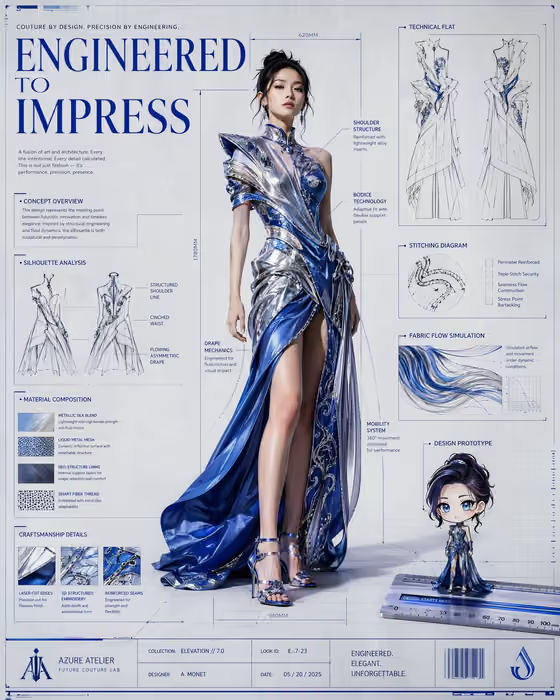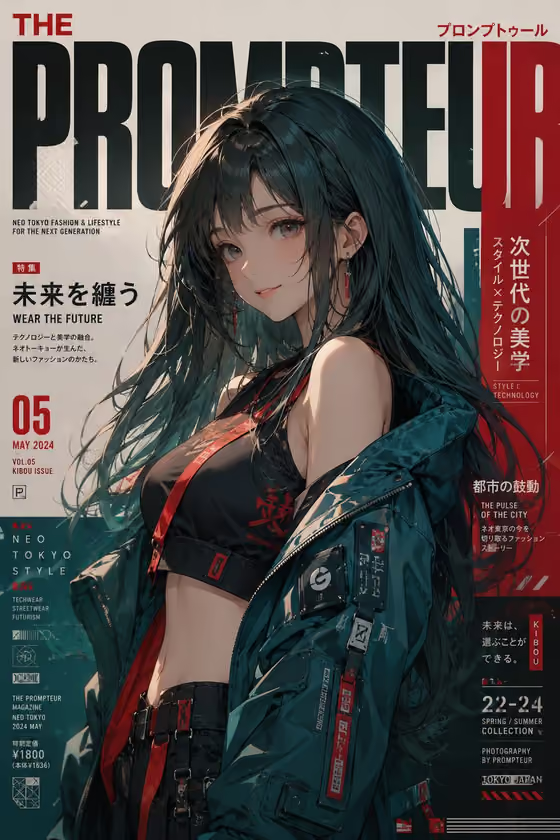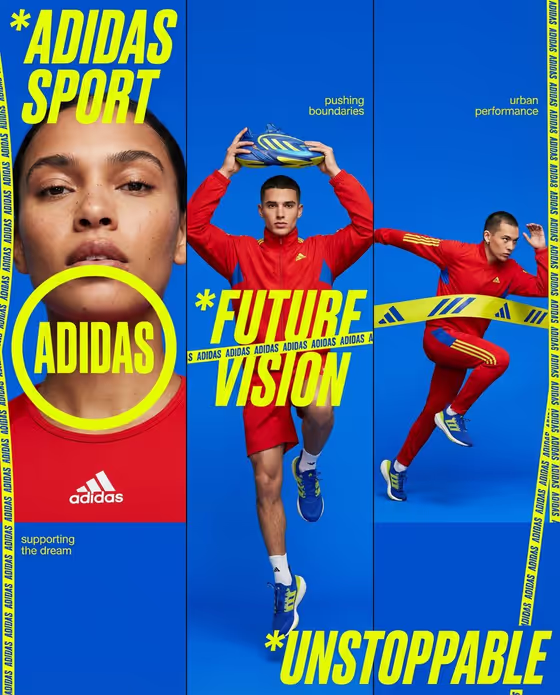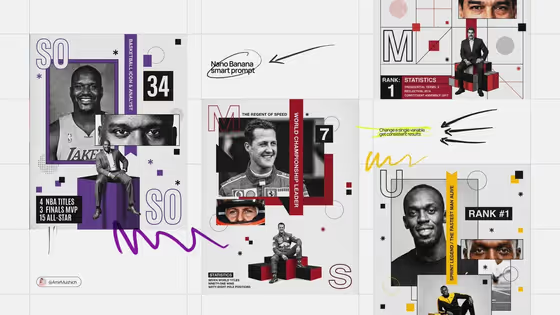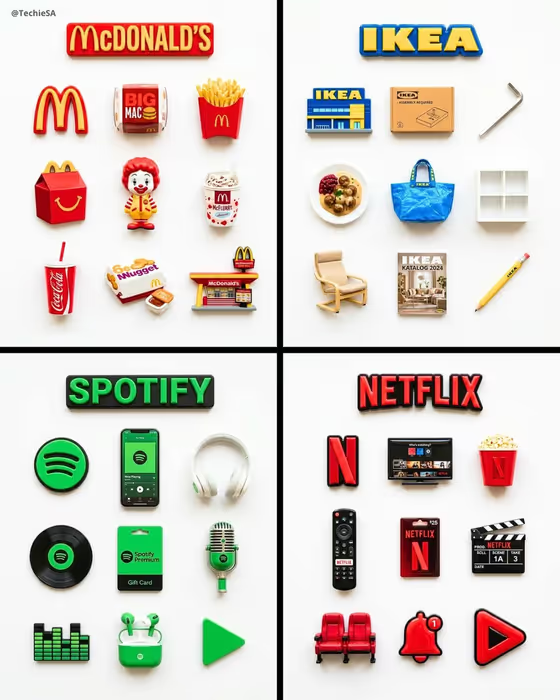
This template turns a brand into a flat-lay set of nine 3D resin fridge magnets on a bright white surface. A wide text magnet spelling the brand name sits at the top, with a 3x3 grid of small collectible-style pieces below it, in the brand's signature colors.
It suits designers, founders, marketers and fans who want a playful, shareable brand showcase. The grid usually covers a logo badge, hero products, packaging, a mascot or character, and a storefront or building, as in the four example panels on the cover.
What works best as input
- In the Brand Identity field, describe the brand or add an exact visual reference. A photo of a logo or key product helps the result match the real brand more closely.
- If you type instead, name the brand and its most recognizable items, such as signature products, packaging, a mascot, or a storefront. The grid is built from these, so specifics give you better magnets.
- Mention the brand's main colors if they matter. The title magnet and the pieces follow the brand's signature palette.
- Use a clear, uncluttered reference with the logo or product fully visible rather than a busy scene or a tiny crop.
How to use it
- Open the Resin Magnet Collection template in Phosphene.
- In Brand Identity, describe the brand or add a visual reference such as a logo or product photo.
- Pick an option in Setting, then generate the image in the 3:4 format.
- Review the grid. Check that the title magnet, the nine pieces and the colors read as your brand, then adjust your description and generate again if needed.
Tips for a better result
- List the specific items you want in the grid (for example a signature product, a mascot, a shopfront). The nine slots cover logo, products, packaging, character and building, so naming them guides what appears.
- Try the different Setting choices to see how each variation looks, then keep the one that fits your use.
- For a fictional or early-stage brand, describe its style and typical products in a sentence or two, like 'a boutique hospitality brand', and add a few concrete objects.
- Generate a few times and compare. Small wording changes in the brand description can change which items fill the grid.
Common mistakes
- Writing only a vague description like 'a modern brand' with no products or colors, which leaves the grid generic.
- Uploading a cluttered image where the logo or product is small or partly hidden, so the magnets lack a clear reference.
- Expecting exact text or tiny logo details to be perfect on every piece. Check the result closely before using it.
FAQ
What does the template produce?
A single image of a white flat-lay with a brand name text magnet on top and nine resin-style magnets in a 3x3 grid, themed on your brand.
Can I upload a photo?
Yes, the Brand Identity field accepts a photo as a visual reference, or you can describe the brand in text. The Setting field is a choice, not a photo upload.
What goes in the nine magnets?
The template aims for a logo badge, several iconic products or packaging, a mascot or character, and the brand's storefront or headquarters.
What shape is the output?
The template is set to a 3:4 image.