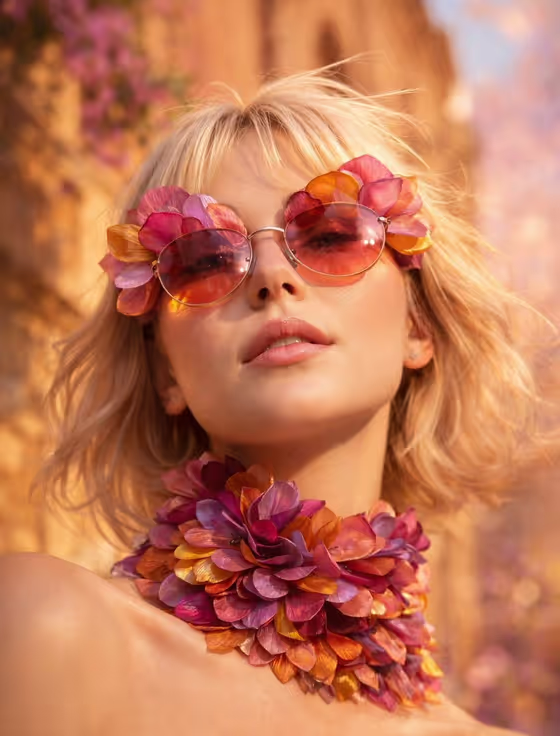
This template turns a portrait into a close-up beauty shot where the subject wears oversized sunglasses and a thick choker made from layered, translucent flower petals in magenta, amber and lilac. The cover shows the look: a low-angle framing, warm golden-hour light, and a soft terracotta and bougainvillea backdrop melting into pink bokeh.
It suits anyone who wants an editorial, fashion-style portrait with a sculptural, couture feel. You describe the subject or upload a reference photo, pick a pose and scene, and the template handles the petal eyewear, lighting and color grading in a vertical 2:3 image.
What works best as input
- Use a clear, well-lit photo where the face is easy to see and not covered by existing sunglasses, a hat or heavy shadows.
- A close or head-and-shoulders shot works best, since the final image is a tight portrait with the sunglasses and choker as the focus.
- If you describe the subject in the text field instead, be specific about hair color and length, for example 'a platinum-blonde woman' as in the placeholder.
- Keep the neck and shoulders visible in your source so the petal choker has room to wrap around naturally.
- Only upload photos of yourself or people who have agreed to it, and keep the description respectful.
How to use it
- Open the Sculptural Sunglasses Portrait template in Phosphene.
- In the subject field, describe the person or upload your reference photo. You can use either, following the examples shown such as 'a different person from my reference'.
- Choose an option under Pose and scene, such as an intimate close portrait, a full-body editorial frame or an environmental candid frame.
- Generate the image, then review the 2:3 result and check the sunglasses, choker and face before saving or trying again.
Tips for a better result
- Try the different Pose and scene options to see how the petal styling holds up in tighter or wider frames.
- If your first subject description is vague, add details like hair color and style so the result stays closer to what you picture.
- Run it again with a different reference photo or description to compare how the golden light and petal colors sit against different skin tones and hair.
- For the most faithful result to the cover's look, keep the default close-up portrait framing rather than the full-body option.
Common mistakes
- Uploading a photo with sunglasses already on or the face turned far away, which gives the template little to work with.
- Writing a long, conflicting description in the subject field, such as several different people or styles at once.
- Expecting a full-body shot to show the same close detail in the petals and lashes as the close-up portrait.
FAQ
Do I have to upload a photo?
No. The subject field accepts a text description, and it also accepts a photo reference. Use whichever suits you.
What does the Pose and scene setting change?
It sets how the portrait is framed, with options like an intimate close portrait, a full-body editorial frame or an environmental candid frame.
What shape will the image be?
The template outputs a vertical 2:3 image.
Can I change the petal colors or the sunset backdrop?
Those are fixed parts of this template's look: magenta, amber and lilac petals against warm terracotta in golden light. Your inputs change the subject and the framing.