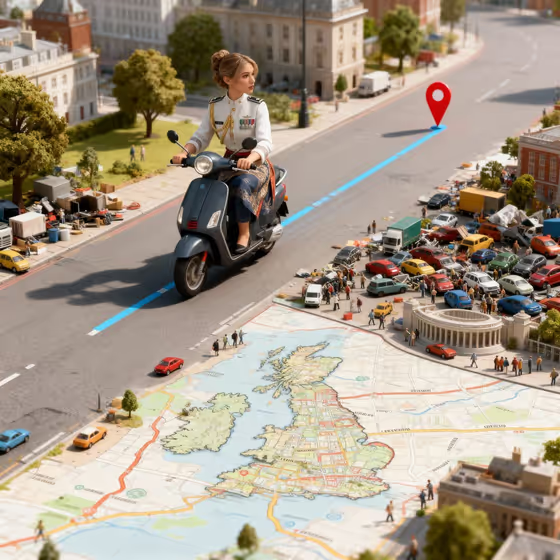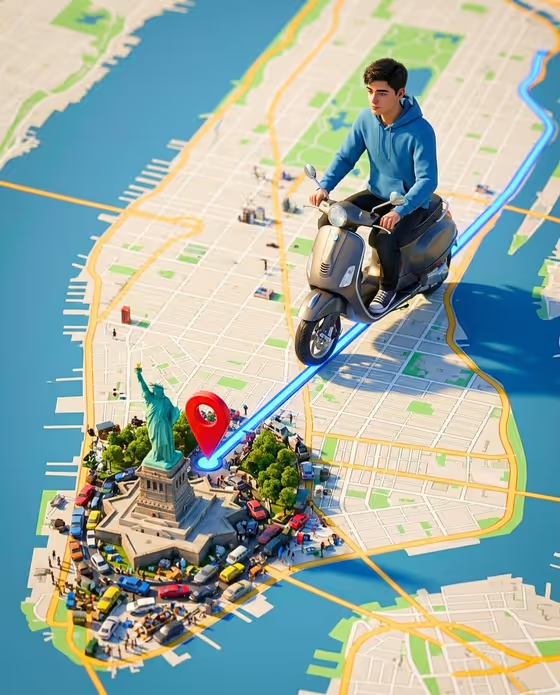
This template builds a vertical 3D scene in which a character based on your portrait rides a motorbike along a glowing blue route line across a stylized, GPS-style city map. The route leads toward a red destination pin, and the map below is filled with small landmarks and traffic, as in the cover image.
It suits anyone who wants a playful, map-themed image of themselves for a profile picture, a travel post, a birthday or a creative project. The output is a single 3:4 image, and it works best when you give it reference photos of the person who should appear on the bike.
What works best as input
- The template asks for 2 or more photos, so upload clear portraits of the same person. Photos with a visible face and natural, even lighting give the character a more accurate likeness.
- For the Portrait subject field, use a photo if you want a real likeness, or type a short description such as "a joyful young woman" or "an expressive young man" if you prefer a described character.
- For the Featured product or prop field, you can upload a photo of an object or describe it in a few words, such as "a compact consumer device" or "a distinctive branded object".
- Choose photos where the face and upper body are not covered by sunglasses, masks or heavy shadows, since the character is shown in a front-facing riding pose.
- Keep the product or prop simple and recognizable. A single clear object works better than a busy collage.
How to use it
- Open the 5 Surreal 3D Scene template in Phosphene.
- Fill in Portrait subject by uploading your photos or describing the person, then fill in Featured product or prop the same way.
- Pick or type a Creative direction, such as Clean editorial, Cinematic dramatic, Playful colorful or Quiet premium.
- Generate the image, then review the likeness, the route line and the red pin. Adjust your inputs and generate again if something is off.
Tips for a better result
- Try different Creative direction options on the same photos. Playful colorful and Cinematic dramatic should push the scene in clearly different moods.
- If the likeness feels weak, swap in sharper, front-facing portraits and run it again.
- Describe the prop with a bit of detail (material, shape, style) so it reads clearly in the scene.
- Generate a few versions and compare them. Small input changes can shift the clothing, the map details and the overall look.
Common mistakes
- Uploading photos of different people or very different angles, which makes the likeness less consistent.
- Using blurry, heavily filtered or tightly cropped portraits, which gives the template little facial detail to work from.
- Writing a long, vague description in the prop field instead of naming one clear object.
FAQ
How many photos do I need?
The template is set up for 2 or more photos, so upload at least two clear portraits of the person.
Can I describe the person instead of uploading a photo?
Yes. The Portrait subject field accepts a photo or a short text description, though photos are what give the scene your own likeness.
What does the Creative direction field do?
It sets the overall mood of the image. The examples are Clean editorial, Cinematic dramatic, Playful colorful and Quiet premium.
What shape is the result?
The output is a single vertical image in a 3:4 aspect ratio, which suits portrait-style posts and covers.