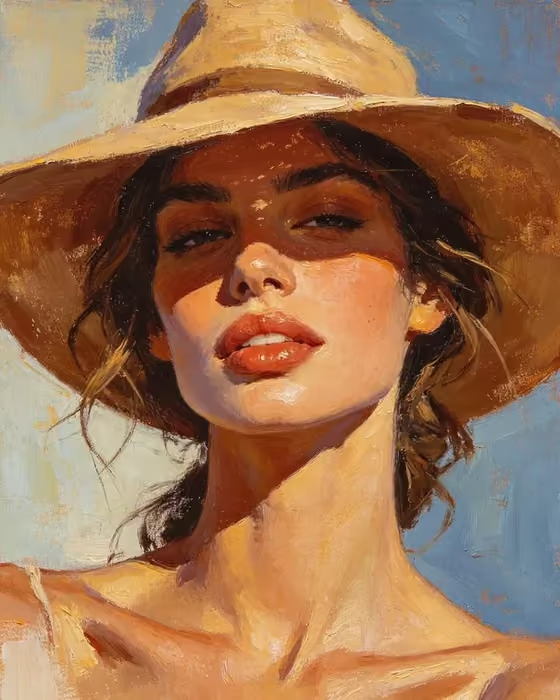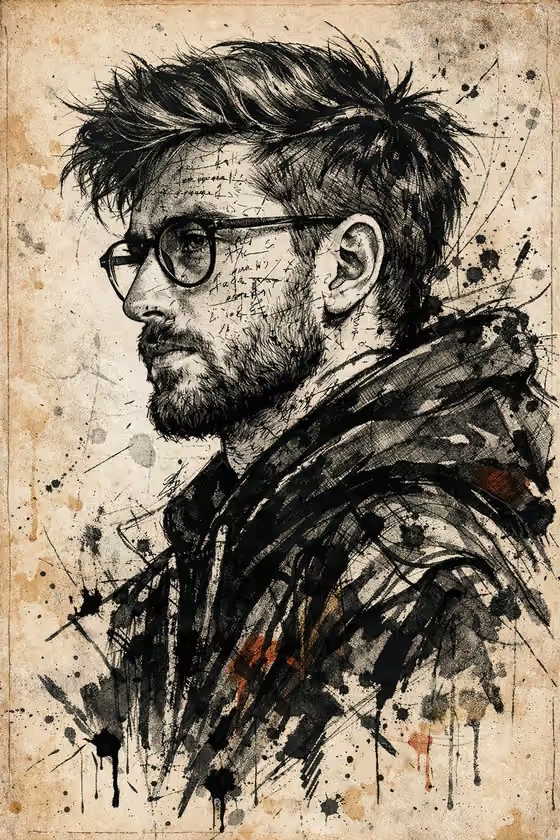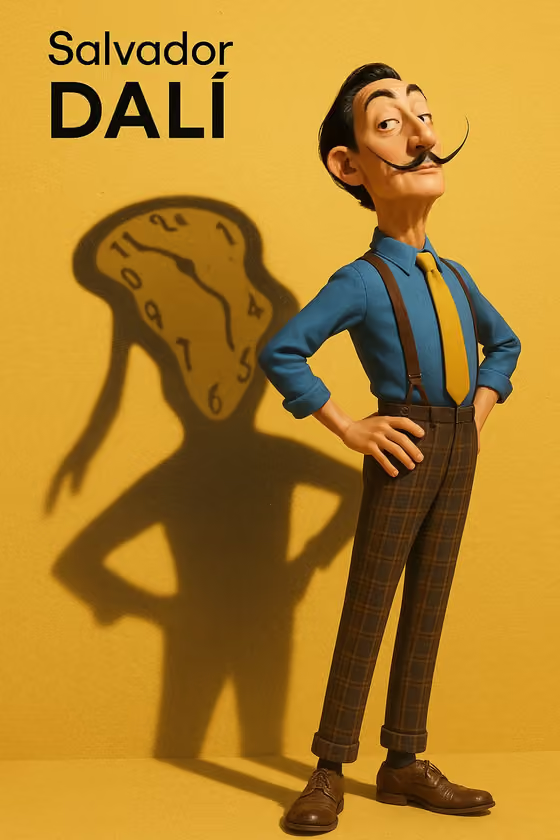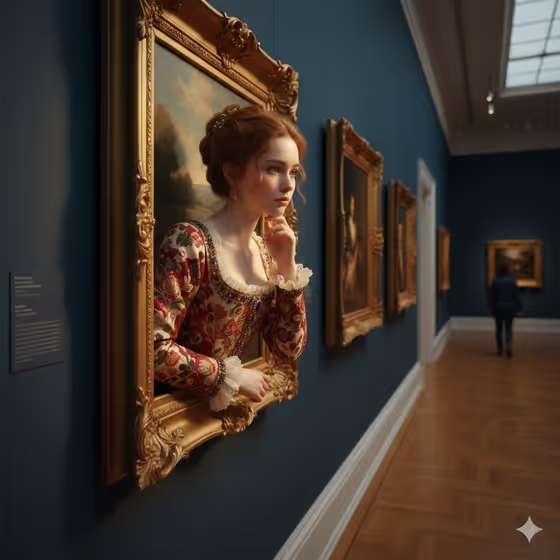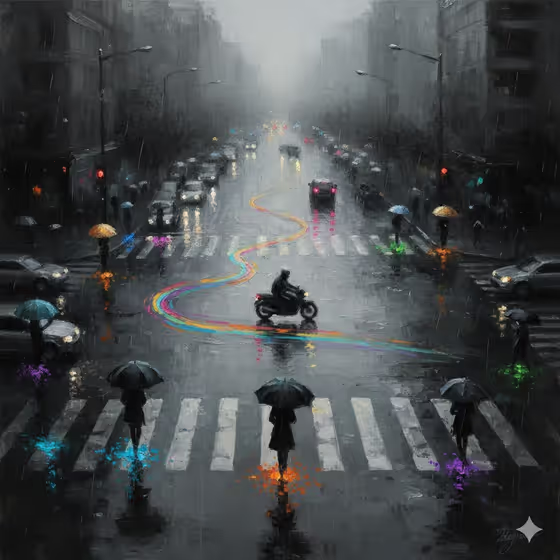
Stylized Art Object turns your subject into an impressionist oil painting of a rainy city scene. The image is loose and monochrome, built from charcoal blacks and silvery grays, with small pops of glowing color at footsteps, under umbrellas and in the lights of passing traffic.
It suits anyone who wants a moody, painterly image with a sense of urban solitude rather than sharp detail. You describe a subject, choose a setting, and the template handles the brushwork, the misty atmosphere and the scattered color.
What works best as input
- The Subject field is required and accepts either a text description or a photo reference. Use whichever gives you the clearer picture of who or what should appear.
- If you add a photo, pick one with a single, clear subject and an uncluttered background so the focal point is easy to read.
- If you type instead, be specific about who the subject is and what they are doing, for example 'A resilient outdoor adventurer' or 'A poised creative professional'.
- Keep the subject to one person or one clear idea. The template aims for one focal point and a lot of open space, so a crowded description works against it.
- Expect loose, blurred silhouettes rather than portrait detail. Facial likeness is not the goal of this painterly style.
How to use it
- Open the Stylized Art Object template in Phosphene.
- Fill in the Subject field by typing a short description or adding a photo reference.
- Choose a Setting from the options, such as a minimal gallery environment, a clean studio, a misty natural landscape or a refined architectural interior.
- Generate the image, then review the painting for a clear focal point, readable colored glows and a balanced mono tone. Adjust your Subject text and run it again if needed.
Tips for a better result
- Try the same Subject with different Settings to see how the mood shifts while the monochrome and color-glow treatment stays consistent.
- Use short, concrete subject descriptions. A single clear idea tends to read better in a loose painterly image than a long list of details.
- Pick a Subject that would look natural walking, standing or moving through a space, since the painting leans on figures, silhouettes and reflections.
- If the first result feels too busy, simplify the Subject text and rerun it to keep the composition open and the focal point obvious.
Common mistakes
- Describing too many subjects or props at once. The style favors one focal point and purposeful spacing, so extra elements can crowd the scene.
- Expecting sharp, photographic detail. The brushwork is intentionally blurred and painterly, with vague silhouettes.
- Leaving the Subject vague or generic when you have a specific idea. Adding a clear descriptor or reference gives the painting something distinct to center on.
FAQ
Can I upload a photo for this template?
Yes, the Subject field accepts a photo as a visual reference as well as a text description. The Setting field is a choice from the listed options, not a photo upload.
Will the image be in color?
Mostly not. The scene is monochrome in charcoal and silvery grays, with small glowing pops of color at footsteps, under umbrellas and in lights.
What kinds of settings can I pick?
The examples include a minimal gallery environment, a clean studio, a misty natural landscape and a refined architectural interior.
Will my subject look exactly like my reference?
Not exactly. The style uses loose brushwork and soft silhouettes, so expect a painterly interpretation rather than a precise likeness.