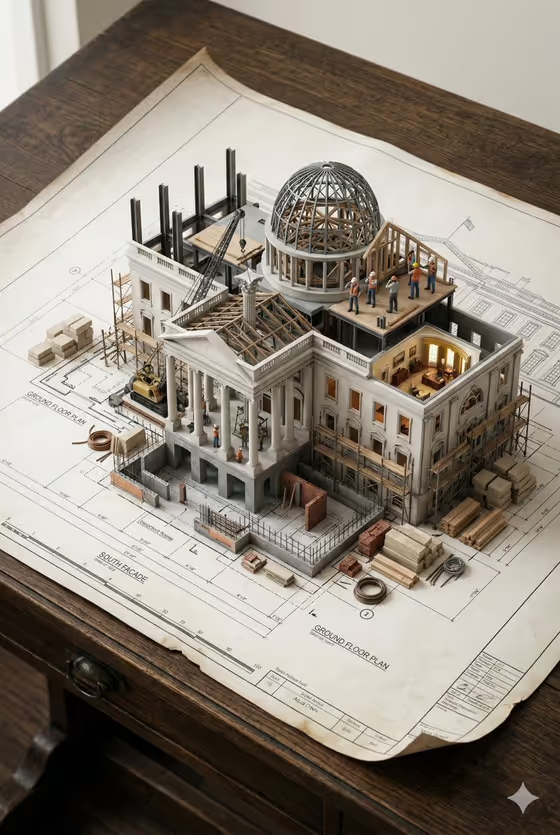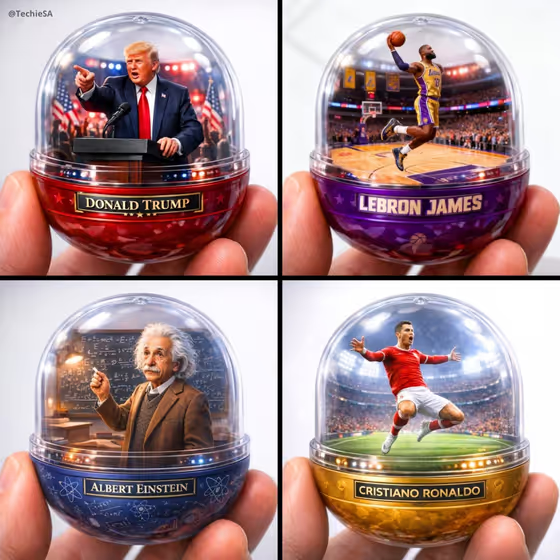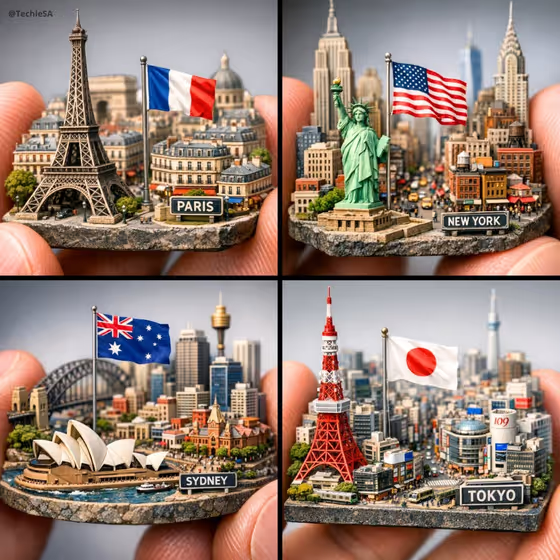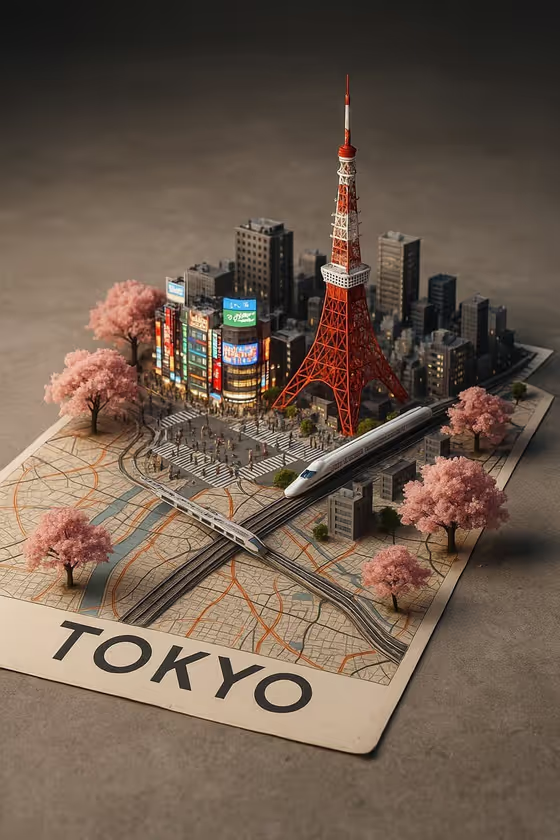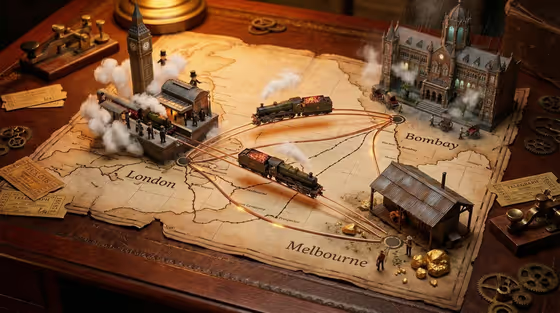
Atlas of Living Cities turns a map into a tabletop diorama. You name a map and surface, pick the cities, and describe how they connect, and the template builds an image where each marked location rises out of the flat paper as its own miniature world, with landmarks, street life, weather and local light.
It suits travel and geography fans, writers and game masters who want a world-map visual, and anyone who wants a striking image about places that are linked by trade, travel or story. The output is a single 3:4 image where printed oceans, deserts and forests become physical terrain while the map stays readable.
What works best as input
- Map type and surface is a text field and does not take a photo. Write the map and the material it lies on, such as the placeholder's weathered world atlas on oak, or try a folded road map on canvas.
- City worlds is the field that accepts a photo, and it also takes a choice or typed text. If you upload a reference, pick one with a clear, recognizable view of the place you want to see.
- If you type the cities instead, name two or three specific ones, as in London, Cairo, and Kyoto. Concrete names give the template landmarks and culture to work with.
- Connecting routes is text only. Describe both the route and what travels along it, for example glowing rail lines and tiny trains or blue shipping lanes and boats.
- Keep each field short and focused. One clear map, a small set of cities and one kind of route reads better than a long list of ideas.
How to use it
- Open the Atlas of Living Cities template in Phosphene.
- Fill in Map type and surface with the kind of map and what it rests on, such as an antique navigation chart on leather.
- Set City worlds by choosing an option, typing your cities, or adding a photo, then describe Connecting routes, such as gold flight paths and aircraft.
- Generate the image, then look at how each city, the terrain around it and the routes between them came out, and adjust the fields and run it again if you want a different balance.
Tips for a better result
- Match the routes to the map. A rail map on a drafting desk pairs naturally with rail lines and tiny trains, while a navigation chart suits shipping lanes and boats.
- Choose cities with very different looks, such as a European capital, a desert city and an Asian city, so the miniature worlds read as distinct from each other.
- Change only the surface or only the routes between runs to compare how much each one shifts the mood.
- The cover shows how warm lamp-like light and aged paper give the scene a vintage feel. Surfaces such as oak, leather or canvas help set that tone.
Common mistakes
- Listing too many cities. The template is built around a small cluster, and a crowded list makes each world smaller and less detailed.
- Leaving Connecting routes vague. Without a clear route type and moving objects, the links between cities are harder to see.
- Putting a photo idea into the text-only fields. Map type and surface and Connecting routes take written descriptions, so only City worlds accepts a photo.
FAQ
Can I upload a photo for this template?
Only in the City worlds field, which accepts a photo. Map type and surface and Connecting routes are text fields.
How many cities should I name?
The examples use three, and that is a good starting point. A small cluster keeps each miniature world readable.
What shape is the result?
The output is a single image in a 3:4 aspect ratio.
Will the map still be readable?
The template is directed to keep the printed map surface readable while terrain like water, desert and trees becomes physical near each city.