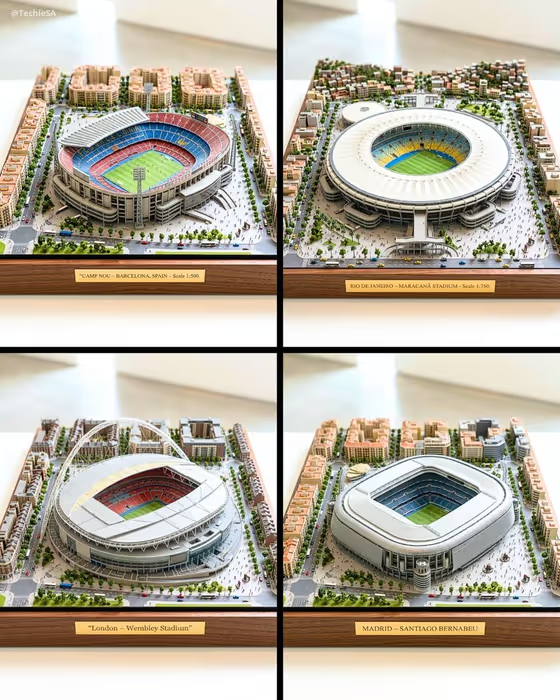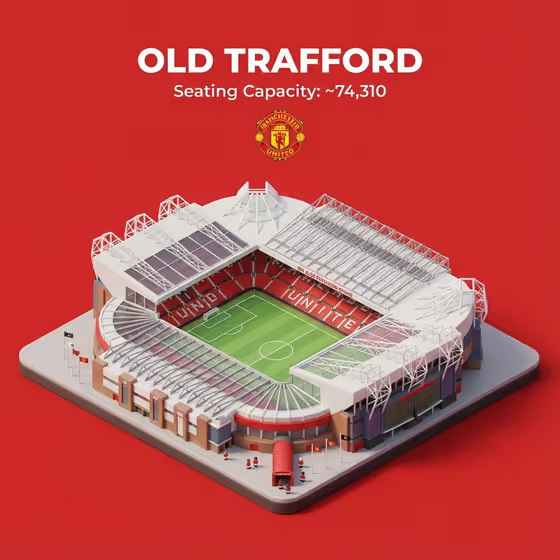
Stadium Identity Miniature turns a venue into a small, softly lit 45-degree miniature and stacks it under three lines of text: the stadium name, its seating capacity, and an official logo. The cover shows the idea clearly, with a bold name at the top, a capacity line beneath it, an emblem, and a tiny model of the ground on a plain colored card.
It suits fans, club or venue social accounts, match-day posts, and anyone building a series of stadium graphics that share one clean look. Because the name, number, and logo are all fields you fill in, the same template works for football grounds, baseball parks, cricket grounds, or any venue you can describe.
What works best as input
- For Stadium Model Product, you can type the venue name or add an architectural reference photo. A clear view that shows the roof shape, stands, and overall outline gives the miniature more to work from than a tight crop of one corner.
- Since the template asks for 2 or more photos, pair a stadium reference with a logo image so both photo-capable fields have something real to draw from.
- For Official Logo, type a short description such as the club or venue emblem, or upload a clean, flat image of the logo. A sharp image with the logo filling most of the frame reads better than a blurry photo of a scarf or sign.
- Type Stadium Name in the style you want it displayed, like WEMBLEY STADIUM in capitals. This field is text only, so no photo is needed.
- Enter the Capacity Number exactly as you want it to appear, including commas (for example 90,000). Check it against an official source first, since the template prints whatever you type.
How to use it
- Open the Stadium Identity Miniature template in Phosphene.
- Fill in Stadium Model Product with the venue name or an architectural reference, then add your Stadium Name and Capacity Number in the text fields.
- Describe or upload your Official Logo, and add a second photo if you are using references for both the stadium and the logo.
- Generate the image, then look over the 3:4 result and check that the name, number, and emblem are spelled and shown the way you intended.
Tips for a better result
- Use the example formats as a guide for the text fields. Short, official-sounding names such as CAMP NOU or YANKEE STADIUM match the bold title style in the cover.
- Add distinguishing details in Stadium Model Product, such as roof style or stand layout, so the miniature looks like your venue and not a generic bowl.
- Generate the same template again with a different stadium to build a matching set. The card layout, centered text stack, and miniature angle stay consistent.
- If the first result's logo looks off, try a cleaner logo reference or a more specific description, then run it again.
Common mistakes
- Typing an approximate or outdated capacity. The number is displayed as text on the card, so a wrong figure will be visible to everyone.
- Using a cluttered or low-resolution logo photo. Busy backgrounds make the emblem harder to reproduce cleanly under the capacity line.
- Writing a long sentence in Stadium Name. The title works best as a short, bold venue name rather than a description.
FAQ
Do I have to upload photos?
The template is set up for 2 or more photos, but only Stadium Model Product and Official Logo accept them. Stadium Name and Capacity Number are text only.
What goes in the Capacity Number field?
Type the seating capacity as you want it shown, such as 90,000. It appears beneath the stadium name, so use a figure you have verified.
Can I change the background color?
The template is built around a clean solid-color square card, and the color is not one of the fields you fill in. The text color adjusts automatically for contrast.
What shape is the final image?
It is a 3:4 image with the name, capacity, and logo centered above a 45-degree miniature of the stadium.