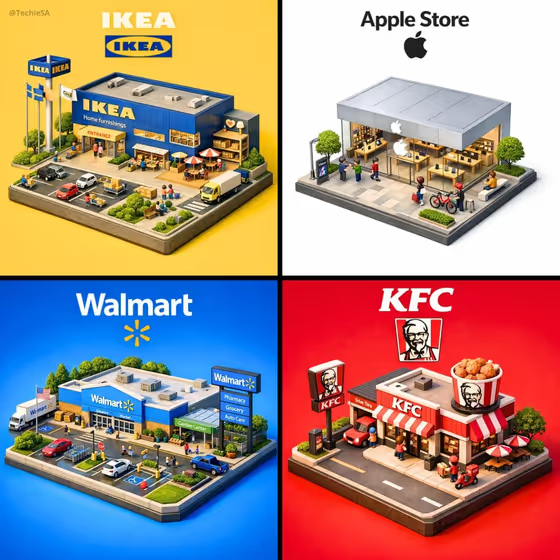
Iconic Store Diorama turns a retail brand into a tiny isometric scene on a raised square base. You get the storefront, interior cues, merchandise and a few tiny faceless shoppers, with the brand name and logo lettered above the scene, like the four-panel set in the cover image.
It suits anyone who wants a collectible-looking brand illustration: social posts, a series of stores in matching colored panels, or a playful way to show off a favorite shop. You pick the store, the signature details and the backdrop color, and the template handles the miniature styling.
What works best as input
- For Brand name and logo, type the store name as people know it (the examples include Apple Store, LEGO Store and Starbucks Reserve). This slot also accepts a photo, so you can upload a reference of the logo or storefront instead of describing it.
- If you upload a reference, pick a clear, well-lit image where the logo or facade is easy to read and not cropped or covered by other objects.
- For Recognizable store elements, choose the option that matches what makes the store feel like itself, such as signature facade and product tables or roastery bar and copper equipment. This field is a choice list, not a photo upload.
- For Background color, use a simple color name like warm white, brand red, soft blue or deep charcoal. A solid, brand-adjacent color makes the base and logo stand out, as the yellow, white, blue and red panels do in the cover.
How to use it
- Open the Iconic Store Diorama template in Phosphene.
- Fill in Brand name and logo with the store you want, or add a reference photo for it, then choose the Recognizable store elements that fit that brand.
- Enter a Background color, then generate the image. The result comes out in a 3:4 frame.
- Review the diorama. Check that the logo above the scene reads clearly and the architecture feels recognizable, then adjust your fields and generate again if needed.
Tips for a better result
- Match the store elements to the brand. A tech store works with signature facade and product tables, while a coffee brand fits roastery bar and copper equipment.
- Pick a background color tied to the brand, like red for a fast-food chain or blue for a big-box retailer, to get the bold single-color look seen in the cover panels.
- Make a matching set by keeping the same background style and changing only the brand. The cover shows four stores side by side with the same isometric base.
- Try the brand-specific service areas option when a store is known for something beyond its front door, like a drive-through or a garden center.
Common mistakes
- Typing a vague brand like just 'a shop'. The template relies on a recognizable name or a clear reference, so be specific.
- Choosing a background color that clashes with or blends into the logo area. The template adjusts text contrast, but a very busy or mid-tone color can still make the scene feel flat.
- Uploading a blurry or heavily cropped reference photo. A low-quality reference gives the template less to work with for the facade and logo.
FAQ
Do I have to upload a photo?
No. Brand name and logo can be typed, and it also accepts a reference photo if you want to guide the look. The other two fields are a choice list and a color.
What will the final image look like?
A miniature isometric retail scene on a raised square base, with tiny faceless visitors and the brand name and logo lettered above it, in a 3:4 image.
Can I use a store that is not in the examples?
Yes. The examples are suggestions, and one of them is 'a retail brand I choose', so you can enter any store you like.
How do I change the mood of the image?
Change the Background color. A warm white feels clean and calm, while brand red or deep charcoal gives a bolder, more dramatic look.