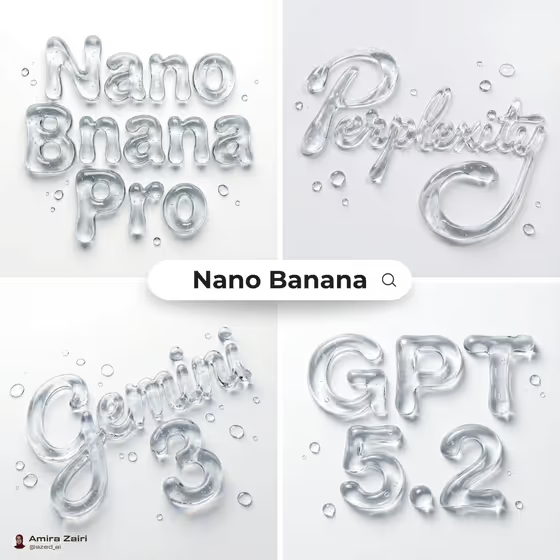
Water-Gel Word turns a short word into lettering that looks sculpted from clear, wobbling gel. The cover shows this well: each letter is thick and glossy, light bends through the transparent body, and small droplets sit around the word on a clean white background.
It suits anyone who wants a single eye-catching word as a square image, such as a title graphic, a label for a post, or a sample of liquid typography. You choose the word, the way the liquid letters are shaped, and the kind of bubbles inside them.
What works best as input
- For the Rendered word object field, type a short word (the placeholder is FLOW, and the examples include AQUA and DRIFT). Short words give the gel room to form clear, readable letters.
- The Rendered word object slot also accepts a reference photo, but the word itself is what gets sculpted, so only add a photo if you want it to guide the result. A plain typed word is the most predictable route.
- Check your spelling before you generate. The template aims for full readable spelling, so a typo in your input will show up in the lettering.
- For Internal detail, describe what should be trapped inside the gel, such as fine micro-bubbles, a few large trapped bubbles, or a clear core with edge bubbles. This field is text only, so do not upload a photo there.
- For Liquid letter form, pick one clear look, such as thick smooth curves or pooled transparent lettering, rather than blending several ideas.
How to use it
- Open the Water-Gel Word template in Phosphene.
- Fill in Rendered word object with your word, then set Liquid letter form and Internal detail using the examples as a starting point.
- Generate the image. The output is a 1:1 square.
- Review the result, check that every letter reads correctly, then adjust a field and run it again if you want a different look.
Tips for a better result
- Try the same word with different Liquid letter form choices, like droplet-built rounded glyphs versus stretched fluid strokes, to see how much the letter shapes change.
- Switch Internal detail between fine micro-bubbles and a few large trapped bubbles to control how busy or clean the inside of the gel looks.
- Keep the word short. Cover examples like Gemini 3 and GPT 5.2 show that brief names and numbers hold up well as gel lettering.
- If a result reads poorly, change one field at a time so you can tell which choice caused the difference.
Common mistakes
- Typing a long phrase or sentence. Many letters in one square make the gel shapes cramped and harder to read.
- Leaving the word vague or misspelled, which can lead to unreadable or wrong lettering.
- Changing all three fields at once, which makes it hard to learn what improved or worsened the result.
FAQ
What kind of word should I use?
A short word works best, like the FLOW, AQUA or DRIFT examples. Short names and numbers also look good, as the cover shows.
Can I upload a photo instead of typing a word?
Only the Rendered word object field accepts a photo, and the template is built around sculpting a word. Typing your word is the simplest way to get the intended result.
What shape is the output?
The image is a square (1:1), with the gel word on a white background and a few scattered droplets.
Will extra text or a watermark appear?
The template direction asks for no extra text or watermark, so only your word should appear.