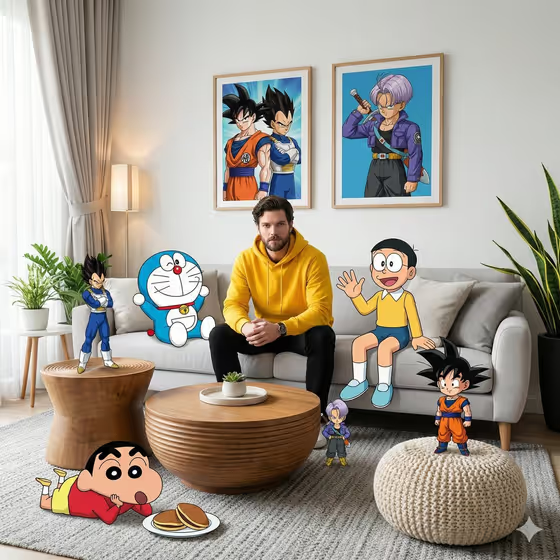
This template builds a wide-angle living room scene in which you sit on a light gray sofa while cel-shaded cartoon characters share the space with you. In the cover image, a man in a yellow hoodie sits in the middle of a modern room with anime and cartoon guests on the sofa, the coffee table, the floor and a knit pouf, and framed character posters hang on the wall behind him.
It suits anyone who wants a playful mixed-media portrait: a photorealistic person in a realistic interior, surrounded by flat, outlined 2D characters. The output is a single 16:9 image, and you start from one photo of yourself.
What works best as input
- Upload one clear photo of the person who should appear on the sofa. The template uses it as a face reference, so pick an image where the face is well lit and fully visible.
- Choose a front-facing or slightly angled shot with no sunglasses, heavy shadows or objects covering the face.
- In the Portrait subject field you can also type a short description instead, such as "a confident adult" or "an expressive young man", if you prefer to describe the person.
- A photo with a relaxed, seated or upper-body pose fits the scene best, since the figure ends up sitting centrally on a sofa.
How to use it
- Open the template in Phosphene and find the Portrait subject field.
- Upload your photo there, or type a short description of the person you want in the scene.
- Pick an option for Creative direction, such as Clean editorial, Cinematic dramatic, Playful colorful or Quiet premium.
- Generate the image, then check the face, the sofa scene and how the cartoon characters sit in the room before saving.
Tips for a better result
- Try each Creative direction on the same photo. Playful colorful and Quiet premium should push the mood in clearly different directions.
- Use a sharp, evenly lit photo so the likeness carries over cleanly into the realistic part of the scene.
- Generate a few times and compare. The placement and look of the cartoon guests may vary between results.
- Keep the description short and concrete if you type one, in the style of the examples such as "a joyful young woman".
Common mistakes
- Uploading a blurry, tiny or heavily filtered photo, which gives the face reference little to work with.
- Using a group photo or a picture where the face is partly hidden, so it is unclear who the reference is.
- Writing a long, complicated description in Portrait subject instead of a short phrase like the provided examples.
FAQ
Do I have to upload a photo?
The Portrait subject field accepts a photo, and the template is built around using a face reference. You can also describe the person in text if you prefer.
What does the final image look like?
It is a 16:9 living room scene with a realistic figure on a sofa and flat, cel-shaded cartoon characters sharing the space, as shown in the cover image.
What does Creative direction change?
It sets the overall mood of the image. The options include Clean editorial, Cinematic dramatic, Playful colorful and Quiet premium.
Can I choose which cartoon characters appear?
The template has no field for choosing characters. Only the Portrait subject and Creative direction fields are available to you.