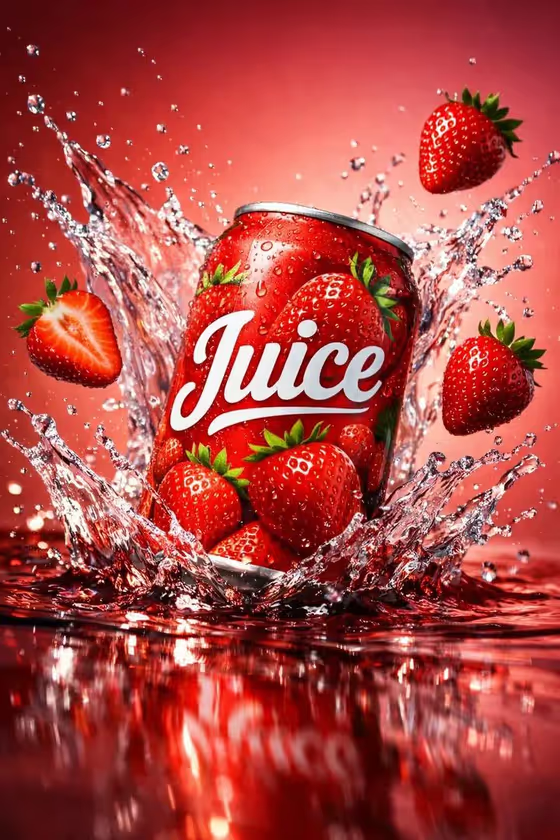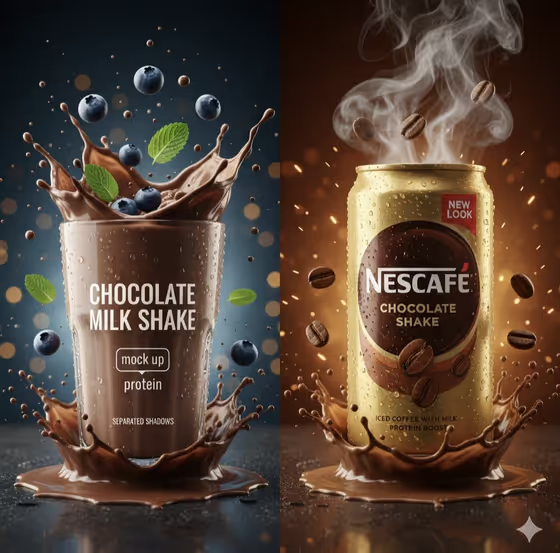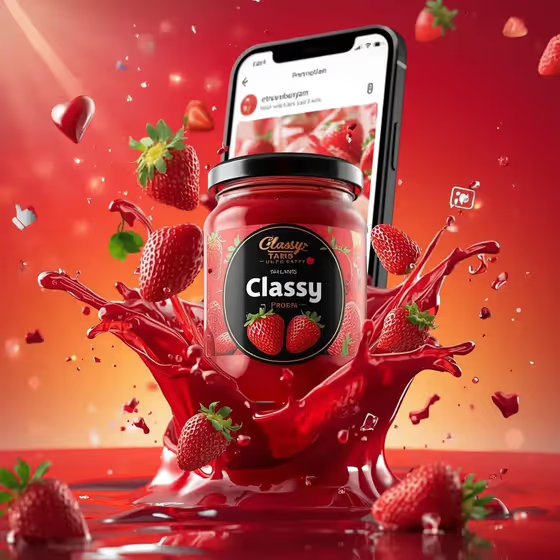
Strawberry Jam Splash makes a 3:4 commercial-style image of a jam jar floating mid-air inside a burst of thick red jam. Whole and sliced strawberries, green leaves and frozen glass shards hover around it, with a smartphone social post and floating heart and like icons behind, all on a red-orange gradient.
It suits small food brands, home producers and anyone mocking up a social media promo for a jam or preserve. You describe your product or upload a photo of it, pick a presentation style, and the template handles the splash, lighting and backdrop.
What works best as input
- For the product slot, you can type a description or upload a reference photo. A clear, well-lit shot of your actual jar with the label facing the camera gives the most faithful starting point.
- If you type instead, be specific about the jar: lid color, label style, and the jam inside. The placeholder 'a premium strawberry jam jar' shows the level of detail to aim for.
- Use one product per image. A single jar on a plain background is easier to read than a group shot or a cluttered kitchen counter.
- Avoid heavy filters or extreme angles in your reference photo, since the jar's shape and label are what you want carried into the splash scene.
- If you do not have a branded jar yet, the example 'a premium unbranded alternative' lets you work without a specific logo.
How to use it
- Open the Strawberry Jam Splash template in Phosphene.
- In the product field, describe your jam jar or upload a photo of it. Check that the description or photo shows the jar you actually want featured.
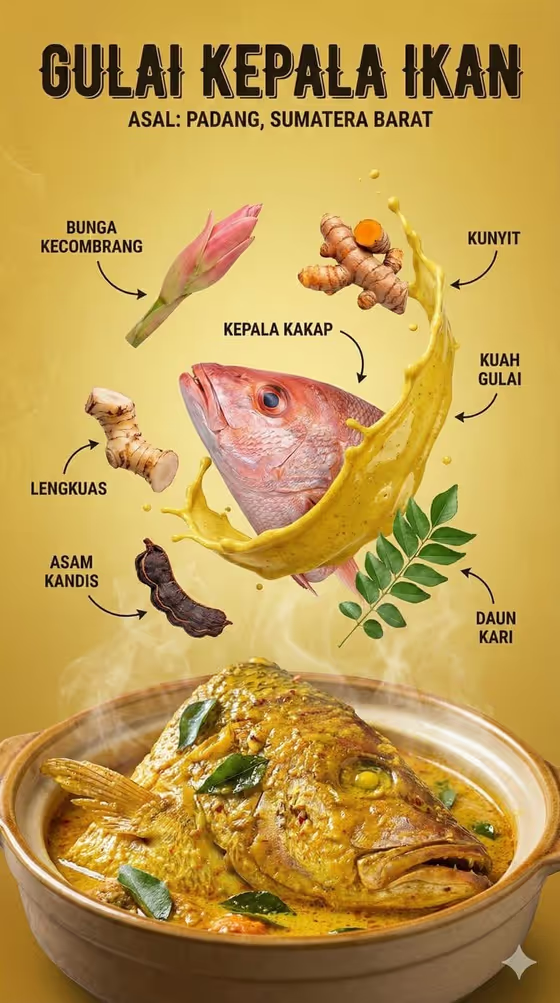
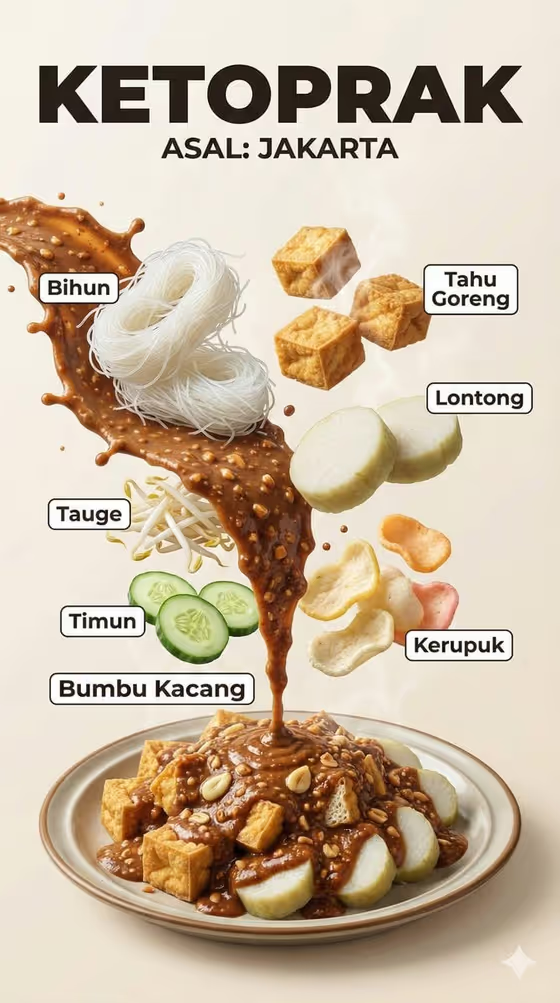
- Choose a Product presentation option. The examples include a clean studio hero, dynamic material interaction, or an annotated product breakdown, so pick the framing that fits your use.
- Generate the image, then review the jar, label, splash and strawberries. If something is off, adjust your product description or reference photo and run it again.
Tips for a better result
- Try different Product presentation options with the same product to compare a calmer studio look against a more energetic splash.
- Name the label details you care about (color, fruit artwork, brand name) in your description so the jar reads clearly as yours.
- Compare a typed description against an uploaded photo of the same jar to see which holds your packaging details better.
- Since the output is 3:4 portrait, think about where you will post it. It suits feed posts and product pages that favor vertical images.
Common mistakes
- Describing the product too vaguely, such as just 'jam', which leaves the jar design and label to chance.
- Uploading a dark, blurry or heavily cropped photo, which gives the template little to work with for the jar's shape and label.
- Expecting every small piece of label text to come out exactly as printed. Check the label in the result before using it in a real campaign.
FAQ
Can I upload a photo of my own jar?
Yes. The product field accepts either a text description or a reference photo of your product.
Does it only work for strawberry jam?
The scene is built around strawberry jam, with strawberries and red splashes, so it fits strawberry products best. Other products are better served by a different template.
What does the Product presentation option change?
It sets how the shot is framed, for example a clean studio hero, dynamic material interaction, or annotated product breakdown, while the core splash look stays fixed.
What shape is the image?
The output is a single image in a 3:4 portrait ratio.