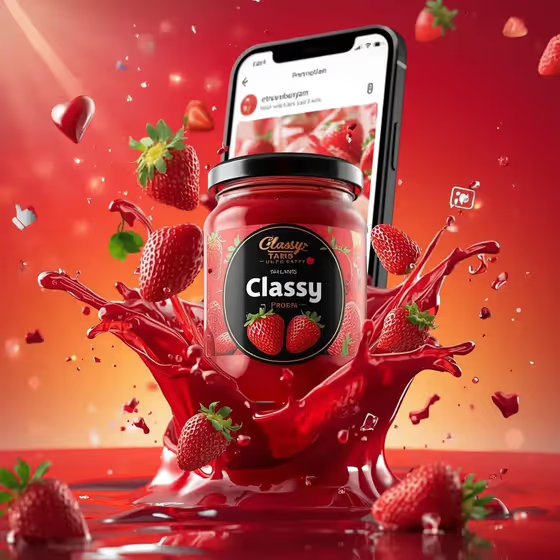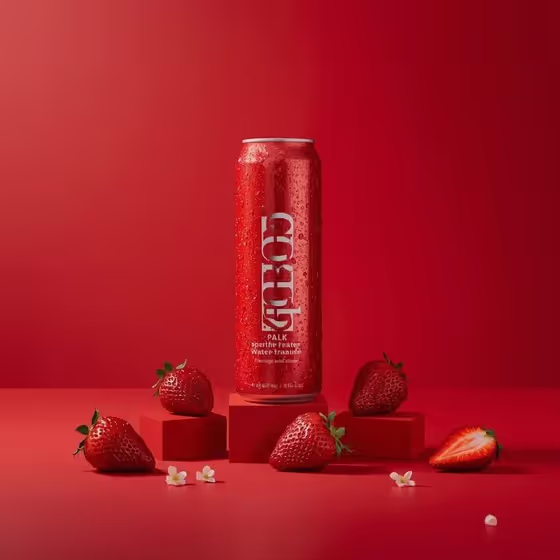
Red Strawberry Can Studio builds a red-on-red product photo of a canned drink. The can stands upright in the center of a saturated red set, with fruit arranged symmetrically around it, a few pieces raised on small red blocks, and plenty of empty space above.
It suits anyone who needs a clean beverage visual: small drink brands testing a flavor, creators mocking up a can concept, or shop owners who want a bold hero image. The output is a 3:4 image with cold condensation, crisp white type and soft directional light, as in the cover example.
What works best as input
- For the Sparkling drink product or can slot, either type a short description (the placeholder is 'red strawberry sparkling-water can') or upload a reference photo of your can. This slot accepts both.
- If you upload your own can, use a clear, evenly lit shot of the whole can with the label visible. The template asks for 2 or more photos, so add a second angle or a matching reference for the fruit styling.
- For Fruit and flower styling, pick or describe a fruit and blossom pairing that matches the flavor, such as strawberries and elderflower or cherries and tiny cream flowers. You can also upload a photo of your flavor ingredients.
- For Can label or phrase, enter short text only. This slot does not take a photo, and brief phrases like GOOD IDEA or BERRY BRIGHT fit a slim can label best.
How to use it
- Open the Red Strawberry Can Studio template in Phosphene.
- Fill in Sparkling drink product or can by describing your can or adding a reference photo, then set the Fruit and flower styling.
- Type your phrase into Can label or phrase, and add your photos if the template asks for them.
- Generate the image, then check the can's centering, the label text, the fruit symmetry and the condensation before saving.
Tips for a better result
- Keep the flavor, fruit and can color in the same red family. The scene is built around red-on-red contrast, so a matching can and fruit look most cohesive.
- Try the example pairings, such as raspberry soda can with raspberries and white blossom, to see how the same composition shifts with the flavor.
- Use a short label with few letters. Fewer characters give the generator a better chance of rendering the type cleanly on the can.
- Change only one slot per run, such as the fruit styling or the phrase, so you can see what caused each difference.
Common mistakes
- Writing a long sentence in Can label or phrase. Long text tends to get distorted on a slim can, so keep it to a short phrase.
- Describing a wide bottle or a very different drink container. The template is built around a slim upright can standing centered.
- Choosing fruit and flowers in clashing colors. The design relies on restrained white blossoms as the only contrast, so busy multicolor styling works against it.
FAQ
Can I use my own can instead of describing one?
Yes. The Sparkling drink product or can slot accepts a photo reference as well as text, and the template asks for 2 or more photos in total.
Can I upload a photo for the label text?
No. Can label or phrase is a text-only slot, so type the words you want shown on the can.
What shape is the final image?
The output is a 3:4 image, a portrait frame with room above the can.
Do I have to use strawberries?
No. Strawberries and elderflower is just one option. You can choose raspberries, cherries or your own flavor ingredients in the Fruit and flower styling slot.