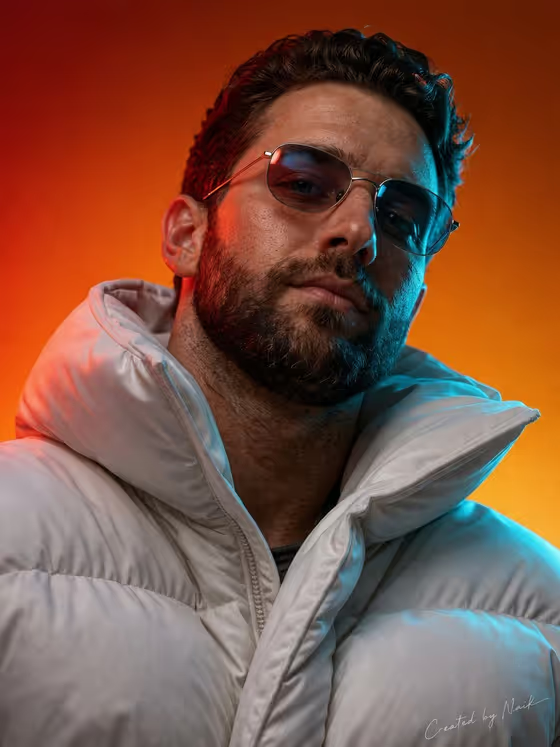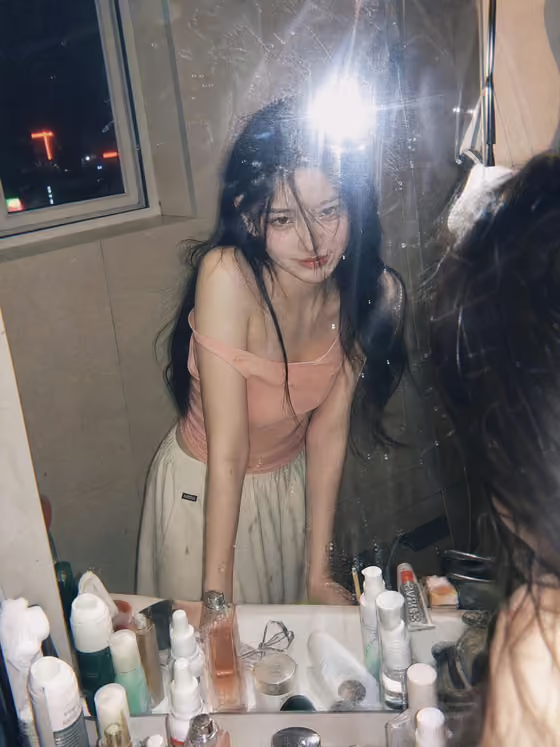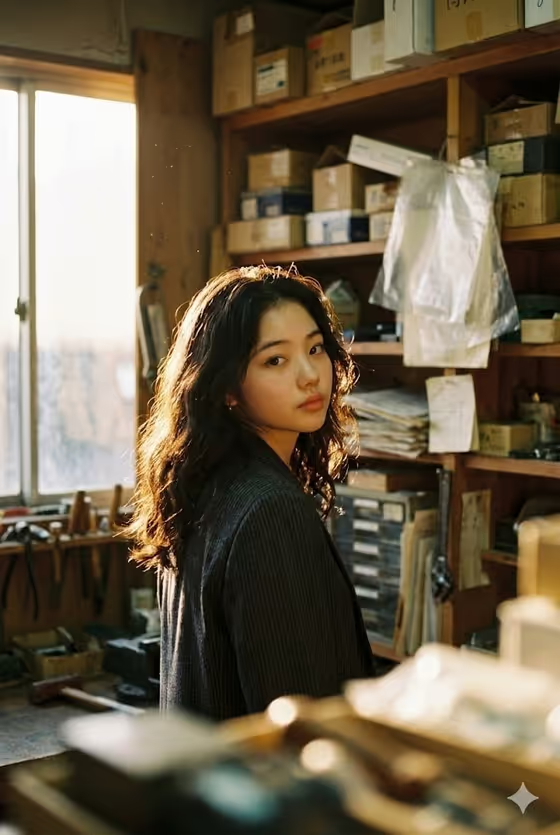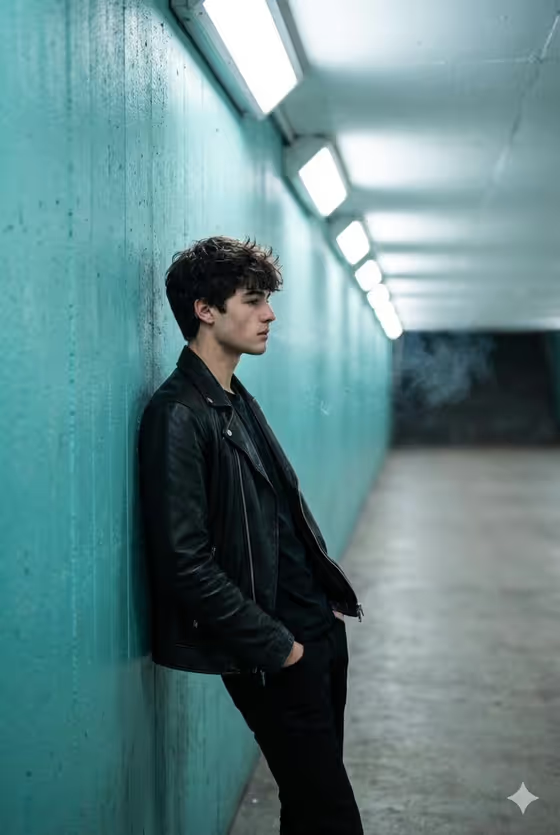
Turquoise Tunnel Portrait places your subject in profile against a textured turquoise wall inside a bright tunnel. They wear a black leather jacket and black pants, with a row of rectangular ceiling lights running off into the distance. The mood is quiet and introspective, with a cool urban glow and a little smoke curling in the air.
It suits anyone who wants a moody, editorial-style portrait with a strong sense of place. You can describe a subject or provide a reference photo of the person you want, and the template handles the wardrobe, wall, lighting and framing for you. The result is a 3:4 vertical image.
What works best as input
- Use a clear, well-lit photo where the face is easy to see. The subject slot accepts a reference photo, so the better the source, the more recognizable the result.
- Pick a photo with a natural, relaxed expression. The scene is built around a calm, contemplative look, so a neutral or thoughtful face fits best.
- If you would rather type than upload, describe the subject in a short phrase such as 'a contemplative young man' or 'a candid everyday subject'.
- Only use photos of people who are happy to be featured, and avoid heavy filters or obstructed faces that hide the features you want kept.
How to use it
- Open the Turquoise Tunnel Portrait template in Phosphene.
- In the subject field (contemplative young man portrait subject), upload your reference photo or type a short description of the person.
- Choose an option in the Pose and scene field, such as a full-body editorial frame or an intimate close portrait.
- Generate the image, then review the result and adjust the subject or framing choice if you want a different take.
Tips for a better result
- Try different Pose and scene options to compare a full shot against an intimate close portrait. The tunnel, turquoise wall and lighting stay the same while the framing changes.
- Keep the subject description short and focused. The template already specifies the jacket, pants and setting, so extra clothing details may compete with it.
- If the first result misses the likeness, try a sharper, more front-facing reference photo and generate again.
- Lean into the introspective mood by choosing a reference with a thoughtful gaze rather than a big smile.
Common mistakes
- Uploading a blurry, tiny or heavily cropped photo, which gives the generator little to work with for the face.
- Writing a long, detailed description that fights the fixed look (leather jacket, turquoise wall, tunnel lights) instead of simply naming the subject.
- Expecting a bright, cheerful scene. This template is built around a cool, quiet, contemplative atmosphere.
FAQ
Do I have to upload a photo?
No. The subject field accepts either a reference photo or a typed description, such as 'a contemplative young man'.
What size is the image?
The template produces a 3:4 vertical portrait.
Can I change the jacket or the tunnel color?
The leather jacket, turquoise wall and ceiling lights are part of the template's fixed look. You control the subject and the Pose and scene choice.
What does the Pose and scene field do?
It sets how the shot is framed, for example a full shot in profile, an intimate close portrait, a full-body editorial frame or an environmental candid frame.