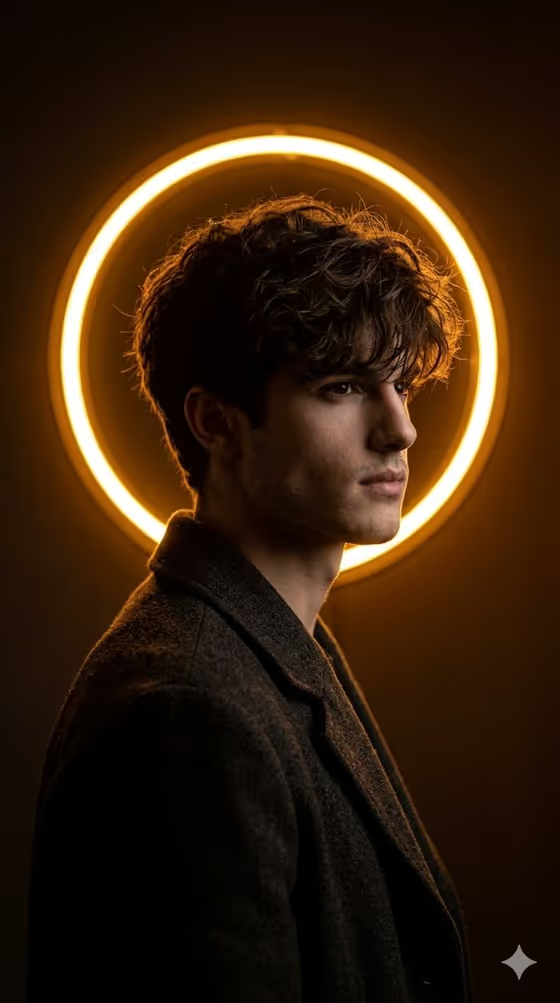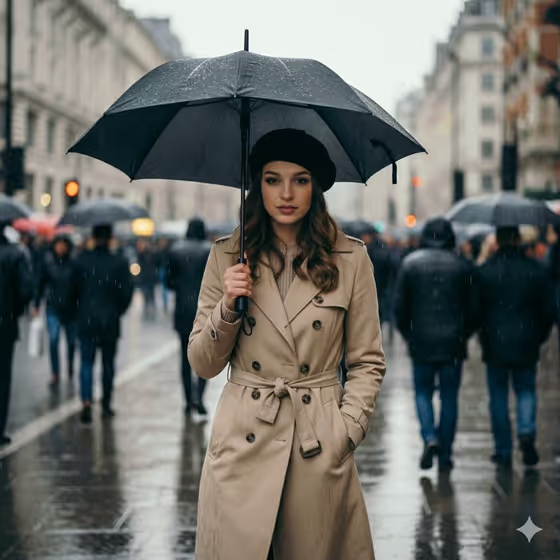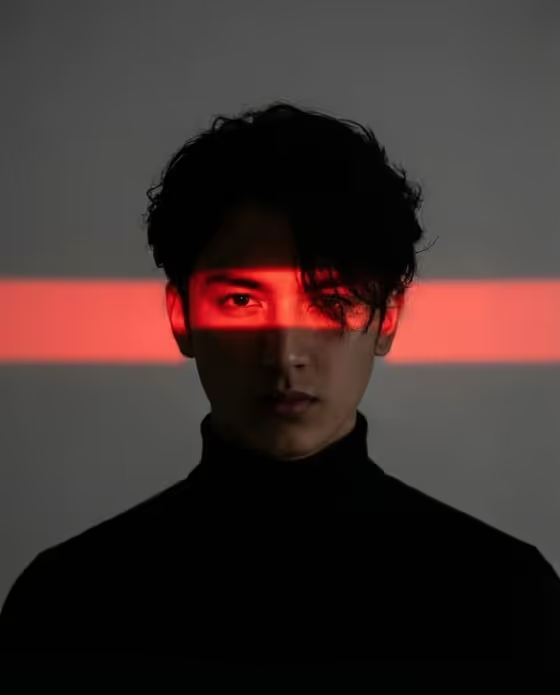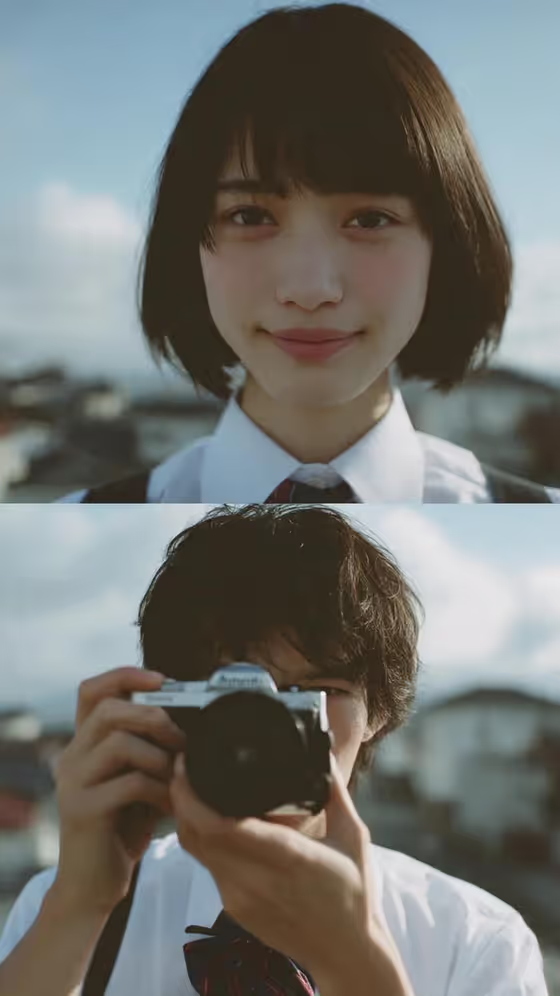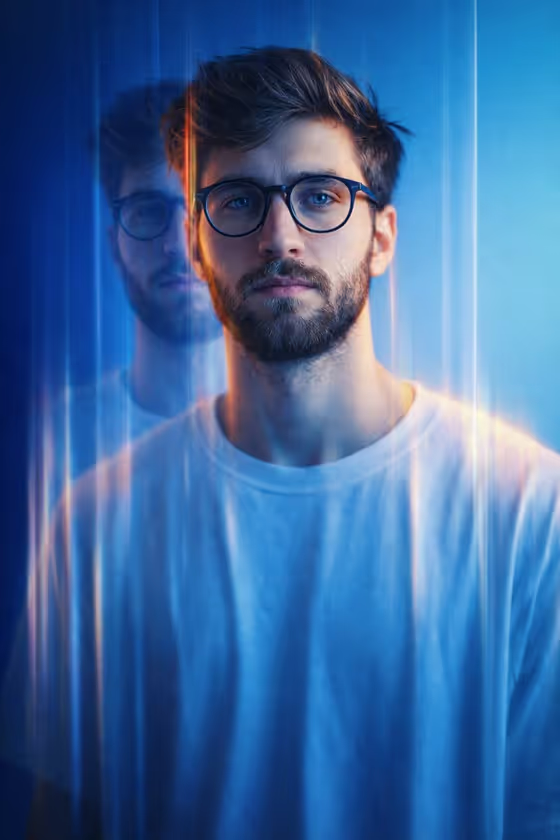
Blue Motion Portrait turns a portrait into a dreamy multi-exposure image. A sharp central face is surrounded by ghosted duplicates and vertical light streaks over a blue gradient backdrop, with cool blue light and warm orange edge highlights, as in the cover image.
It suits anyone who wants an editorial, moody profile picture or creative portrait with a futuristic, digital-youth feel. The output is a 3:4 image, which works well for portrait-oriented frames.
What works best as input
- Upload a clear photo of the person you want in the portrait. A face that is well lit and in focus gives the template a sharp subject to keep at the center while the blur and ghosting build around it.
- Pick a photo where the face is fully visible and not covered by hair, hands or heavy shadow. The finished look uses a neutral, introspective expression, so a calm photo is a natural fit.
- Use a half-length or head-and-shoulders shot if you can. The template builds a half-length portrait with an oversized white T-shirt, so a photo that shows the shoulders gives it more to work with.
- In the first field, you can keep the default idea of the person in your reference, or describe the subject in words if you prefer. The field accepts either text or a photo.
How to use it
- Open the Blue Motion Portrait template in Phosphene.
- In the field labeled "person in my reference portrait subject", upload your photo or describe the person, for example "the person in my reference".
- In "Pose and scene", choose how the portrait should be framed, such as an intimate close portrait, a full-body editorial frame, or the default half-length cinematic option.
- Generate the image, then review it. Check that the face stays sharp in the center and that the ghosting and streaks sit around it, and adjust your inputs if you want a different result.
Tips for a better result
- Try the different Pose and scene options to change how much of the person appears. A close portrait puts more focus on the eyes, while a wider frame shows more of the T-shirt and streaks.
- Start with a photo that has simple, even lighting. The template adds its own blue wash and orange edge highlights, so a clean base photo lets those colors read clearly.
- Run the same photo with different framing choices and compare them. Small changes in framing can shift the balance between sharp detail and ghosted motion.
- If you describe the subject in text instead of uploading, be specific about the person so the portrait feels intentional rather than generic.
Common mistakes
- Uploading a photo where the face is small, blurry or partly hidden. The template needs a clear face to keep sharp at the center of the blur.
- Expecting a bright, smiling look. The template is built around a neutral, introspective expression with softly lit eyes, so lively expressions may not carry over.
- Leaving the first field vague or empty. It is required, so say who the portrait is of or upload a reference.
FAQ
Do I have to upload a photo?
The first field accepts either a photo or a text description of the subject. Uploading a photo of the person is the way to base the portrait on a real reference.
What does the finished image look like?
It is a blue-toned portrait with multi-exposure ghosting and vertical light streaks over a blue gradient background. The person wears an oversized white T-shirt, with cool blue light and orange or yellow highlights along the edges.
What size is the output?
The template produces a single image in a 3:4 aspect ratio.
What does Pose and scene change?
It controls how the portrait is framed, with options like a half-length cinematic portrait, an intimate close portrait, a full-body editorial frame, or an environmental candid frame. The blue motion look stays the same.