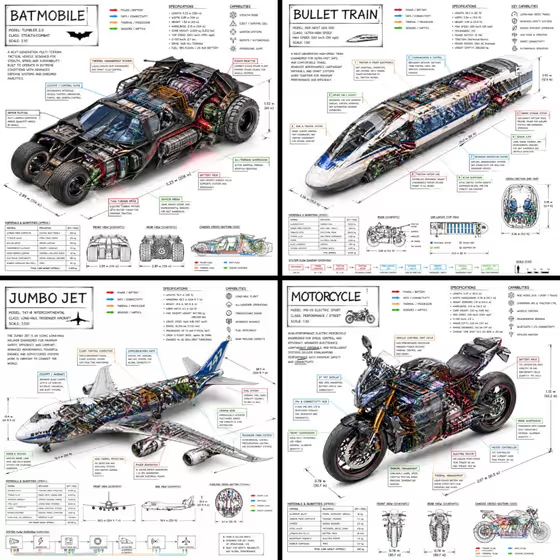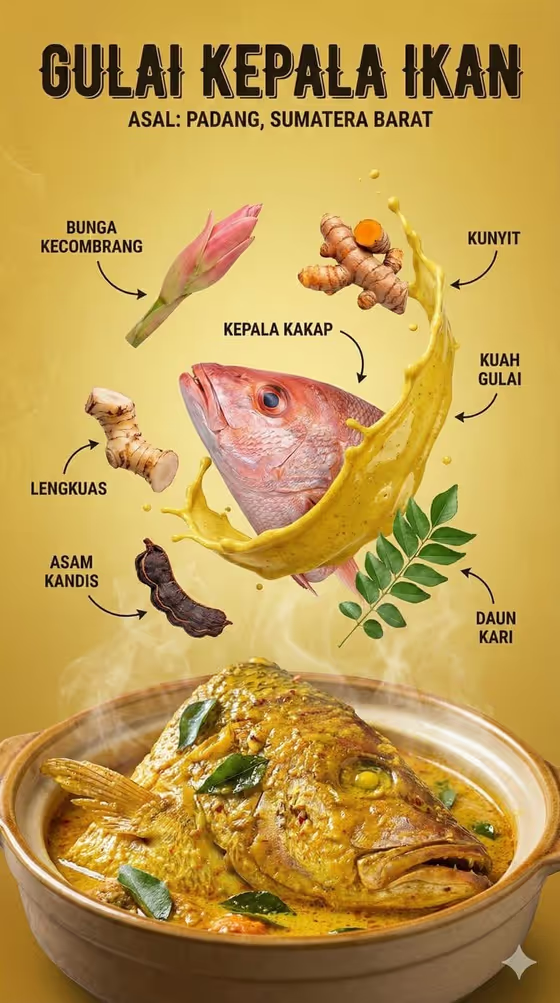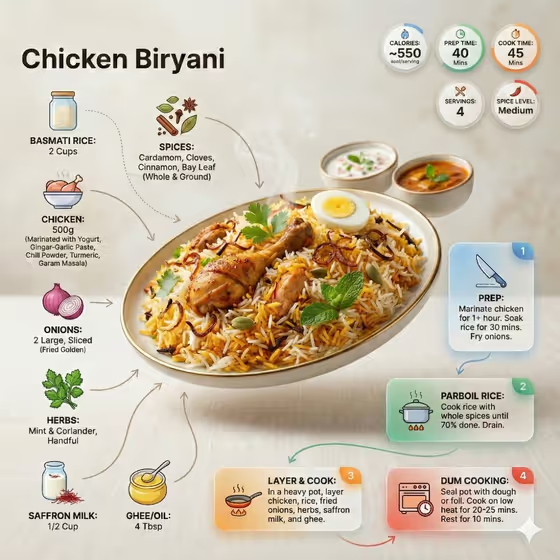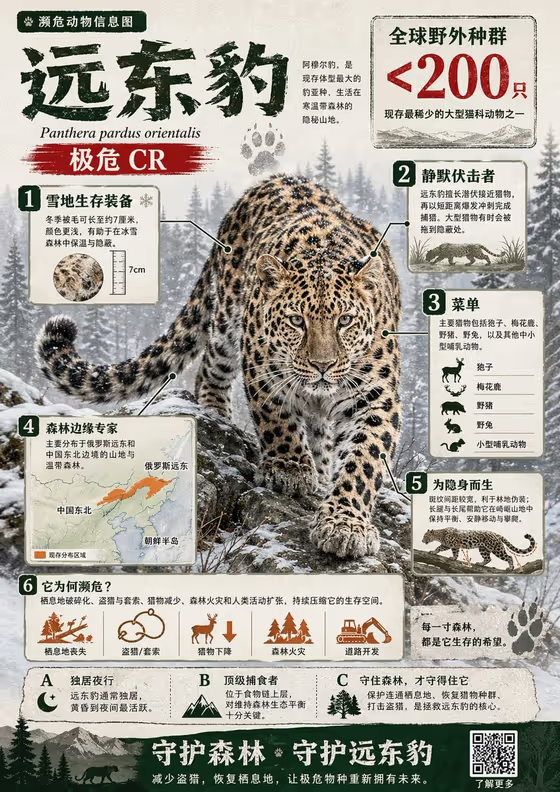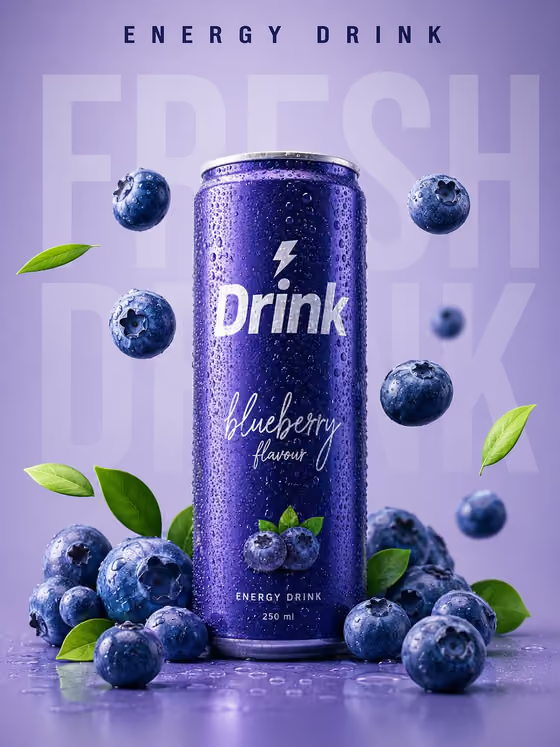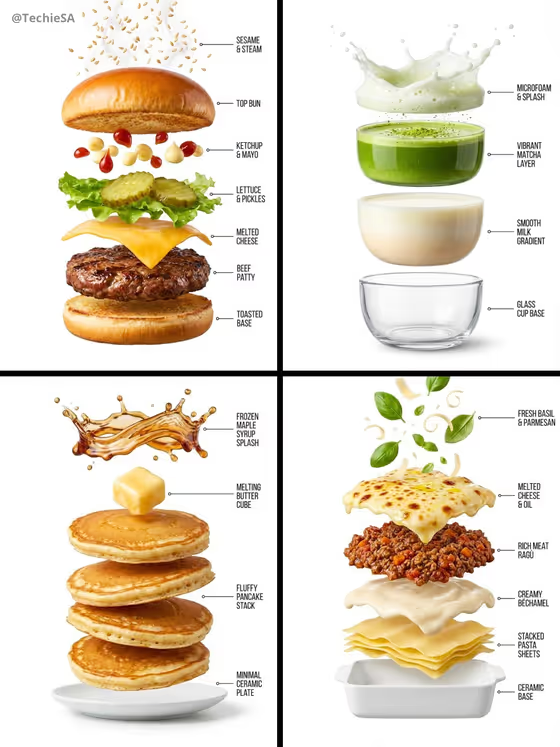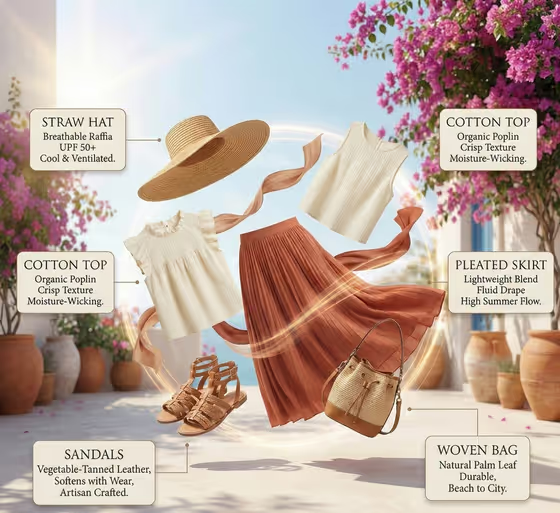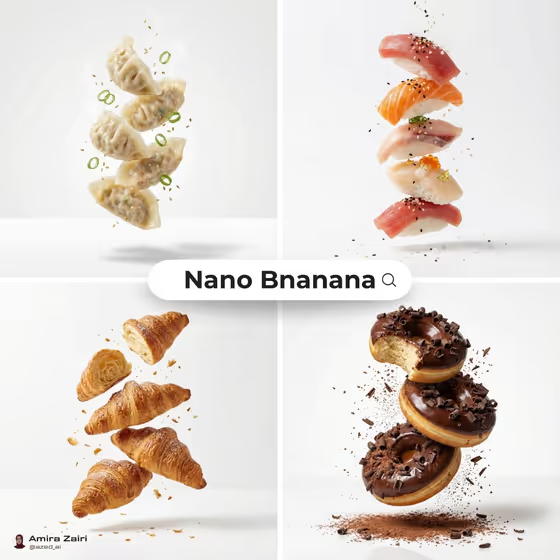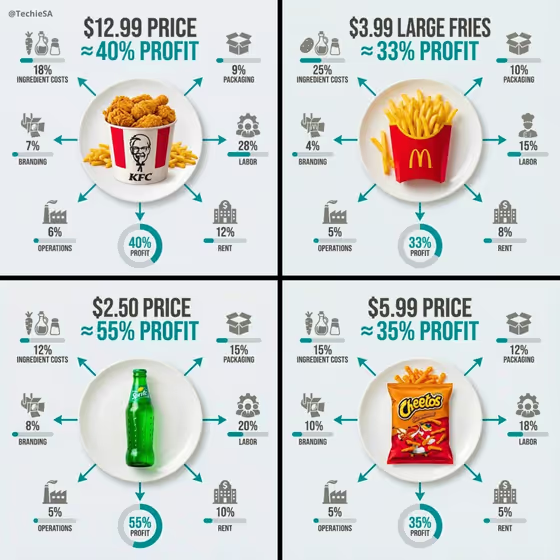
Ultra-Clean Top-Down 90 Flat turns a single product into a flat-lay infographic. Your subject sits on a white plate in the center, and arrows, icons, percentage bars and pie rings flow outward to show where the money goes: ingredients, packaging, labor, rent, branding, operations and profit.
It suits anyone who wants a quick cost-breakdown visual for a food item, a drink or another branded product, such as creators making explainer posts, small business owners, or students illustrating how pricing works. The result comes out as a 3:4 image, with a large price or profit callout as the main focal point.
What works best as input
- Use a clear photo of one product on its own (a bag of snacks, a bottle, a box of fries). A single, easy-to-read subject gives the center plate a clean focal point.
- Pick a shot where the packaging and logo are fully visible and well lit, since the template preserves the look of your source and places it on the plate.
- Avoid busy backgrounds, hands, or several items in one frame, which can compete with the infographic elements.
- If you describe the product instead of uploading a photo, be specific in the Featured product or object field, like 'a premium beverage bottle', rather than a vague word like 'drink'.
How to use it
- Open the Ultra-Clean Top-Down 90 Flat template in Phosphene and upload a photo of your product, or type a short description into the Featured product or object field.
- Set the Creative direction field. The examples include Clean editorial, Cinematic dramatic, Playful colorful and Quiet premium, or you can write your own short direction.
- Generate the image and wait for the 3:4 result to appear.
- Review the output: check that the product looks right on the plate, the callouts are readable, and the layout feels balanced. Adjust your inputs and run it again if needed.
Tips for a better result
- Try different Creative direction values on the same product. Clean editorial keeps the look minimal, while Playful colorful pushes the infographic toward brighter accents.
- Name the product with a clear category word (beverage bottle, snack bag, fries) so the cost breakdown around it makes sense for that kind of item.
- Keep your direction short and concrete. One or two descriptive words usually guide the style better than a long sentence.
- Generate a few versions of the same product and compare them, since layout and icon choices can vary between runs.
Common mistakes
- Uploading a cluttered photo with several products, which makes the central plate and the surrounding infographic harder to read.
- Leaving the Featured product or object field vague, so the breakdown does not match what the item actually is.
- Expecting exact, factual numbers. The percentages in the image are illustrative visuals, so check any figures before sharing them as real data.
FAQ
Do I need to upload a photo?
No. The Featured product or object field accepts either a photo or a text description, so you can type something like 'a premium beverage bottle' instead.
What size is the image?
The output is a still image in a 3:4 aspect ratio.
Are the cost percentages accurate?
They are part of a generated design, meant to look like a clear infographic. Treat them as illustrative and verify any numbers before presenting them as fact.
What goes in the Creative direction field?
A short style cue such as Clean editorial, Cinematic dramatic, Playful colorful or Quiet premium. It sets the overall mood of the infographic.