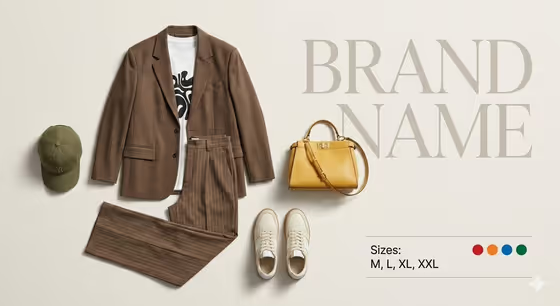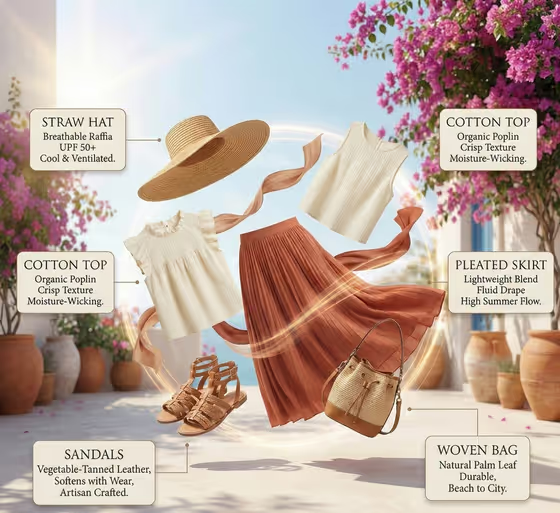
Exploded Summer Outfit turns a coordinated summer look into a labeled, exploded-view infographic. The pieces float apart in a loose circle, each with a short callout about its fabric or material, set against a bright Mediterranean-style terrace with warm neutral tones of ivory, terracotta, sand and soft tan.
It suits fashion creators, small clothing or accessory brands, and anyone who wants an editorial-style outfit breakdown for a lookbook, a product post or a mood board. The output is a single 3:4 image.
What works best as input
- The first field, "coordinated summer outfit product or object", accepts either a written description or a photo reference. Use whichever describes your outfit most clearly.
- If you upload a photo, pick one that shows the garments or product clearly, with good light and little clutter, so the pieces are easy to read.
- If you type instead, name the items and their colors or fabrics, for example a short list of the pieces you want floating in the layout.
- Keep the description to one coherent outfit. The layout is built around a single coordinated set, so mixing unrelated styles can make the arrangement feel scattered.
- The placeholder "a coordinated summer outfit" works as a safe starting point if you just want to see the layout first.
How to use it
- Open the Exploded Summer Outfit template in Phosphene.
- In "coordinated summer outfit product or object", describe your outfit or upload a reference photo.
- Choose an option under "Product presentation" to set how the infographic is framed, such as a clean studio hero or an annotated product breakdown.
- Generate the image, then check the 3:4 result for the floating pieces, callout text and overall color mood before saving or running it again.
Tips for a better result
- Try different "Product presentation" options on the same outfit. Each one changes how the composition is framed while the exploded circular style stays the same.
- Be specific about colors. The template leans toward ivory, terracotta, sand and soft tan, so outfit colors in that range will blend most naturally.
- Run the same input more than once and compare. Small differences in arrangement and callout wording can make one version a better fit.
- Since the layout works well for products, you can describe a single item or small accessory set instead of a full outfit to get a focused breakdown.
Common mistakes
- Packing too many unrelated items into the first field. A clear, coordinated set gives a cleaner circular layout.
- Using a cluttered or dark photo reference, which makes it harder for the pieces to be read accurately.
- Expecting exact readable text in the callouts. Treat the labels as a design element and check them before using the image publicly.
FAQ
Do I have to upload a photo?
No. The main field accepts a text description, and a photo is an optional alternative if you want to show your exact outfit or product.
What shape is the finished image?
It is a 3:4 portrait image, which suits posts and lookbook pages.
What does the Product presentation field do?
It sets how the result is framed, with options like a clean studio hero, dynamic material interaction or an annotated product breakdown, without changing the core exploded-view look.
Can I use it for something other than clothing?
The field is labeled for a product or object, so you can describe other coordinated items. The built-in direction is written for a summer outfit, so fashion and accessories will match it best.