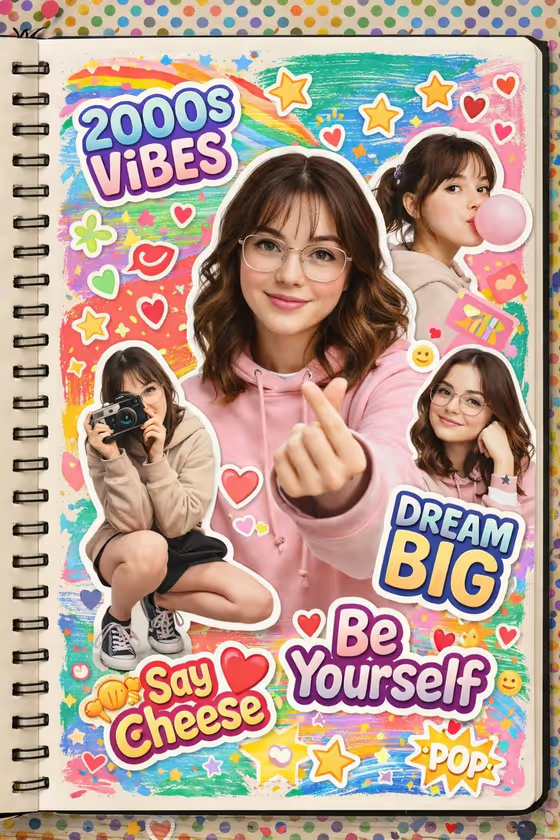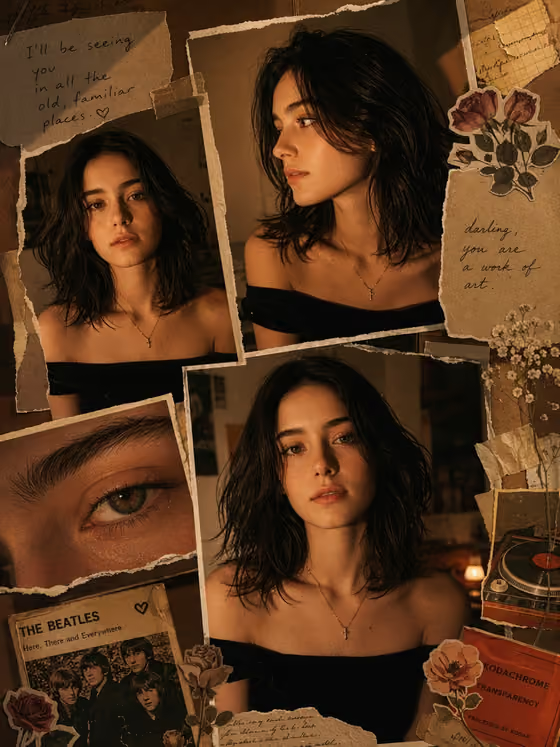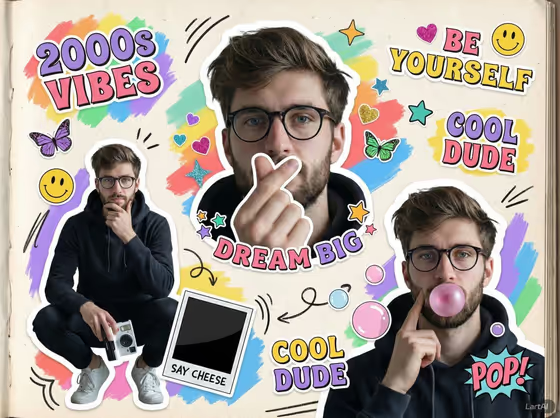
This template builds a Y2K-style scrapbook collage portrait. You get several cutout poses of the same person set over a doodled, rainbow-painted sketchbook page, with bubbly sticker text, stars, hearts, butterflies and smiley faces scattered around.
It suits anyone who wants a playful 2000s-flavored profile image, a themed social post or a personalized keepsake. The output is a 3:4 image, so it works well as a portrait-format post or print-style graphic.
What works best as input
- The template asks for 2 or more photos, so give it a few different shots of the same person. Varied poses (a close-up, a full-body shot, a playful expression) give the collage more cutouts to work with.
- Use clear, well-lit photos where the face and body are not cropped awkwardly. Clean edges around the person make the sticker-style cutouts look better.
- For the Portrait subject field, you can attach a photo or describe the person in text (the placeholder suggests something like a confident adult). Keep any description respectful and simple.
- For Featured product or prop, attach a photo or describe an object, such as a vintage camera or a bottle. The cover example shows a person holding a small instant camera, so props that can be held work naturally.
- For Rendered name or title, type text only (this field does not take a photo). Short, bold words such as AURORA or YOUR NAME suit the chunky sticker lettering.
How to use it
- Open the Y2K Scrapbook Collage Portrait template in Phosphene.
- Fill in Portrait subject by adding your photos or describing the person, then fill in Featured product or prop with a photo or a short description of the object.
- Type your text in Rendered name or title. Keep it short so it reads clearly as a sticker.
- Generate the image, then check the collage for face likeness, prop placement and readable text. Adjust your inputs and run it again if something is off.
Tips for a better result
- Pick a prop that fits the 2000s mood, like a retro camera or a bubbly accessory, so it blends with the doodles and stickers.
- Try different titles. A one or two word phrase in capitals matches the style of the sticker lettering in the cover example.
- Swap in different photos between runs, for example a smiling shot versus a thoughtful pose, to see how the cutout poses change.
- If you describe the subject in text instead of using a photo, add specific details like clothing or accessories to guide the look.
Common mistakes
- Uploading only one photo or very similar photos, which leaves little variety for the multiple cutout poses.
- Writing a long sentence in Rendered name or title. Long text is harder to fit into sticker lettering and may come out unclear.
- Using dark, blurry or heavily cropped photos, which makes the cutouts and likeness less reliable.
FAQ
How many photos do I need?
The template is set up for 2 or more photos, so add at least two shots of the same person.
Can I type a description instead of uploading a photo?
For Portrait subject and Featured product or prop, you can describe them in text or use a photo. Rendered name or title is text only.
What does the final image look like?
Based on the cover, it is a sketchbook-style page with rainbow paint strokes, doodles, stickers and several cutouts of the same person in different poses.
What size is the result?
The template outputs a 3:4 image.