FLUX 3 Image Is Now in Phosphene
FLUX 3 Image renders the exact words you ask for and edits one detail while keeping the rest. See real results, the prompts behind them, and the credit cost of 1K, 2K and 4K.
AI-assisted draft. Reviewed and edited by the Phosphene team before publication.
FLUX 3 Image is now in Phosphene. It is strong at exact lettering and at precise edits that change one thing and keep everything else. Name the words and their place in the prompt, list what an edit must keep, and explore at 1K before paying for 4K.
On this page
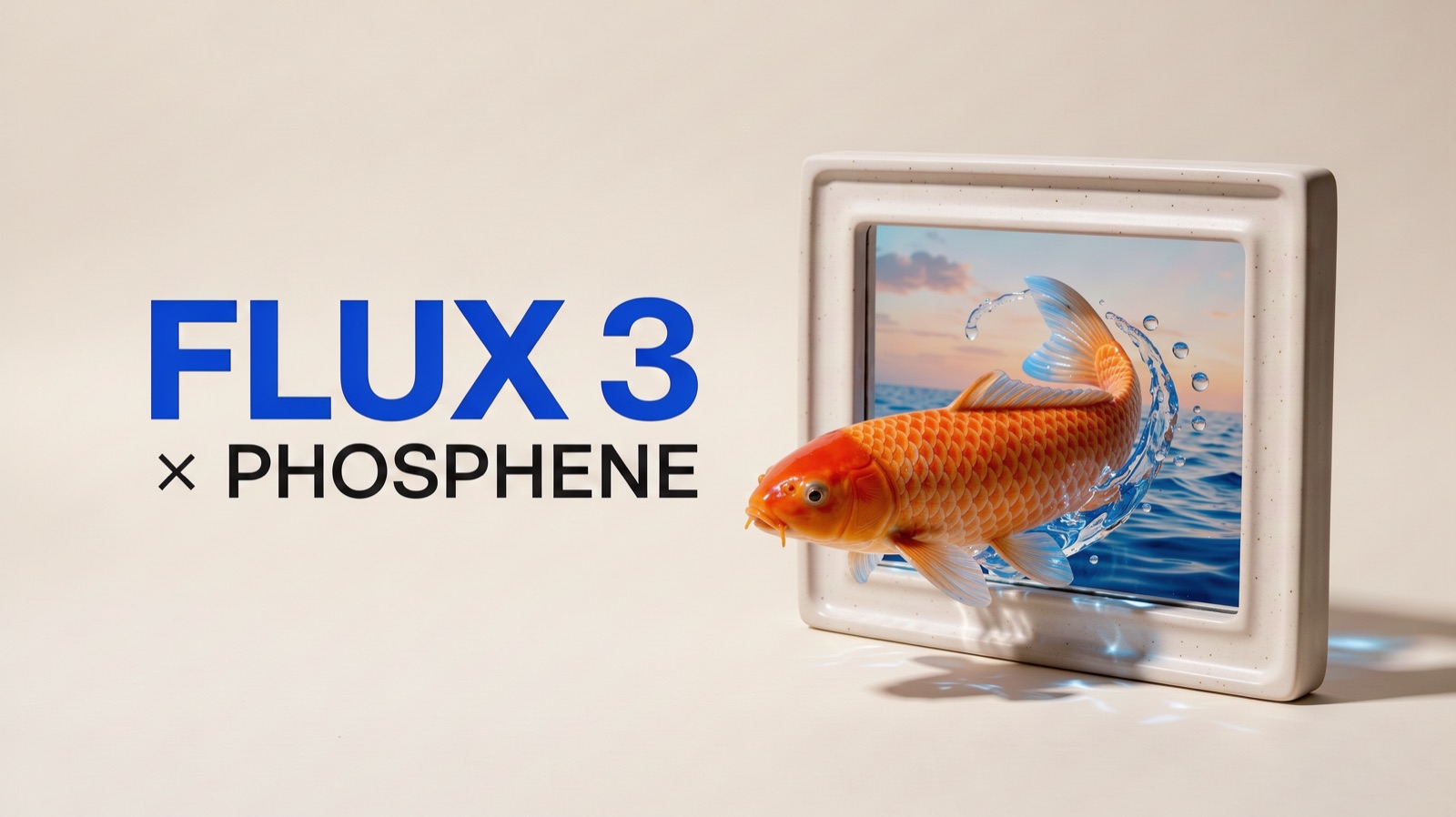
Black Forest Labs released FLUX 3 Image on October 1, and it is now in Phosphene. In our first runs, two things stood out. It writes the exact words you ask for, and it can change one detail of a picture while leaving everything else alone.
Below are the real results, the prompts behind them, and what each resolution costs.
Lettering that comes out right
The cover of this article came from one FLUX 3 Image request. The headline, the "×" and the word PHOSPHENE are part of the generated image. We did not set any type afterward.
What made it work was treating the prompt like a layout brief, not a list of style words. Condensed, ours said:
A 16:9 editorial cover on a warm ivory background. On the left, two lines of flat printed lettering: "FLUX 3" in very large bold cobalt-blue grotesk, and "× PHOSPHENE" below it in smaller charcoal capitals. Use a multiplication sign, not the letter X. These are the only words in the image. On the right, an orange koi swims out of a ceramic picture frame that holds a sunrise sea. The fish never enters the text area.
Three habits carry over to any text-led image:
- Quote the exact words and say they are the only words. This stops the model from inventing taglines.
- Give the text its own zone ("on the left", "top third") and say the subject stays out of it.
- Spell out the tricky characters. A "×" and an "X" look alike to a model unless you name the difference.
It is still a generator, not a typesetter. Read every word before you publish a design.
Change one thing, keep the rest
Editing is where FLUX 3 Image is most useful. Here, the left image is a FLUX 3 Image result. The right one was made from it with a single edit request:
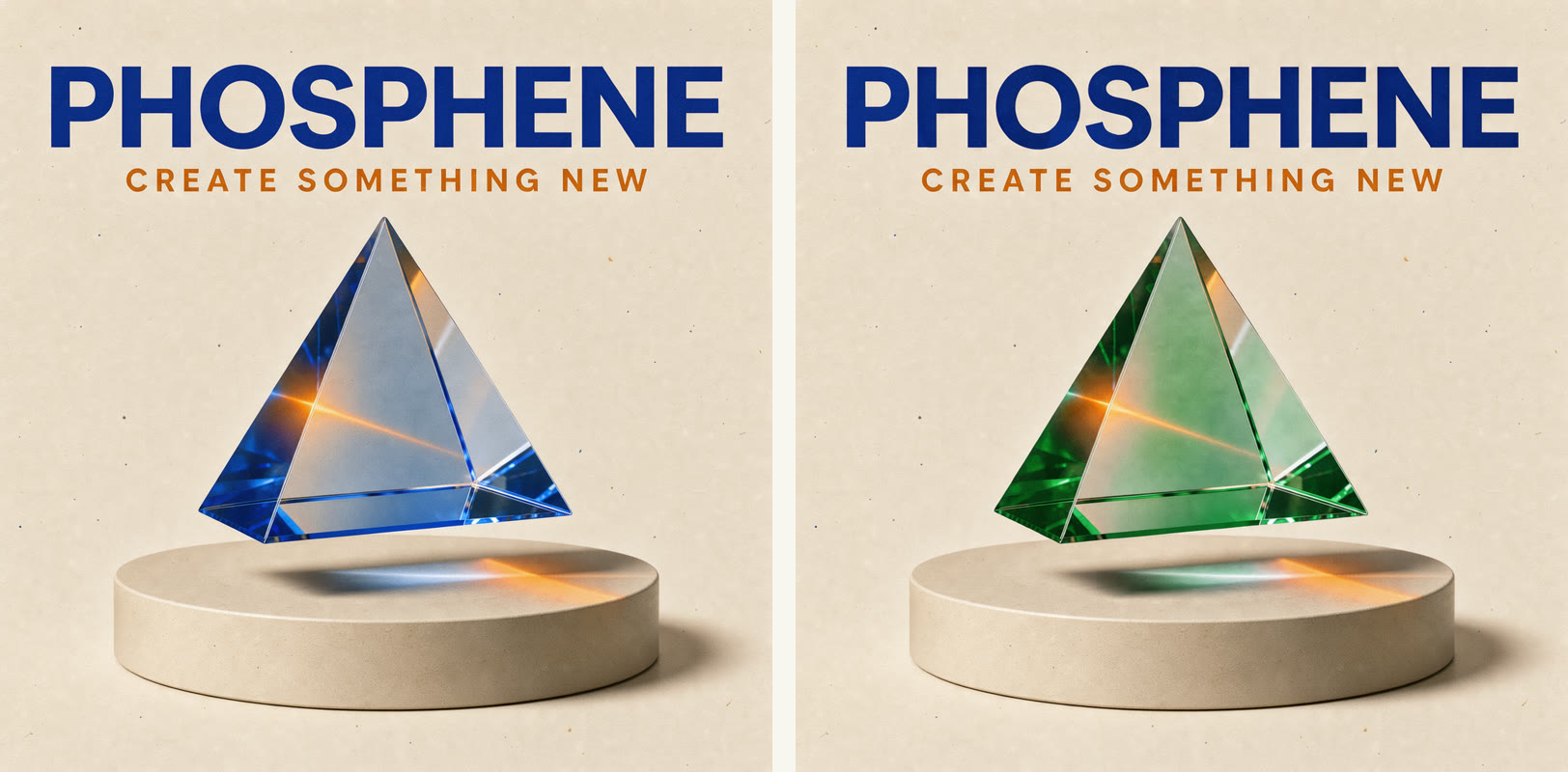
Before and after, both generated with FLUX 3 Image at 1K. Only the prism changed.
The full edit prompt:
Keep the PHOSPHENE title, CREATE SOMETHING NEW subtitle, typography, layout, cream pedestal, and print texture unchanged. Change only the translucent cobalt-blue glass prism into a translucent emerald-green glass prism, still refracting warm orange light.
The lettering, the pedestal, the paper grain and even the orange light inside the prism survived. The pattern is simple: list what must stay, then name the one change. A prompt that only says "make the prism green" leaves the rest of the image open to reinterpretation.
You can also combine up to ten references in one edit. Give each a job instead of letting the model average them:
Use image 1 for the composition and framing. Use image 2 as the product. Use image 3 for the lighting and color palette. Replace the product in image 1 with the product from image 2, keeping the camera angle and background.
In Phosphene, image 1 sets the framing, so put your layout reference first.
Choose the resolution for the next step
| Output | Credits per image |
|---|---|
| 1K | 10 |
| 2K | 20 |
| 4K | 122 |
4K costs about twelve times as much as 1K, so find the idea first. Try prompts and edits at 1K. Move to 2K or 4K once the composition and lettering are right and you need the detail for print or a large screen.
Each generation returns one image. 4K can take several minutes. The quote on the Generate button is always the price for your current settings.
What this release does not include
Black Forest Labs also shows bounding-box placement and other controls that Phosphene does not expose yet. There is no box or mask tool for FLUX 3 Image here. Describe placement in words instead: "in the left third", "behind the subject", "keep clear of the headline". As the examples above show, that goes a long way.
Make your first image
Open Simple Create, choose Image, and pick FLUX 3 Image in the model picker. Write the words you want on the image, or attach the picture you want to change. Start at 1K, check the quote, and generate.
Then keep what works, and change one thing at a time.