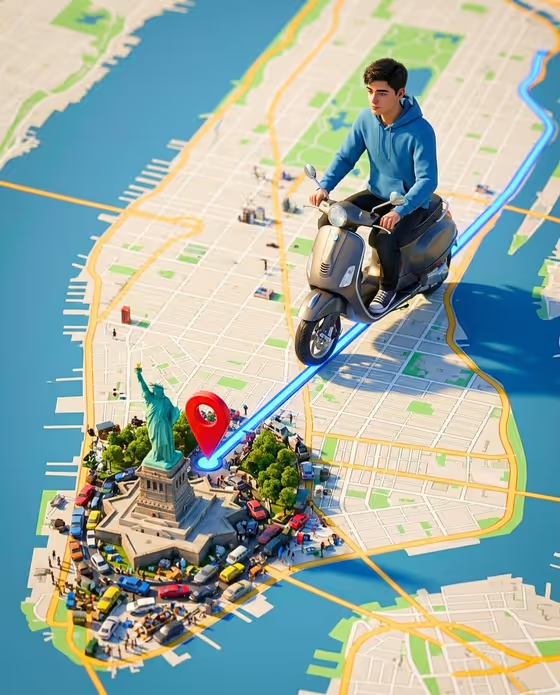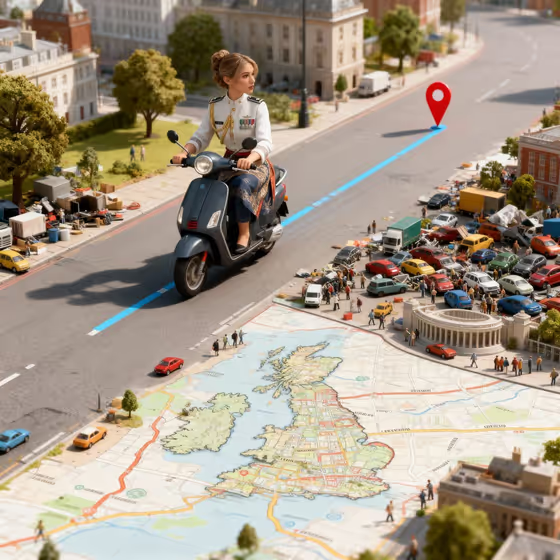
This template builds a vertical, surreal 3D scene in which a character based on your reference photos rides a scooter along a glowing blue GPS route toward a red destination pin. Below the rider, a stylized map spreads across the ground, and miniature streets, cars and tiny people fill the scene around the route.
It suits people who want a playful, shareable portrait with a travel or navigation theme. You provide who rides, what prop or product appears, and a creative direction, and the template handles the map, route and miniature-world styling.
What works best as input
- Upload at least two clear photos of the same person. The template asks for 2 or more, and varied angles give the likeness more to work from.
- Pick photos where the face is sharp, evenly lit and unobstructed. Avoid heavy filters, sunglasses, hats that cover the hairline, or strong shadows across the face.
- In the Portrait subject field, you can add a photo or a short description such as "a joyful young woman". Use a photo if you want your actual likeness in the scene.
- For Featured product or prop, either upload a photo of the object or describe it in a few words, for example "a sculptural fashion accessory". A simple, recognizable object reads best in a busy miniature scene.
- Only use photos of yourself or people who have agreed to appear in the image.
How to use it
- Open the Use The Same Face template in Phosphene.
- Fill in Portrait subject by adding your photos (2 or more) or describing the person, then fill in Featured product or prop with a photo or a short description.
- Choose a Creative direction, such as Clean editorial, Cinematic dramatic, Playful colorful or Quiet premium.
- Generate the image, then check the result for likeness, the rider on the blue route line and the red pin ahead. Adjust your inputs and generate again if something is off.
Tips for a better result
- Try different Creative direction options with the same photos. Playful colorful and Quiet premium will push the scene in very different moods.
- Keep the prop description short and concrete. "A compact consumer device" gives a clearer result than a long list of details.
- Use your most flattering, front-facing photo as the first upload, since the scene shows the character facing the camera.
- If the likeness feels slightly off, swap in sharper or better-lit reference photos rather than adding more of the same.
Common mistakes
- Uploading only one photo or photos of different people, which weakens the likeness.
- Writing a long, complicated prop description, which can clutter an already detailed miniature scene.
- Using low-resolution, blurry or heavily edited selfies, which makes the face harder to reproduce accurately.
FAQ
How many photos do I need?
The template asks for 2 or more photos of the person who should appear as the rider.
What does the output look like?
It is a vertical 9:16 image: a 3D-style miniature scene with a scooter rider on a blue GPS route heading toward a red destination pin, above a stylized map.
Can I describe the person instead of uploading a photo?
The Portrait subject field accepts a description, but the template is built around reusing the same face from your photos, so photos give the closest likeness.
What does Creative direction change?
It sets the overall mood of the image, with options like Clean editorial, Cinematic dramatic, Playful colorful and Quiet premium.