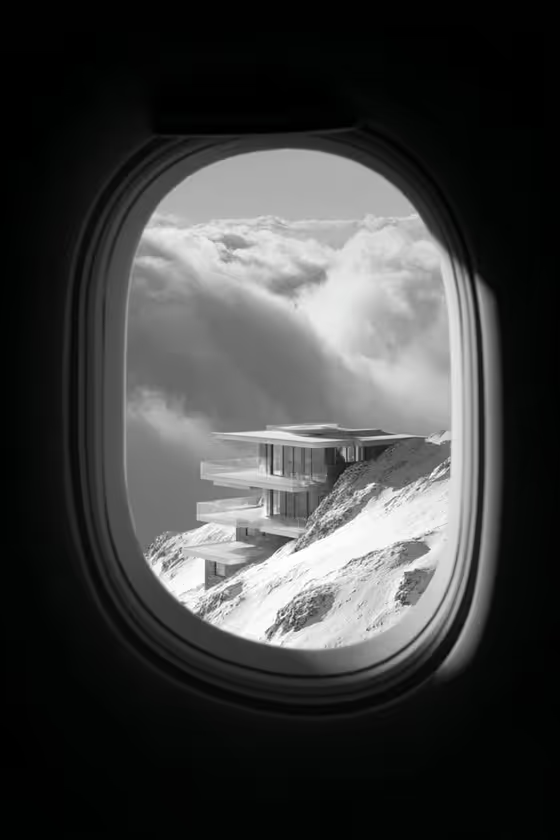
Airplane Window Future makes a monochrome image of a single scene seen straight through an airplane window, with the oval frame dark around the edges and clouds and snow beyond the glass. The cover shows the idea: a modern house perched on a snowy slope, small and isolated in the distance.
It suits anyone who wants a moody, editorial-looking black-and-white picture of an imagined place, building or subject. You only describe what appears outside the window, and the template handles the framing, the window, the camera angle and the film-like look.
What works best as input
- This template has one text field, View beyond the window, and it does not take a photo upload. Everything comes from what you type.
- Name one clear subject. The example "a futuristic house on a snowy mountain" works because it gives a single focal point and a setting that fits the snow and cloud backdrop.
- Keep the description short and concrete, such as a building, a landscape feature, a lone figure or a small group. The scene is shown isolated above snow and clouds, so one strong subject reads better than a crowded list.
- Think in terms of shape and contrast, since the result is black and white. Pale structures against dark rock, or a dark figure against bright snow, tend to separate well.
- If you want people in the scene, the field's examples suggest phrasing like "a solitary figure in the same composition" or "a small group in the same composition".
How to use it
- Open the Airplane Window Future template in Phosphene.
- In the View beyond the window field, type what you want to see outside the glass, or start from one of the example prompts and edit it.
- Generate the image. The output is a 3:4 portrait frame, a straight-on view through the window.
- Review the result. If the subject is too small, too busy or not what you pictured, adjust your description and generate again.
Tips for a better result
- Try the field's example ideas as starting points, then change one detail at a time (the building type, the terrain, the number of figures) to see how the scene shifts.
- Pick a subject that suits a distant, slightly-from-above view. Architecture, vehicles and landscapes tend to fit the cover's sense of scale.
- Keep the wording calm and specific. Describing materials or shapes, like glass and concrete terraces, gives the monochrome tones more to work with.
- Generate a few variations of the same idea with small wording changes and compare which framing and subject size you like best.
Common mistakes
- Describing the window, the sky or the black-and-white look yourself. The template already fixes the airplane window, the clouds and the monochrome style, so your text should only cover the view beyond it.
- Listing many unrelated subjects in one field. The scene is meant to read as one isolated subject above snow and clouds, so a crowded description can muddy it.
- Expecting to upload a photo. This template only has a text field, so the subject has to be described in words.
FAQ
Can I upload my own photo for this template?
No. The only field is View beyond the window, and it accepts text, not a photo.
Will the image be in colour?
No. The template is set to render in black and white with film-like texture and strong tonal contrast.
What should I write in the field?
Describe one subject and its setting, such as "a futuristic house on a snowy mountain". You can also use the example ideas like a solitary figure or a small group.
What shape is the result?
The image comes out in a 3:4 portrait ratio, showing the scene straight-on through the window rather than from a side angle.