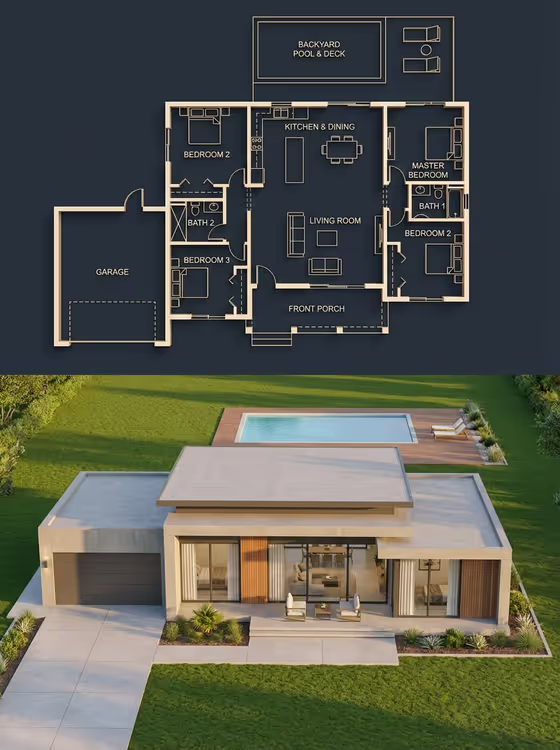
This template builds a vertical split image. The top half is a dark navy architectural blueprint with thin beige lines, room labels and furniture outlines. The bottom half is a photoreal render of the matching single-story house, with the garage, pool deck and room volumes lined up to the plan.
It suits designers, real estate marketers, home builders and anyone who wants to present a house concept as a plan and a finished render in one image. You describe the object and an information focus, and the template handles the paired layout..
What works best as input
- The Object field accepts text and also accepts a photo reference. If you have an exact visual to follow, such as a house exterior or a layout sketch, add it there instead of relying on words alone.
- If you type a description, name the key features you want to see in both halves, such as number of bedrooms, a garage on one side, a pool and deck, and a front porch.
- Mention materials and style in plain terms (for example smooth concrete, wood panel accents, large glass windows, flat layered roof) so the render and the blueprint stay consistent.
- Keep the Information Focus field short and specific. It is text only, so write the emphasis you want, such as room layout and circulation, or components and functional details.
- Avoid cramming conflicting ideas into one field. One clear house concept gives the plan and the render a better chance of matching.
How to use it
- Open the Architecture Section Reveal template in Phosphene.
- Fill in the Object field with a short description of the house, or add a photo reference if you have one.
- Write your Information Focus, for example the layout details or the variation style you want to see.
- Generate the image, then compare the blueprint on top with the render below to check that rooms, garage, pool and windows line up.
Tips for a better result
- Try the example directions in Information Focus, such as a refined classic or a bold contemporary variation, to get a different mood from the same house idea.
- Name the rooms you care about in the Object field (bedrooms, living room, kitchen and dining, bathrooms) so the labels on the blueprint reflect them.
- If the first result drifts, regenerate with a clearer description of where the garage and pool sit relative to the main house.
- Use a photo reference in the Object field when you want the render to follow a specific facade rather than a generic modern home.
Common mistakes
- Describing a product or something that is not a building. This template is built around a house plan and its render, so vague object text can weaken the match between the halves.
- Asking for many contradictory styles at once, which makes the blueprint and the finished house harder to keep consistent.
- Skipping layout details like garage side, pool location or porch, then expecting both halves to agree on them.
FAQ
Can I upload a photo?
Yes, but only in the Object field, which accepts a photo reference as well as text. The Information Focus field is text only.
What format does the result come in?
It is a single 3:4 vertical image with the blueprint on top and the render below.
Will the blueprint and the house match exactly?
The template is directed to keep rooms, garage, pool and windows aligned between both halves. Check the result and regenerate with clearer layout wording if something looks off.
What should I put in Information Focus?
A short note about what to emphasize or which variation you want, such as layout details, a classic variation or a contemporary one.