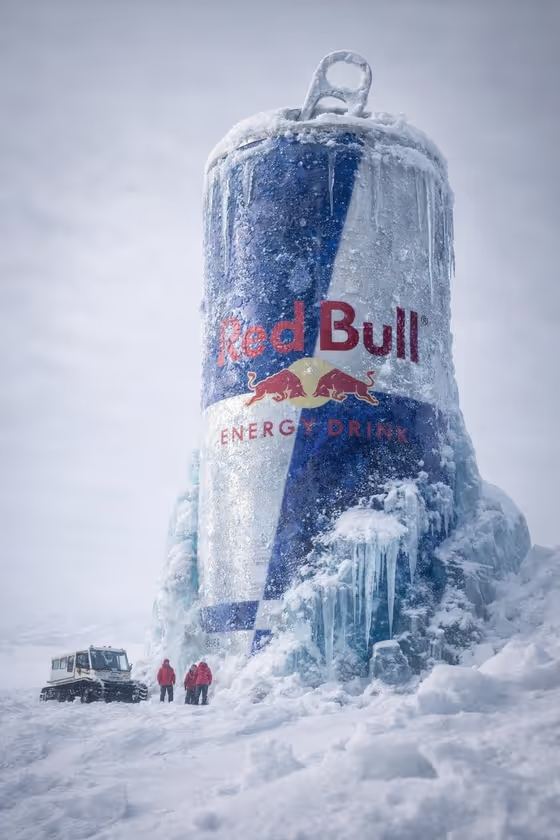
Arctic Energy Monument turns an energy drink can into a towering frozen landmark. The can stands upright, partly sunk into thick blue ice and snow, with frost on its surface, icicles hanging off it and snow packed into the pull tab. Small figures and a tracked vehicle at the base show how huge it is.
It suits product shots, campaign mockups and concept art for energy drinks or sports beverages. The output is a 2:3 portrait image, so it works well for tall formats like posters and phone-first layouts.
What works best as input
- The Energy product or can field accepts either a short text description or a reference photo. If you upload one, pick a clear shot of the can or package that you want to appear in the scene.
- Choose a photo where the can is upright, evenly lit and not cropped, so the label colors and shape carry over cleanly.
- Keep the logo and label text as readable as possible in your source. The template aims to preserve branding through the frost, so sharper input gives it more to work with.
- If you describe the product instead, mention the main colors and can type, like the examples 'black-and-green energy can' or 'silver sports beverage can'.
- Avoid busy backgrounds or several cans in one photo, since the template is built around a single can as the monument.
How to use it
- Open the Arctic Energy Monument template in Phosphene.
- In Energy product or can, describe your product or upload a matching reference photo of it.
- In Scale story, choose how you want the tiny figures shown, for example scientists and a snowcat or climbers and a tracked vehicle.
- Generate the image, then check that the label, the icy base and the small figures all read clearly. Adjust your inputs and run it again if something is off.
Tips for a better result
- Try different Scale story options to change the mood. Research tents and red parkas gives a different feel than climbers with a tracked vehicle.
- Describe distinctive colors in your product text, such as 'blue performance drink can', so the monument keeps a recognizable look against the white and blue ice.
- Use a reference photo when brand accuracy matters, and a text description when you are exploring concepts.
- Generate a few versions and compare how the frost covers the logo, then keep the one where the branding stays most readable.
Common mistakes
- Uploading a small, blurry or heavily angled can photo, which leaves the label soft and hard to preserve under the frost effect.
- Writing a vague product description like 'energy drink' with no colors or can details, which gives the result little to match.
- Expecting a different format or scene. The template is fixed to a vertical can in polar ice with overcast daylight, so it will not switch to other settings.
FAQ
Do I have to upload a photo?
No. The product field accepts a text description, and you can also upload a matching reference photo if you prefer.
Will my can's logo stay readable?
The template is written to preserve readable branding through the frost and ice texture, but clearer input and a distinctive label help the result.
What can I choose for the people and vehicles in the scene?
The Scale story field lets you pick the group that establishes scale, such as scientists and a snowcat, climbers and a tracked vehicle, or research tents and red parkas.
What shape is the final image?
It is a 2:3 portrait image, suited to tall layouts.