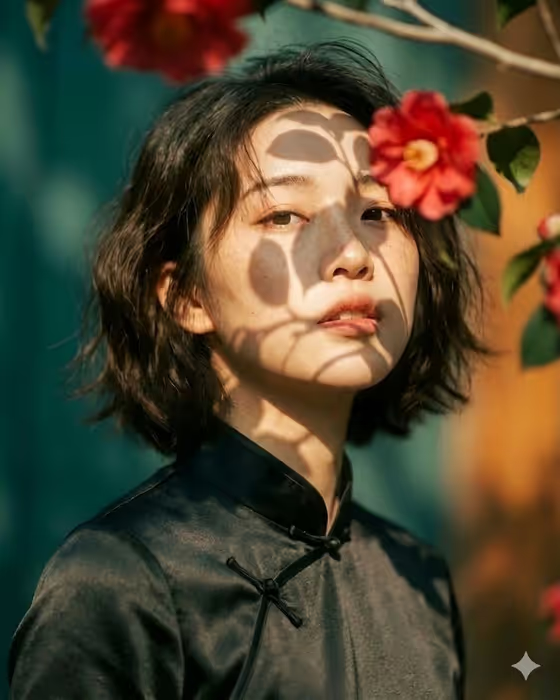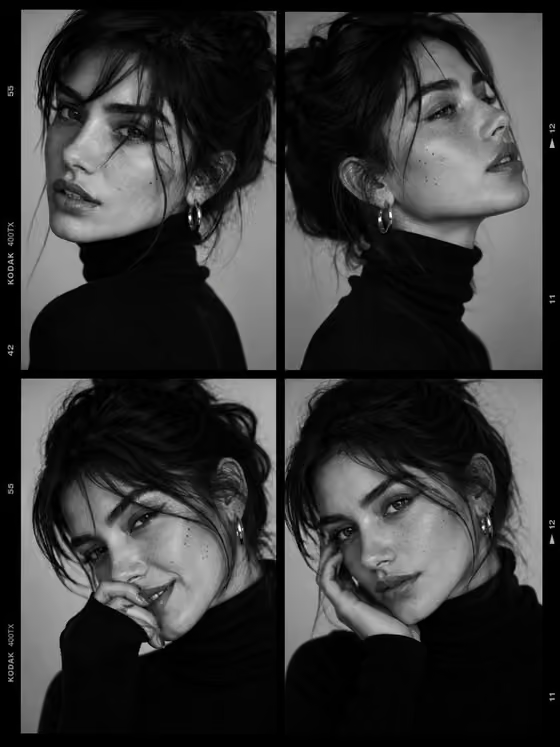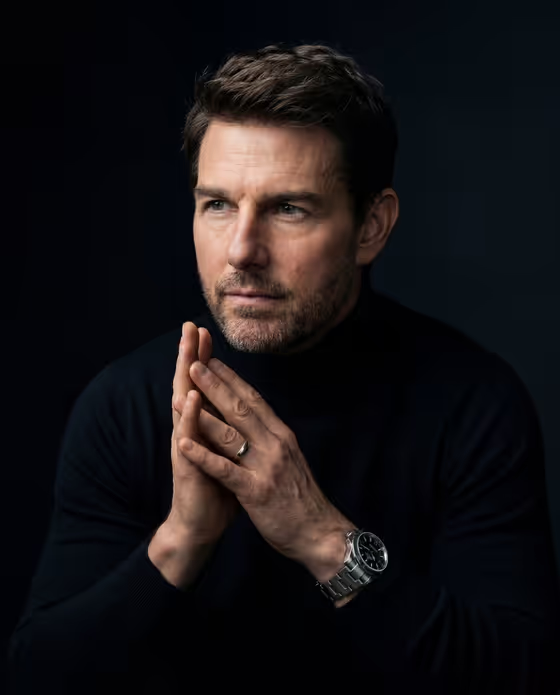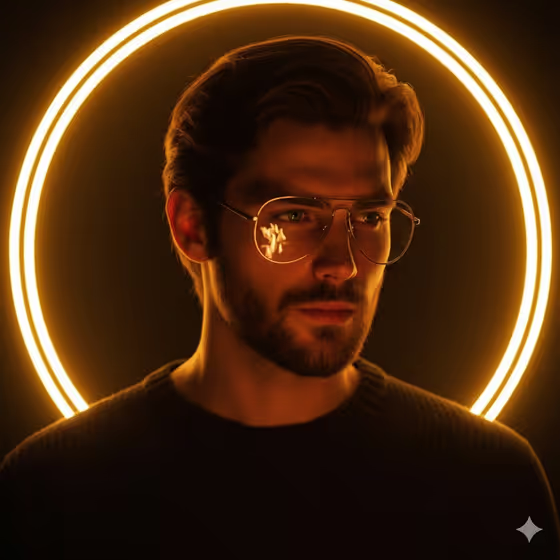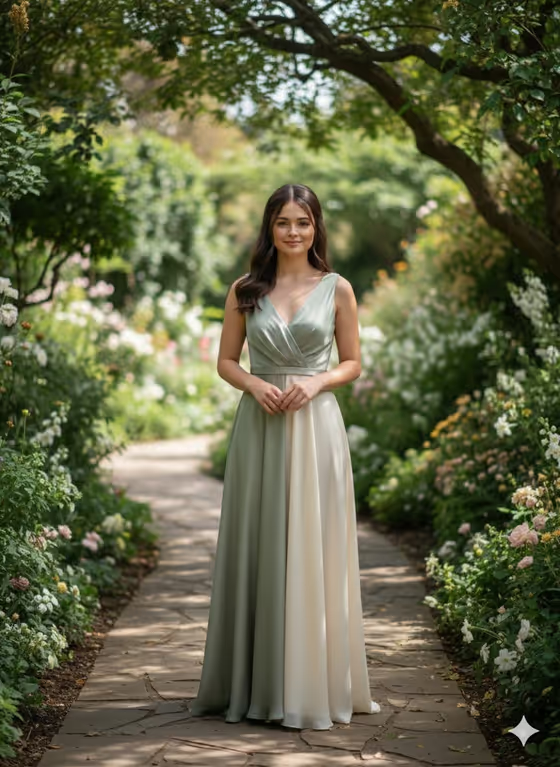
Botanical Garden Chiffon Portrait turns your subject into a calm, soft-lit portrait on a stone path in a lush garden. The result is a 3:4 image with a full-length figure in an elegant gown, natural daylight filtering through leaves, and a shallow depth of field that keeps the focus on the person.
It suits anyone who wants a timeless editorial look: personal portraits, profile images, or a quiet fashion-style scene. You fill in two fields, Subject and Outfit, and the template handles the garden setting, lighting and camera style.
What works best as input
- The template asks for 2 or more photos, so add several clear shots of the same person. Face-forward images in good light, with the face and hair visible, give the most reliable likeness.
- Use photos where the person is not wearing sunglasses, a hat or a heavy filter, so the face stays easy to read.
- Mix a close-up with a half or full-length shot if you can, so the body proportions come through as well as the face.
- Only upload photos of yourself or people who have agreed to it, and keep the subject an adult.
- If you describe the Subject in text instead, keep it short and concrete, like the placeholder 'A confident adult' or 'A poised creative professional'.
How to use it
- Open the Botanical Garden Chiffon Portrait template in Phosphene.
- In the Subject field, describe the person or add your reference photos so the portrait matches them.
- In the Outfit field, describe the look you want or add a reference photo of the outfit. The template's own direction leans toward a muted sage or soft ivory chiffon gown, so your Outfit entry works best when it fits that elegant tone.
- Generate the image, then review the 3:4 result. Check the face, the fabric and the garden background, and adjust your fields if something is off.
Tips for a better result
- Keep the Outfit description simple and fabric-focused, such as a flowing gown with a soft drape, since the template aims for realistic fabric weight and gentle movement.
- Try the example Subject phrases, like 'A poised creative professional', to shift the personality while the calm garden mood stays the same.
- If a first result misses the likeness, swap in a sharper, better-lit reference photo and generate again.
- Stay away from shimmer, sequins or fantasy details in your Outfit entry, because the template is built around natural, understated clothing.
Common mistakes
- Uploading only one photo or low-resolution, dark images. The template expects 2 or more photos, and weak references make the likeness less consistent.
- Writing a very busy Outfit description with many accessories. The portrait is designed around one clear focal point, so a cluttered outfit can work against the quiet editorial feel.
- Describing a different location or lighting in the text fields. The garden path and soft daylight are already set by the template.
FAQ
How many photos do I need to upload?
The template asks for 2 or more photos. More clear images of the same person generally give the model more to work from.
Can I use text instead of a photo?
Yes. Both the Subject and Outfit fields are text fields that also accept a photo, so you can describe either one or add a visual reference.
What shape is the final image?
The output is a single image in a 3:4 portrait aspect ratio.
Can I change the garden setting?
The garden, daylight and camera style are fixed by the template. You control the Subject and the Outfit.