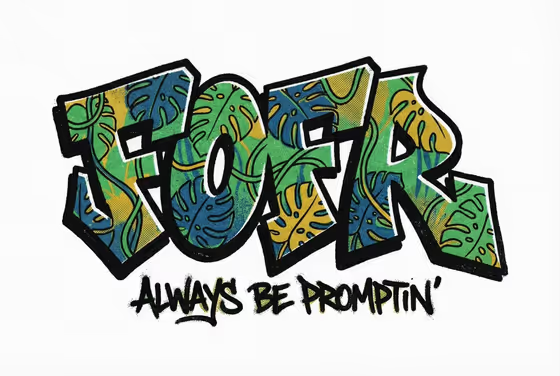
Botanical Graffiti Word turns a word of your choice into a bold, hard-edge graffiti wordmark with monstera leaves woven through the letters. The result is a riso-style print with stippled texture, a thick black outline and a pure white background, like the cover image.
It suits anyone who wants a punchy typographic piece: a name, a slogan, a brand mark, a poster headline or a sticker concept. You only fill in two fields, the word and the print colors, and the template handles the lettering and leaf pattern.
What works best as input
- This template has no photo upload. Both fields are text or a choice, so your input is the word and the colors, nothing else.
- In the Word field, keep it short. The examples are FOFR, GROW and WILD, and short words give the hard-edge letters room to show off the leaf pattern.
- Type the word the way you want it to read. The cover uses capitals, so an all-caps word is a safe starting point.
- For Print colors, pick a set that gives the print real contrast. Combinations like Emerald, black and coral or Cobalt, lime and black keep the leaf fill readable against the black contour.
How to use it
- Open the Botanical Graffiti Word template in Phosphene.
- Type your word into the Word field, for example GROW or WILD.
- Choose a Print colors option, such as Cobalt, coral and leaf green, or one of the other listed sets.
- Generate the image, then check that the letters read clearly and the leaf motif and colors look the way you wanted.
Tips for a better result
- Try the same word with different Print colors. Magenta, orange and navy gives a very different mood from Emerald, black and coral.
- Compare short words of different lengths. A four-letter word tends to fill the frame more boldly than a long one.
- If the lettering is hard to read, simplify the word or go back to a color set with a stronger dark tone to hold the outline.
- Generate a few times with the same inputs and pick the version where the leaves sit best inside the letterforms.
Common mistakes
- Entering a long phrase or sentence. The hard-edge lettering works best on a single short word, so long text can get cramped or misread.
- Choosing colors that are all similar in lightness. Without contrast the leaf pattern and letter shapes blur together.
- Expecting a photo-based result. There is no image input here, so the Word field should contain only the text you want lettered.
FAQ
Can I upload a photo or logo to use as the word?
No. This template has no photo slot. You type the word in the Word field and choose colors in Print colors.
What kind of word works best?
A short, single word in capitals, like the FOFR, GROW and WILD examples. Short words keep the graffiti letters bold and legible.
Will the background always be white?
The template's direction keeps the print vibrant against pure white, with a thick black contour and riso-style stippling, as in the cover image.
Can I choose my own colors?
Print colors is a choice field with listed options, such as Emerald, black and coral or Cobalt, lime and black. Pick the set that suits your word.